

Adding AU plugins to Logic Pro can greatly enhance your music production capabilities. AU plugins are third-party plugins that can be used within Logic Pro to add new effects or instruments. However, installing these plugins can be a bit tricky if you’re not familiar with the process. In this article, we’ll walk you through the steps to add AU plugins to Logic Pro.
The first step in adding AU plugins to Logic Pro is to locate the plugin files on your computer. These files are typically in the form of a .component or .vst file. Once you’ve located the files, you can then add them to Logic Pro by placing them in the appropriate folder. This folder can be found by navigating to ~/Library/Audio/Plug-Ins/Components.
It’s important to note that not all AU plugins will work with Logic Pro, so it’s important to do your research before purchasing or downloading a plugin. Additionally, it’s important to make sure that the plugin is compatible with your version of Logic Pro. By following these steps and doing your research, you can easily add new and exciting AU plugins to your music production toolkit.
Understanding AU Plugins
AU plugins, or Audio Units plugins, are software components that can be used to add new features and effects to audio applications. In Logic Pro, AU plugins can be used to add new instruments, effects, and processors to your audio tracks.
AU plugins are designed to work with a wide range of audio applications, and are available from a variety of developers. They can be used to add new sounds and effects to your audio tracks, and can help you to create unique and interesting compositions.
There are many different types of AU plugins available, including synthesizers, samplers, effects processors, and more. Each type of plugin is designed to provide a different set of features and capabilities, and can be used to achieve different results in your audio tracks.
When selecting AU plugins to use in Logic Pro, it is important to choose plugins that are compatible with your version of Logic Pro, and that are designed to work with your specific hardware and operating system. You should also consider the features and capabilities of each plugin, and choose plugins that are well-suited to your specific needs and preferences.
AU plugins can be a powerful tool for enhancing your audio tracks in Logic Pro. By understanding the different types of plugins available, and selecting plugins that are well-suited to your specific needs, you can create unique and interesting compositions that stand out from the crowd.
Getting Started with Logic
Logic Pro is a professional digital audio workstation (DAW) designed for music production, recording, and mixing. It is widely used by musicians, producers, and sound engineers around the world. If you are new to Logic Pro, here are a few things to get you started.
System Requirements
Before you start using Logic Pro, you need to make sure that your computer meets the minimum system requirements. Logic Pro requires a Mac running macOS 10.13.6 or later with at least 4GB of RAM. It is recommended to have at least 8GB of RAM for optimal performance.
Installation
To install Logic Pro, you can purchase it from the Mac App Store or download it from the Apple website. Once you have downloaded the installer, double-click on it and follow the instructions to install Logic Pro on your computer.
Interface
When you launch Logic Pro, you will see the main interface, which is divided into several areas. The main areas are the main window, the control bar, and the inspector. The main window is where you will do most of your work, such as arranging tracks, editing MIDI and audio, and mixing. The control bar contains transport controls, tempo and time signature settings, and other useful tools. The inspector displays information about the selected track or region.
Creating a Project
To create a new project in Logic Pro, go to File > New. You can choose from several project templates, such as empty project, singer-songwriter, electronic, and more. You can also create a custom project with your own settings. Once you have created a new project, you can start adding tracks, recording MIDI or audio, and adding plugins.
Adding Plugins
Logic Pro comes with a variety of built-in plugins, such as EQ, compressor, reverb, and more. You can also add third-party plugins, such as AU plugins, to enhance your sound. To add a plugin, go to the mixer or the inspector and click on the plugin slot. Choose the plugin you want to add from the menu and adjust its settings as needed.
That’s it for the basics of getting started with Logic Pro. With these tips, you should be able to start creating your own music in no time.
Adding AU Plugins in Logic
Downloading AU Plugins
Before you can add Audio Units (AU) plugins to Logic, you need to download them. There are many websites where you can find free and paid AU plugins. Make sure to download only from reputable sources to avoid any potential issues with your computer.
Installing AU Plugins
Once you have downloaded the AU plugins, you need to install them on your computer. To do this, follow these steps:
- Locate the downloaded AU plugin file on your computer.
- Double-click on the file to begin the installation process.
- Follow the on-screen instructions to complete the installation process.
Enabling AU Plugins in Logic
After you have installed the AU plugins, you need to enable them in Logic. To do this, follow these steps:
- Open Logic and create a new project or open an existing one.
- Click on the “Mixer” button to open the mixer window.
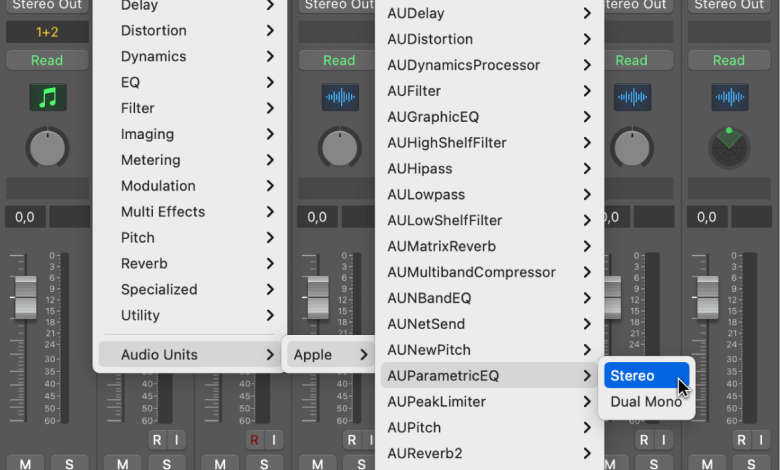
- Click on the “Inserts” button on the channel strip where you want to add the AU plugin.
- Click on the “Audio Units” category in the drop-down menu.
- Select the AU plugin you want to use from the list of available plugins.
- The AU plugin will now be added to the channel strip.
Troubleshooting Common Issues
Sometimes, you may encounter issues when adding AU plugins to Logic. Here are some common issues and their solutions:
- AU plugin not showing up in Logic: Make sure that the plugin is installed correctly and is compatible with your version of Logic.
- Logic crashes when adding an AU plugin: This can happen if the plugin is not compatible with your system or if there is a conflict with another plugin. Try removing the plugin and reinstalling it, or try using a different plugin.
- AU plugin is not working correctly: Check the plugin settings to make sure that everything is set up correctly. You can also try removing the plugin and reinstalling it.
By following these steps, you can easily add AU plugins to Logic and enhance your music production capabilities.
Optimizing AU Plugins Usage
When it comes to using Audio Units (AU) plugins in Logic Pro, it’s important to optimize their usage to ensure that your projects run smoothly and efficiently. Here are some tips to help you get the most out of your AU plugins:
-
Choose quality over quantity: It’s tempting to load up your projects with as many plugins as possible, but this can quickly lead to performance issues. Instead, focus on using high-quality plugins that are essential to your project.
-
Use the right plugin for the job: Each plugin has its own unique purpose and sound. Make sure you’re using the right plugin for the job to get the best results.
-
Disable unused plugins: If you’re not using a plugin in your project, disable it to free up resources. This can help prevent performance issues and crashes.
-
Organize your plugins: Keep your plugins organized in a way that makes sense to you. This can help you find the right plugin quickly and easily, and can also help prevent clutter in your workspace.
-
Adjust plugin settings: Many plugins have settings that can be adjusted to optimize their performance. Take the time to explore these settings and adjust them as needed to get the best results.
-
Use automation: AU plugins can be automated to create dynamic changes in your project. This can be a great way to add interest and movement to your music.
By following these tips, you can optimize your usage of AU plugins in Logic Pro and create high-quality music that sounds great.
Conclusion
adding Audio Units (AU) plugins to Logic Pro is a straightforward process. With a few simple steps, you can expand your plugin library and enhance your audio production capabilities.
To summarize, you can add AU plugins to Logic Pro by following these steps:
- Download the desired AU plugin from a reputable source.
- Install the plugin on your computer.
- Open Logic Pro and navigate to the Preferences menu.
- Select the Audio Units Manager option.
- Click on the “+” button to add a new plugin.
- Locate the installed AU plugin and select it.
- Click on the Rescan button to update the plugin list.
It is important to note that not all AU plugins are compatible with Logic Pro. Make sure to check the plugin’s system requirements and compatibility before downloading and installing it.
Furthermore, it is recommended to only download and install plugins from trusted sources to avoid any potential security risks.
By adding new AU plugins to your Logic Pro setup, you can unlock new creative possibilities and improve the quality of your audio productions. So go ahead and explore the vast world of AU plugins to take your music to the next level!


