

If you’re a music producer or a singer, you’ve probably heard of Antares Auto-Tune. It’s a software that corrects pitch and intonation in vocals or instruments. Auto-Tune is widely used in the music industry, and it has become an essential tool for many producers and artists. However, if you’re new to Auto-Tune, it can be overwhelming to use it for the first time.
In this article, we will guide you through the basics of using Antares Auto-Tune. We’ll cover everything from installing the software to adjusting the settings for the best results. You’ll learn how to use Auto-Tune to correct pitch, create vocal effects, and achieve the desired sound. Whether you’re a beginner or an experienced user, this guide will help you get the most out of Antares Auto-Tune.
Understanding Auto-Tune
Auto-Tune is a pitch-correction software that has become an essential tool for music production. It was developed by Antares Audio Technologies and has been used by countless artists in various genres. The software is available in different versions, including Auto-Tune Pro, Auto-Tune EFX, and Auto-Tune 5.
Auto-Tune works by analyzing the pitch of a recorded audio signal and correcting it to the nearest semitone. It can be used to correct pitch inaccuracies in vocals, instruments, and even entire mixes. Auto-Tune is often used to create the “robotic” or “electronic” vocal effect that has become popular in modern music.
Auto-Tune Pro is the most advanced version of the software, offering real-time pitch correction, advanced vibrato control, and a range of other features. Auto-Tune EFX is a simpler version designed for use in live performances. Auto-Tune 5 is an older version of the software that is no longer supported but is still used by some producers.
In addition to pitch correction, Auto-Tune also includes a range of other tools, including a vocoder, talk box, and synthesizer. These tools can be used to create a variety of effects and textures in a mix.
Auto-Tune uses DSP (digital signal processing) technology to analyze and correct pitch. It can be used as a standalone plugin or as part of a larger digital audio workstation (DAW). With its ease of use and powerful features, Auto-Tune has become a staple in the music production industry.
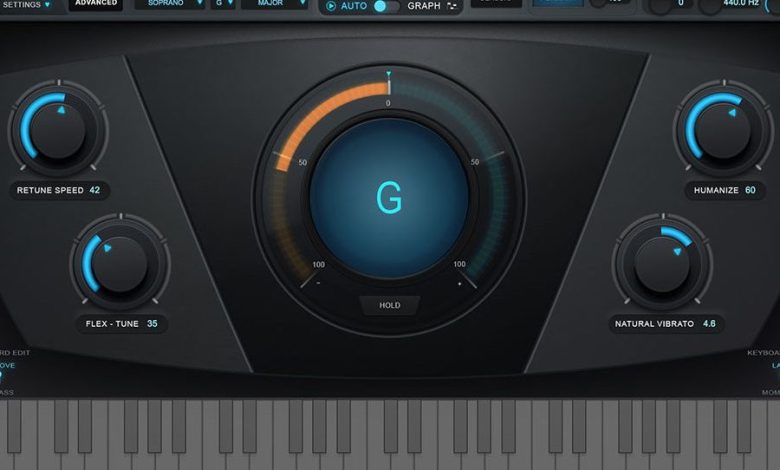
The Antares Auto-Tune software has a user-friendly interface that makes it easy to use. The interface is divided into several sections, each with its own set of controls and options.
Main Window
The main window of the software displays the audio waveform and pitch correction graph. The waveform shows the audio signal, and the pitch correction graph shows the pitch of the audio. You can use the controls in this section to adjust the pitch correction settings.
Pitch Control
The pitch control section allows you to adjust the pitch correction settings for the audio. The controls in this section include the key, scale, retune speed, and humanize settings. The key and scale settings allow you to set the key and scale of the audio, while the retune speed setting allows you to adjust the speed of the pitch correction. The humanize setting adds a natural variation to the pitch correction, making it sound more natural.
Graph Mode
The graph mode section allows you to edit the pitch correction graph manually. You can use the controls in this section to adjust the pitch of the audio manually. The controls include the pitch shift, vibrato, and formant settings. The pitch shift setting allows you to adjust the pitch of the audio, while the vibrato and formant settings allow you to adjust the vibrato and formant of the audio.
Settings
The settings section allows you to adjust the general settings of the software. The controls in this section include the buffer size, sample rate, and output format settings. The buffer size setting allows you to adjust the size of the audio buffer, while the sample rate setting allows you to adjust the sample rate of the audio. The output format setting allows you to choose the format of the output file.
Antares Auto-Tune is a powerful tool for pitch correction and vocal processing. With its user-friendly interface and advanced features, it is easy to use and can help you achieve professional-sounding results.
Setting Up Auto-Tune in Your DAW
Before you can start using Antares Auto-Tune, you need to set it up in your DAW (Digital Audio Workstation). Here’s a step-by-step guide on how to do it:
-
Install Auto-Tune software: If you haven’t already, download and install the Auto-Tune software from the Antares website. Make sure to choose the correct version for your DAW.
-
Open your DAW: Launch your DAW. For this example, we will be using Studio One 3. However, the steps should be similar for other DAWs.
-
Create a new project: Create a new project or open an existing one.
-
Create a new audio track: Create a new audio track by going to the Track menu and selecting “Add Audio Track.”
-
Insert Auto-Tune: Once the audio track is created, insert Auto-Tune by going to the Insert menu and selecting “Antares Audio Technologies” > “Auto-Tune.”
-
Configure Auto-Tune: Once Auto-Tune is inserted, you can configure it by adjusting the settings in the Auto-Tune interface. You can choose the key and scale that you want to use, adjust the retune speed, and more.
-
Record your vocals: With Auto-Tune set up, you can now record your vocals. Make sure to monitor your vocals through the Auto-Tune plugin to ensure that it is working correctly.
That’s it! With Auto-Tune set up in your DAW, you can now start using it to correct and enhance your vocals. Remember, Auto-Tune is a powerful tool, but it’s important to use it tastefully and not rely on it too heavily.
Selecting the Correct Input Type
When it comes to using Antares Auto-Tune, selecting the correct input type is crucial for achieving the desired pitch correction. The input type determines the range of notes that Auto-Tune will be correcting. Here are the three input types available in Auto-Tune:
- Soprano
- Alto/Tenor
- Low Male
It’s important to select the input type that best matches the range of the input signal. Here’s a brief overview of each input type:
Soprano
The Soprano input type is best suited for high-pitched vocals, such as those sung by female singers or male singers with a high range. If you’re not sure whether your vocals fall into the Soprano range, try singing a note that is higher than C5. If you can hit the note without straining, then the Soprano input type is likely the best option for you.
Alto/Tenor
The Alto/Tenor input type is ideal for medium-pitched vocals, such as those sung by most male singers or female singers with a lower range. If you’re not sure whether your vocals fall into the Alto/Tenor range, try singing a note that is between A3 and C5. If you can hit the note without straining, then the Alto/Tenor input type is likely the best option for you.
Low Male
The Low Male input type is best suited for low-pitched vocals, such as those sung by bass singers or male singers with a very low range. If you’re not sure whether your vocals fall into the Low Male range, try singing a note that is lower than A3. If you can hit the note without straining, then the Low Male input type is likely the best option for you.
By selecting the correct input type, you can ensure that Auto-Tune is correcting the right range of notes in your vocal performance. This can help you achieve a more natural and polished sound.
Understanding and Adjusting Retune Speed
Retune Speed is a crucial setting in Antares Auto-Tune software that controls how quickly pitch correction is applied to incoming sound. By adjusting the Retune Speed, you can make the pitch correction more or less noticeable, depending on your needs.
The Retune Speed setting is measured in milliseconds, and it determines how quickly the pitch correction is applied to the incoming sound. A lower Retune Speed value means that the pitch correction is applied more quickly, resulting in a more noticeable effect. A higher Retune Speed value means that the pitch correction is applied more slowly, resulting in a more subtle effect.
If you’re working with a track that has a lot of pitch issues, you may want to set the Retune Speed to a lower value to correct the pitch more aggressively. On the other hand, if you’re working with a track that only has minor pitch issues, you may want to set the Retune Speed to a higher value to correct the pitch more subtly.
It’s important to note that the Retune Speed setting is not a one-size-fits-all solution. You’ll need to experiment with different Retune Speed values to find the setting that works best for your particular track. Additionally, you may want to adjust the Retune Speed setting differently for different parts of the track, depending on the severity of the pitch issues.
the Retune Speed setting in Antares Auto-Tune is a powerful tool for adjusting the pitch correction on your tracks. By understanding how it works and experimenting with different values, you can achieve the perfect balance of pitch correction for your needs.
Using Auto Mode, Graph Mode, and Classic Mode
Antares Auto-Tune offers three different modes for pitch correction: Auto Mode, Graph Mode, and Classic Mode. Each mode has its own unique features and benefits, and choosing the right mode for your project can make a big difference in the final result.
Auto Mode
Auto Mode is the simplest and most automated of the three modes. It’s perfect for beginners who want to quickly and easily correct pitch without getting too deep into the technical details. In Auto Mode, you simply select the key of your song and let Auto-Tune do the rest. It will automatically detect and correct any off-key notes, making your vocals sound smooth and polished.
Graph Mode
Graph Mode is the most advanced and customizable mode of Antares Auto-Tune. It gives you complete control over every aspect of pitch correction, allowing you to fine-tune every note to your exact specifications. In Graph Mode, you can see a visual representation of your vocal performance and manually adjust the pitch of each note using a variety of tools. This mode is ideal for experienced users who want to achieve a specific sound or effect.
Classic Mode
Classic Mode is a hybrid of Auto Mode and Graph Mode, offering a balance between simplicity and control. It’s designed to emulate the sound of vintage pitch correction hardware, giving your vocals a classic, retro feel. Classic Mode is great for users who want a more natural and organic sound, but still want some level of control over the pitch correction process.
choosing the right mode of Antares Auto-Tune depends on your experience level and the specific goals of your project. Auto Mode is perfect for beginners who want a quick and easy solution, while Graph Mode is ideal for experienced users who want complete control over every aspect of pitch correction. Classic Mode is a great option for those who want a more natural sound with a touch of vintage flair.
Exploring the Functions of Auto-Tune
Auto-Tune is a powerful tool that can help you achieve a polished and professional sound in your recordings. Here are some of the key functions of Auto-Tune that you can use to enhance your vocals:
Flex-Tune
Flex-Tune is a feature that allows you to control the amount of pitch correction that is applied to your vocals. With Flex-Tune, you can adjust the pitch correction to be more or less noticeable, depending on the style of music you are creating. This feature is particularly useful for genres like hip-hop and pop, where a more noticeable pitch correction effect is often desired.
Humanize
The Humanize function is designed to add a natural-sounding variation to your vocals, making them sound less robotic and more organic. This feature can be particularly useful when you are working with a vocalist who has a very consistent pitch, or when you want to add a more natural-sounding vibrato to your vocals.
Natural Vibrato
Auto-Tune’s Natural Vibrato feature is designed to add a subtle vibrato effect to your vocals, making them sound more expressive and dynamic. This feature can be particularly useful for genres like jazz and blues, where a more natural-sounding vibrato is often desired.
Auto-Tune is a powerful tool that can help you achieve the perfect sound for your vocals. Whether you are looking to create a polished and professional sound, or you want to add a more natural-sounding vibrato to your vocals, Auto-Tune has the features you need to get the job done.
Creative Applications of Auto-Tune
Auto-Tune is not just for correcting pitch, it can also be used for creative effect. Here are some ways you can use Auto-Tune to enhance your music:
Vocal Enhancing
Auto-Tune is most commonly used to correct pitch in vocals, but it can also be used to enhance the sound of a vocal. By using the “Humanize” function, you can add a subtle amount of pitch variation to the vocal, giving it a more natural sound. You can also use the “Throat Length” function to adjust the timbre of the vocal, giving it a more full-bodied or thin sound.
Creative Applications
Auto-Tune has been used for creative effect in many popular songs. For example, T-Pain is known for his use of Auto-Tune to create a robotic vocal effect. You can experiment with different settings to create your own unique sound. Try using extreme settings to create a distorted or glitchy effect, or use subtle settings to add a touch of pitch correction and enhance the sound of the vocal.
Solo Instruments
Auto-Tune is not just for vocals, it can also be used on solo instruments. You can use it to correct pitch in a guitar solo or add a unique effect to a saxophone solo. Experiment with different settings to find the right sound for your instrument.
Distortion
Auto-Tune can also be used to create a distorted sound. By using extreme settings, you can create a glitchy, robotic effect that can add a unique character to your music.
Console
Auto-Tune can be used in conjunction with a mixing console to add even more creative possibilities. By using the console’s EQ and compression settings, you can shape the sound of the vocal or instrument even further. Experiment with different settings to find the right sound for your music.
Auto-Tune is a versatile tool that can be used for much more than just pitch correction. By experimenting with different settings and creative applications, you can add a unique character to your music and take your sound to the next level.
Famous Uses and Artists
Antares Auto-Tune has become a staple in the music industry and has been used by many famous artists to achieve unique vocal performances. Here are some examples of artists who have used Auto-Tune in their music:
-
T-Pain: T-Pain is known for his heavy use of Auto-Tune in his music, which has become a signature part of his sound. He has even released a song called “Auto-Tune” that pays tribute to the software.
-
Cher: Cher’s hit song “Believe” made Auto-Tune a household name. The song’s producers used Auto-Tune to create a distinctive vocal effect that became a defining feature of the track.
-
Daft Punk: Daft Punk used Auto-Tune on their album “Discovery” to create a robotic effect on their vocals, which added to the futuristic theme of the album.
-
Kanye West: Kanye West has used Auto-Tune on many of his tracks, including “Heartless” and “Love Lockdown.” He has also been known to use the software to create unique vocal effects in his live performances.
Auto-Tune can be used in a variety of ways, from subtle pitch correction to extreme vocal manipulation. It has become an essential tool for many artists, allowing them to achieve new and innovative sounds in their music.
When recording vocals, Auto-Tune can be used to correct pitch errors and ensure that the vocals are in tune. It can also be used to create unique vocal effects, such as the robotic sound used by Daft Punk.
Antares Auto-Tune has become an integral part of the music industry, used by many famous artists to achieve their signature sound.
Auto-Tune in Different Genres
Antares Auto-Tune has become an iconic tool in the music industry, especially in the late 2000s. It has been used in various genres, including rap, pop, hip-hop, and electronic music. Here are some examples of how Auto-Tune has been used in different genres:
Pop Music
Auto-Tune has become a popular tool in pop music to achieve a polished and perfect sound. It is used to correct pitch and timing issues, making vocals sound more in tune and on beat. Some popular artists who have used Auto-Tune in their music include T-Pain, Cher, and Britney Spears.
Rap Music
Auto-Tune has also become a staple in rap music, where it is used to create a unique sound and style. Rappers like Future and Travis Scott have used Auto-Tune to create a signature sound that sets them apart from other artists. Auto-Tune is also used in rap to correct pitch and timing issues, making vocals sound more polished.
Electronic Music
Auto-Tune has also found its way into electronic music, where it is used to create interesting and unique vocal effects. It is often used to create robotic and futuristic sounds that fit well with the genre. Some popular electronic music artists who have used Auto-Tune include Daft Punk and Deadmau5.
Auto-Tune has become an essential tool in the music industry, used by artists in various genres to achieve a specific sound or style. While it has been criticized for being overused and creating a lack of authenticity in music, it remains a popular and useful tool for many artists.
Tips for Music Producers and Artists
As a music producer or artist, you want to make sure that your vocals are pitch-perfect and sound professional. Antares Auto-Tune can help you achieve this goal. Here are some tips to get the most out of Auto-Tune:
-
Understand the Key and Scale: Before you start using Auto-Tune, you need to understand the key and scale of your song. This will help you set the correct parameters in Auto-Tune and ensure that your vocals are in tune with the rest of the track.
-
Use EQ and Compression: Auto-Tune is not a magic fix for bad vocals. You should still use EQ and compression to clean up your vocal tracks before using Auto-Tune. This will help you achieve a cleaner and more polished sound.
-
Experiment with Settings: Auto-Tune has a lot of different settings that can affect the way your vocals sound. Don’t be afraid to experiment with these settings to find the perfect sound for your track.
-
Don’t Overuse Auto-Tune: While Auto-Tune can help you achieve a professional sound, it’s important not to overuse it. Too much Auto-Tune can make your vocals sound robotic and unnatural. Use it sparingly to enhance your vocals, not to completely change them.
-
Use Vibrato: Auto-Tune can sometimes remove the natural vibrato in your vocals. To avoid this, make sure to use the “Vibrato” setting in Auto-Tune. This will help you preserve the natural sound of your vocals.
-
Learn to Use Other Plug-ins: Auto-Tune is just one tool in your vocal production arsenal. Learn to use other plug-ins like Reverb, Delay, and Compression to further enhance your vocals.
By following these tips, you can use Auto-Tune to create professional-sounding vocal tracks that will impress your listeners. Remember, Auto-Tune is just a tool, and it’s up to you to use it properly to achieve the sound you want.
Overcoming Challenges and Common Issues
Using Antares Auto-Tune can be challenging, especially for beginners. Here are some common issues and how to overcome them:
Reduce the “Robotic” Sound
One of the most common issues with using Auto-Tune is the “robotic” sound it can create. This happens when the pitch correction is too extreme, resulting in an unnatural sound. To reduce this effect, try adjusting the Retune Speed parameter. A higher value will create a more natural sound, while a lower value will create a more extreme effect.
Getting the Closest Pitch
Auto-Tune works by detecting the pitch of the incoming audio and correcting it to the nearest note in the chosen scale. However, sometimes it may not detect the correct pitch, resulting in an incorrect correction. To get the closest pitch, try adjusting the Key and Scale parameters to match the key and scale of the song.
Handling Sustained Notes
Auto-Tune may have difficulty correcting sustained notes, resulting in a “warbling” effect. To overcome this, try adjusting the Attack and Release parameters to match the length of the sustained notes.
Using Duo Mode
Duo mode is a feature in Auto-Tune that allows for two voices to be corrected simultaneously. However, it can be challenging to use without creating a “chorus” effect. To avoid this, try adjusting the Pan and Formant parameters to create a more natural sound.
Avoiding Throaty Sounds
Sometimes, Auto-Tune may create a “throaty” sound, especially when correcting low notes. To avoid this, try adjusting the Humanize and Vibrato parameters to create a more natural sound.
Sweetwater’s Tips
Sweetwater, a popular music gear retailer, recommends using Auto-Tune as a creative tool rather than a corrective one. Experiment with different settings to create unique effects and enhance the overall sound of your vocals.
By following these tips, you can overcome common issues and make the most out of Antares Auto-Tune.
Auto-Tune for Different Instruments
Antares Auto-Tune is not just for vocals. It can also be used to correct pitch issues in other instruments. Here are some tips on how to use Auto-Tune for different instruments:
Bass Instruments
Bass instruments, such as bass guitar or upright bass, can benefit from Auto-Tune. It can help correct intonation issues and bring the bassline into tune with the rest of the song. When using Auto-Tune on bass, it is recommended to use a slower retune speed to avoid any unnatural-sounding pitch shifts.
Guitar Pedals
Antares Auto-Tune can also be used as a guitar pedal. It can help correct pitch issues in real-time as you play. To use it as a guitar pedal, you will need to use a pitch correction plugin that can be used in real-time. You can also use Auto-Tune as a post-processing effect after recording the guitar.
Pitch Corrections
Auto-Tune can be used to correct pitch issues in any instrument that has a clear pitch, such as a violin or trumpet. It can help correct intonation issues and make the performance sound more polished. When using Auto-Tune for pitch corrections, it is recommended to use a slower retune speed to avoid any unnatural-sounding pitch shifts.
Antares Auto-Tune is a versatile tool that can be used for more than just vocals. It can help correct pitch issues in a variety of instruments, from bass guitar to trumpet. By using it correctly, you can make your instruments sound more polished and in tune with the rest of the song.
Conclusion
Antares Auto-Tune is a powerful tool for audio engineers and music producers alike. It has become an industry standard for pitch correction and vocal effects in modern music production.
Whether you are a professional or just starting out, Auto-Tune offers a user-friendly interface with a wide range of features to suit your needs. With its real-time pitch correction and advanced vocal effects, you can achieve the perfect sound for your project.
One of the most notable features of Auto-Tune is its Flex-Tune technology, which allows for natural and transparent pitch correction. This means that your vocals will sound authentic and not overly processed. Additionally, the low-latency monitoring feature ensures that you can monitor your vocals in real-time without any delay.
Antares Auto-Tune is an essential tool for any audio engineer or music producer looking to achieve professional-sounding vocals. With its intuitive interface and powerful features, it has become a go-to tool for many in the industry.


