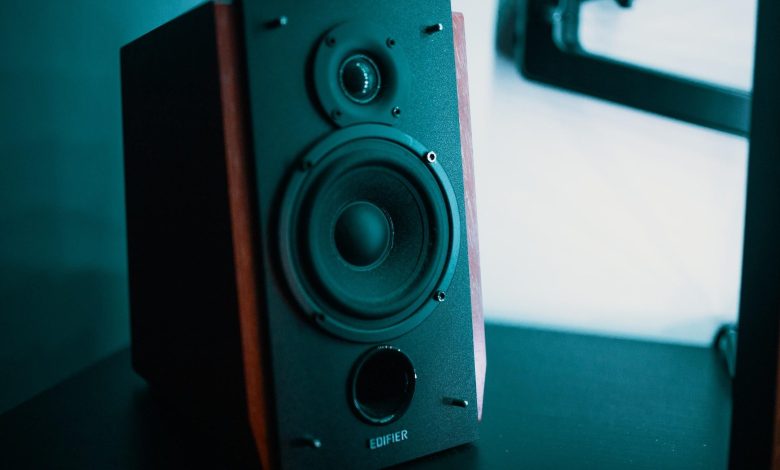
Speakers are an essential component of any computer system, allowing you to enjoy high-quality audio output. Computer speakers are output devices that connect to a computer to generate sound. The signal used to produce the sound that comes from a computer speaker is created by the computer’s sound card.
Speakers come in various shapes and sizes, ranging from small and portable to large and powerful. They can be connected to a computer using a variety of interfaces, including USB, 3.5mm audio jack, and Bluetooth. Some speakers also come with built-in amplifiers, which enhance the sound quality and volume. With the right set of speakers, you can transform your computer into a powerful home entertainment system.
Understanding Computer Speakers
If you’re looking to enhance your computer’s audio output, computer speakers are a great way to do so. In this section, we will cover the basics of computer speakers and the different types available.
Speaker Basics
Computer speakers are output hardware devices that are designed to connect to a computer to generate sound. They are transducers that convert electromagnetic waves into sound waves that we can hear.
Computer speakers come in different shapes and sizes, and they can be powered by either USB or an AC adapter. They also come with different features such as volume control, bass/treble adjustments, and even built-in microphones for voice recording.
Types of Computer Speakers
There are several types of computer speakers available, each with its own advantages and disadvantages. Here are some of the most common types:
-
2.0 Stereo Speakers: These are the most basic type of computer speakers and come with two speakers (left and right). They are affordable and easy to set up, but they may not provide the best sound quality.
-
2.1 Stereo Speakers: These speakers come with two satellite speakers and a subwoofer. They provide better sound quality than 2.0 speakers and are great for listening to music or watching movies.
-
5.1 Surround Sound Speakers: These speakers come with five satellite speakers and a subwoofer. They provide an immersive audio experience and are great for gaming and watching movies.
-
Soundbars: These are long, slim speakers that are designed to sit under your computer monitor. They provide better sound quality than built-in speakers and are great for small spaces.
When choosing computer speakers, consider the size of your room, the type of audio you will be listening to, and your budget. With so many options available, you’re sure to find a set of speakers that meets your needs.
computer speakers are a great way to enhance your computer’s audio output and provide a better listening experience. Whether you’re listening to music, watching movies, or gaming, there’s a set of computer speakers out there that’s perfect for you.
Components of Computer Speakers
Computer speakers are an essential component of any computer system. They are responsible for producing audio output that can be heard by the listener. In this section, we will discuss the various components of computer speakers that work together to produce high-quality sound.
Understanding Subwoofers
Subwoofers are an integral part of computer speakers. They are responsible for producing low-frequency sounds that are not audible from other speakers. Subwoofers are larger in size compared to other speakers and are usually placed on the floor or under the desk. They are designed to produce deep bass sounds that can enhance the overall audio experience.
Amplifiers in Speakers
Amplifiers are also an important component of computer speakers. They are responsible for increasing the power of the audio signal, which results in louder and clearer sound output. Amplifiers are usually built into the speaker itself, and they work by taking the audio signal from the computer and amplifying it before sending it to the speakers.
Importance of Drivers
Drivers are the heart of computer speakers. They are responsible for converting electrical signals into sound waves. Drivers come in different sizes and shapes, and each driver is designed to produce a specific range of frequencies. High-frequency drivers are responsible for producing high-pitched sounds, while low-frequency drivers are responsible for producing bass sounds.
Role of Bass
Bass is an important component of any audio system. It is responsible for adding depth and richness to the overall sound. Computer speakers with good bass response can produce high-quality sound that is both clear and powerful. Bass is usually produced by subwoofers, and it is important to have a good subwoofer to get the best audio experience.
computer speakers are made up of several components that work together to produce high-quality sound. Subwoofers, amplifiers, drivers, and bass are all important components that contribute to the overall audio experience. By understanding these components, you can choose the right computer speakers that will meet your audio needs.
Sound Quality and Technology
When it comes to computer speakers, sound quality is of utmost importance. Here are some sub-sections that will help you understand the different aspects of sound quality and technology.
Volume Control
The volume control is an essential feature of computer speakers. It allows you to adjust the sound level according to your preference. Some speakers have a physical knob or button for volume control, while others have it integrated into the speaker itself or a remote control. It is also important to note that high volume levels can damage your hearing, so it’s essential to use caution when adjusting the volume.
Surround Sound Technology
Surround sound technology is a feature that enhances the audio experience. It creates a more immersive experience by simulating sound coming from multiple directions. Some speakers come with built-in surround sound technology, while others require external software or hardware to achieve it.
Sound Cards
A sound card is a hardware component that processes audio signals and converts them into sound. It is responsible for the quality of the sound that comes out of your computer speakers. A high-quality sound card can significantly improve the audio quality, while a low-quality one can result in poor sound quality.
Quality of Sound
The quality of sound is determined by various factors, including the type and quality of the speakers, the sound card, and the audio format. High-quality speakers and sound cards can produce better audio quality, while low-quality ones can result in poor sound quality. Additionally, the audio format can affect the quality of sound. Lossless audio formats like FLAC and WAV offer better audio quality than lossy formats like MP3.
Stereo Separation
Stereo separation refers to the degree to which sounds are separated between the left and right channels. High stereo separation can create a more immersive audio experience and make it easier to distinguish between different sounds. It is an essential factor to consider when choosing computer speakers.
when choosing computer speakers, it’s important to consider sound quality and technology. Volume control, surround sound technology, sound cards, quality of sound, and stereo separation are all essential factors to consider. By understanding these factors, you can make an informed decision and choose the best computer speakers for your needs.
Connectivity Options
When it comes to connecting speakers to your computer, there are a variety of options available. Here are some of the most common connectivity options you might encounter:
USB-C Connectivity
USB-C is a relatively new type of connector that is becoming increasingly popular on modern computers. If your computer has a USB-C port, you can connect your speakers to it using a USB-C to 3.5mm audio adapter. This type of adapter allows you to connect traditional analog speakers to a USB-C port, and it’s a great option if you want to use your existing speakers with a new computer that only has USB-C ports.
Bluetooth Technology
Bluetooth is a wireless technology that allows you to connect your speakers to your computer without using any cables. If your speakers support Bluetooth connectivity, you can pair them with your computer and start playing audio wirelessly. This is a great option if you want to use your speakers in a different room or if you don’t want to deal with the hassle of cables.
Digital Connections
Digital connections are another option for connecting your speakers to your computer. Digital connections include options like HDMI, DisplayPort, and optical audio. These types of connections allow you to transmit high-quality digital audio signals to your speakers, which can result in better sound quality than traditional analog connections.
When choosing a connectivity option for your speakers, it’s important to consider your specific needs and preferences. USB-C connectivity is a great option if you have a new computer with USB-C ports, while Bluetooth technology is a good choice if you want the flexibility of wireless connectivity. Digital connections can offer the best sound quality, but they may not be necessary for everyone.
Best Computer Speakers
When it comes to enjoying music, movies, or games on your computer, a good set of speakers can make all the difference. Here are some of the top-rated computer speakers that offer excellent sound quality, a range of features, and a friendly price tag.
Top Rated Computer Speakers
- Audioengine A2+: These compact speakers pack a punch with their impressive sound quality. They come with built-in amplifiers and are compatible with a range of devices, making them a versatile choice for any setup.
- Harman Kardon Soundsticks 4: These sleek and stylish speakers not only look great, but they also deliver an immersive audio experience. They come with a subwoofer for added bass and can connect to your computer via Bluetooth.
Budget Friendly Options
- Logitech Z407: These affordable speakers offer a lot of bang for your buck. They come with a subwoofer and offer 80 watts of peak power, delivering rich and powerful sound.
- Creative Pebble Plus: These compact speakers are perfect for those on a budget. They come with a built-in subwoofer and offer surprisingly good sound quality for their small size.
High End Choices
- Klipsch The Fives: These premium speakers offer exceptional sound quality and a range of features. They come with built-in amplifiers, support Bluetooth connectivity, and offer a range of inputs for added versatility.
- Fluance Ai61: These high-end speakers offer a warm and natural sound that’s perfect for music lovers. They come with built-in amplifiers and offer a range of inputs, including Bluetooth and phono.
No matter what your budget or preferences, there’s a set of computer speakers out there that will suit your needs. From budget-friendly options to high-end choices, these speakers offer excellent sound quality and a range of features that will enhance your listening experience.
Setup and Settings
When it comes to setting up your computer speakers, there are a few things you need to consider to get the best sound quality. In this section, we will cover Adjusting Speaker Settings, Windows Compatibility, and Unboxing and Setup.
Unboxing and Setup
When you first get your computer speakers, the first thing you need to do is unbox them and set them up. Most speakers come with a manual that will guide you through the setup process. Make sure you read the instructions carefully before you start setting up your speakers.
Once you have unboxed your speakers, you need to connect them to your computer. Most speakers come with a 3.5mm jack that you can plug into your computer’s audio port. Some speakers also come with a USB port that you can plug into your computer’s USB port. Once you have connected your speakers, turn them on and adjust the volume to your desired level.
Adjusting Speaker Settings
To get the best sound quality from your computer speakers, you need to adjust the speaker settings. In Windows, you can adjust the speaker settings by right-clicking on the speaker icon in the taskbar and selecting “Open Sound Settings.” From there, you can adjust the volume, choose the output device, and adjust the sound settings.
You can also adjust the speaker settings in the sound control panel. To access the sound control panel, right-click on the speaker icon in the taskbar and select “Sounds.” From there, you can adjust the speaker settings, including the volume, sound quality, and other settings.
Windows Compatibility
When you are buying computer speakers, it is important to make sure that they are compatible with your operating system. Most speakers are compatible with Windows, but you should check the manufacturer’s website to make sure that the speakers are compatible with your version of Windows.
In addition to compatibility, you should also make sure that your computer meets the minimum system requirements for the speakers. Most speakers require a minimum of 2GB of RAM and a 1GHz processor. If your computer does not meet the minimum system requirements, you may experience performance issues or compatibility issues with your speakers.
setting up your computer speakers is a simple process that can greatly enhance your audio experience. Make sure that you follow the instructions carefully and adjust the speaker settings to get the best sound quality. Also, make sure that your speakers are compatible with your operating system and that your computer meets the minimum system requirements for the speakers.
Additional Information
Laptop vs Desktop Speakers
When it comes to laptop and desktop speakers, there are a few key differences to keep in mind. Laptop speakers are typically smaller and less powerful than desktop speakers, which can impact the overall sound quality. Additionally, laptop speakers are often built into the device itself, which can make them more difficult to upgrade or replace. Desktop speakers, on the other hand, are generally larger and more powerful, and can often be upgraded or replaced with ease.
Music and Speakers
If you’re a music lover, you’ll want to pay close attention to the audio quality of your speakers. Look for speakers that offer accurate sound reproduction and a wide frequency range. Consider brands like Creative or Edifier, which are known for their high-quality audio products.
Budget Considerations
If you’re on a tight budget, don’t worry – there are plenty of affordable computer speakers out there that still offer decent sound quality. Look for budget computer speakers from reputable brands like Razer or Edifier, and consider wired options to save on cost.
Brand Comparisons
When it comes to computer speakers, there are a lot of brands to choose from. Some of the most popular include Creative, Edifier, and Razer. Do your research and read reviews from other users to get a sense of which brands offer the best value for your money.
Size and Placement
The size and placement of your speakers can have a big impact on the overall sound quality. Look for speakers that are the right size for your desk or workspace, and consider placing them at ear level for optimal sound. Additionally, consider the placement of the left and right speakers for accurate stereo sound.
Wired vs Wireless
Wired speakers offer a more reliable connection and often better sound quality than wireless options. However, wireless speakers are more convenient and can be used with a wider range of devices. Consider your needs and preferences when deciding between wired and wireless speakers.
External vs Built-In Speakers
If you’re using a laptop or all-in-one desktop, you may be limited to built-in speakers. However, if you have a traditional desktop computer, you’ll have the option to use external speakers. External speakers generally offer better sound quality and more customization options than built-in speakers.
Build Quality
Look for speakers with a sturdy build quality and durable materials. This is especially important if you plan to use your speakers frequently or move them around often.
Troubleshooting
If you’re experiencing issues with your computer speakers, there are a few troubleshooting steps you can take. Check your volume settings, ensure that your speakers are properly connected, and try updating your audio drivers.
Online Resources
There are plenty of online resources available to help you choose the best computer speakers for your needs. Check out reviews on sites like YouTube or read articles from tech blogs to get a sense of which speakers are worth your investment.
Headsets vs Speakers
If you’re primarily using your computer for gaming or video conferencing, you may want to consider using a headset instead of speakers. Headsets offer more accuracy and feedback, which can be especially important in gaming.
Shopping Tips
When shopping for computer speakers, be sure to read reviews from other users and consider your own needs and preferences. Look for speakers that offer the right balance of sound quality, price, and features.
Audiophile Considerations
If you’re an audiophile, you’ll want to look for speakers that offer high accuracy and sound quality. Consider investing in a separate amplifier or DAC to further enhance the sound.
Portable Audio Devices
If you’re looking for portable audio solutions, consider options like Bluetooth speakers or portable speakers that can be used with tablets or smartphones. Look for options with a long battery life and high-quality audio output.
Gaming Speakers
If you’re a gamer, look for speakers with a wide frequency range and accurate sound reproduction. Consider options with built-in subwoofers for added bass.
Separation and Full Range Sound
When choosing computer speakers, look for options that offer accurate separation and full range sound. This will help ensure that you’re getting the most accurate and enjoyable listening experience possible.
Power and Connectivity Options
Consider the power and connectivity options available with your computer speakers. Look for options that connect via USB-A or offer a power cord for reliable performance.