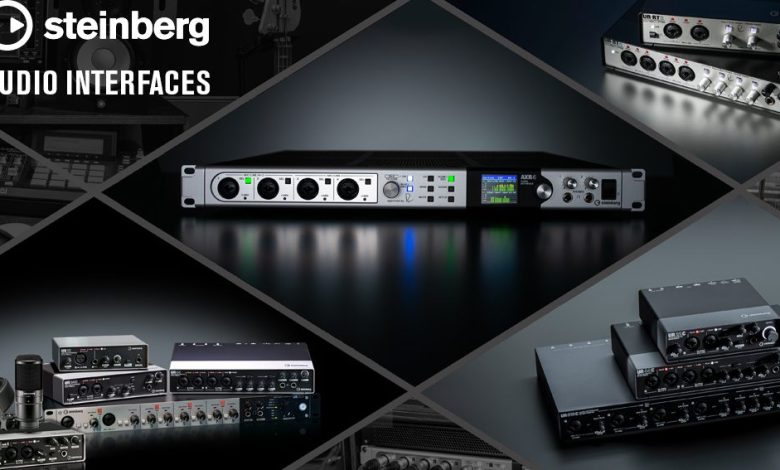
Audio interfaces are essential tools for anyone looking to record and produce high-quality audio. They are hardware devices that allow you to connect microphones, instruments, and other audio sources to your computer, providing better sound quality and more control over your recordings. In this article, we will provide a beginner’s guide on how to use your audio interface to make music in a DAW.
Choosing the right audio interface is crucial to achieving the best possible sound quality. Factors such as the number of inputs and outputs, preamp quality, and compatibility with your computer and software are all important considerations. Once you have selected the right interface, the next step is to connect it to your computer and set it up correctly. This involves installing any necessary drivers and configuring your DAW to use the interface as the default audio device.
Once your audio interface is set up, you can start recording and producing music in your DAW. You can use the interface to record vocals, guitars, drums, and other instruments, and then edit and mix them using the software. With the right audio interface and software, you can create professional-quality recordings from the comfort of your home studio. In the following sections, we will provide a step-by-step guide on how to use your audio interface to make music in a DAW.
Understanding Audio Interfaces
If you’re a musician or podcaster, you probably know what an audio interface is. But if you’re new to the world of recording, you may be wondering what exactly an audio interface is and what it does.
In simple terms, an audio interface is a piece of hardware that connects your computer to your audio equipment. It acts as an external sound card, allowing you to record and play back audio with higher quality than your computer’s built-in sound card.
Audio interfaces come in different shapes and sizes, with various features and connectivity options. Some common types of connections include USB and Thunderbolt.
One of the key components of an audio interface is its converters. These are responsible for converting analog signals (like those from a microphone or guitar) into digital signals that your computer can process, and vice versa. The quality of these converters can have a big impact on the sound quality of your recordings.
When choosing an audio interface, it’s important to consider the bit depth and audio resolution. Bit depth refers to the number of bits used to represent each sample of audio, while audio resolution refers to the overall quality of the audio signal. A higher bit depth and audio resolution generally means better sound quality.
Some audio interfaces also come with MIDI connections, which allow you to connect MIDI devices like keyboards or drum machines.
an audio interface is an essential piece of hardware for anyone looking to record high-quality audio on their computer. It acts as a bridge between your analog audio gear and your digital recording software, allowing you to capture and manipulate your sound with precision and clarity.
Choosing the Right Audio Interface
When it comes to choosing the right audio interface, there are a few things to consider to ensure you get the best one for your needs. Here are some factors to keep in mind:
Connection Type
Audio interfaces usually connect via USB, Thunderbolt, Firewire, or Ethernet. USB is the most common and affordable option, while Thunderbolt and Firewire offer faster data transfer speeds. If you have a newer computer, it may have a USB-C port, so make sure your interface is compatible.
Number of Inputs and Outputs
Consider how many inputs and outputs you need for your setup. If you’re a solo artist or podcaster, a two-input interface like the Focusrite Scarlett 2i2 might be sufficient. If you need more inputs, the Focusrite Scarlett Solo 3rd Gen has a single XLR input with phantom power and a line/instrument input.
Budget
Your budget will also play a role in which audio interface you choose. There are plenty of affordable options on the market, but keep in mind that investing in a higher-end interface can result in better sound quality and more features.
Upgradability
Consider whether you may want to upgrade your interface in the future. Some interfaces have expandable inputs and outputs, while others may have built-in DSP processing or other features that can be unlocked with software upgrades.
By considering these factors, you can choose an audio interface that meets your needs and fits your budget. Remember to do your research and read reviews before making a purchase to ensure you get the best value for your money.
Setting Up Your Audio Interface
Setting up your audio interface is the first step in making music in your DAW. It’s important to have the right interface for your workflow, so choose one with all the features you need.
Once you’ve chosen your interface, connect it to your computer or laptop using the appropriate cable. Most external audio interfaces use either USB, Thunderbolt, or Firewire to connect to your computer. Make sure your computer recognizes the interface by checking the device manager or system preferences.
Next, install any necessary software from the interface’s manufacturer or drivers to communicate with your operating system. You may need to download and install the latest driver for your audio interface. Check the manufacturer’s website for the latest driver version.
For Windows PC users, right-click the Speaker icon on your Windows taskbar and click Sounds. Select Playback, right-click your interface, and click Set as Default Device and Set as Default Communications Device. Lastly, select Properties, go to the Advanced tab, and uncheck the boxes under Exclusive Mode.
For Mac users, go to the Apple menu and select System Preferences. Click Sound, then select the Input and Output tabs to make sure your interface is selected. You may also need to adjust the buffer size and sample rate to optimize performance.
Once your audio interface is set up, start up the control app and confirm that it can detect your device. You’re now ready to start making music in your DAW with your audio interface.
Connecting Instruments and Microphones
Connecting instruments and microphones to your audio interface is a straightforward process. Here are the steps you need to follow:
-
Select the right input: First, choose the input that corresponds to the type of device you want to connect. If you’re connecting a microphone, use an XLR input. If you’re connecting an instrument, use an instrument input. Most audio interfaces have a combination of XLR and instrument inputs, so make sure you choose the right one.
-
Plug in the device: Once you’ve selected the right input, plug in your device. If you’re using a microphone, connect it using an XLR cable. If you’re using an instrument, connect it using a 1/4-inch cable. Make sure the cable is securely connected.
-
Adjust the gain: Next, adjust the gain on your audio interface. This controls the level of the signal coming from your device. Start with the gain set to the minimum level and gradually increase it until you get a good level of signal without any distortion.
-
Check the phantom power: If you’re using a condenser microphone, you’ll need to check if your audio interface provides phantom power. This is a type of power that some microphones require to function. Most audio interfaces have a switch to turn phantom power on and off. Make sure you turn it off when using dynamic microphones or instruments.
-
Monitor your input: Finally, make sure you’re monitoring your input. This means you’re listening to the signal coming from your device through your audio interface. You can do this by plugging headphones into the headphone jack on your audio interface or by connecting your speakers to the audio interface’s output.
By following these steps, you’ll be able to connect your microphones and instruments to your audio interface and start recording. Remember to choose the right input, plug in your device, adjust the gain, check the phantom power, and monitor your input. With a little practice, you’ll be able to get great recordings every time.
Using Headphones and Speakers
When using an audio interface, it’s important to know how to use both headphones and speakers. This will allow you to monitor your music production and ensure that it sounds good on different audio devices.
Connecting Headphones
To connect headphones to your audio interface, simply plug them into the headphone output. Most audio interfaces have at least one headphone output, but some have multiple outputs for connecting multiple pairs of headphones.
It’s important to note that different headphones have different impedance levels, which can affect the sound quality. Some audio interfaces have a switch to adjust the impedance level, so make sure to check your manual for instructions on how to do this.
Connecting Speakers
Connecting speakers to your audio interface is also easy. Most audio interfaces have two or more line outputs, which you can connect to your speakers using a pair of audio cables.
If you’re using studio monitors, it’s important to set them up correctly. Make sure they’re positioned correctly and that they’re at ear level. You may also need to adjust the volume and EQ settings to get the best sound quality.
Switching Between Headphones and Speakers
Most audio interfaces allow you to switch between headphones and speakers using a button or switch. This can be useful if you want to compare the sound quality between different audio devices.
It’s also important to note that some audio interfaces have a feature called “direct monitoring,” which allows you to monitor your audio input in real-time without any latency. This can be useful when recording vocals or instruments.
using headphones and speakers with an audio interface is easy. Just make sure to connect them correctly and adjust the settings as needed.
Understanding Preamps and Phantom Power
If you’re new to audio interfaces, you may have heard the terms “preamp” and “phantom power” thrown around. Let’s take a closer look at what they are and how they work.
Preamps
A preamp, short for “preamplifier,” is a device that amplifies a weak signal from a microphone or instrument to a level that can be processed by other audio equipment. Most audio interfaces come with built-in preamps, but some higher-end interfaces allow you to connect external preamps for even more control over your sound.
When shopping for an audio interface, pay attention to the number of preamps it has. If you plan on recording multiple sources simultaneously, you’ll need an interface with multiple preamps. Keep in mind that the quality of the preamps can also affect the overall sound of your recordings.
Phantom Power
Phantom power is a way of sending electrical current to a microphone without the need for a separate power supply. It’s typically used to power condenser microphones, which require power to operate. Most audio interfaces come with phantom power built-in, usually at 48 volts.
When using a condenser microphone, make sure to turn on phantom power before recording. Failure to do so can result in a weak or distorted signal. However, be aware that some microphones and instruments may not be compatible with phantom power, so always check the manufacturer’s recommendations before use.
Mic Preamps
Mic preamps, short for “microphone preamplifiers,” are a type of preamp specifically designed for use with microphones. They typically have a higher gain range than line-level preamps, which are used for instruments and other audio sources.
When shopping for an audio interface, pay attention to the quality and gain range of the mic preamps. Higher-quality preamps can provide a cleaner, more accurate sound, while a wider gain range can allow for more flexibility in recording different sources.
understanding preamps and phantom power is essential for getting the most out of your audio interface. By choosing an interface with high-quality preamps and understanding when to use phantom power, you can achieve professional-level recordings from the comfort of your own home.
Recording with an Audio Interface
Recording with an audio interface is a straightforward process that can greatly improve the quality of your recordings. Here are the basic steps to get started:
- Connect your microphone to the audio interface using an XLR cable. Make sure the microphone is properly powered if necessary.
- Connect the audio interface to your computer using a USB cable.
- Open your digital audio workstation (DAW) software, such as Ableton Live, and create a new project.
- Create a new audio track in your DAW and select the input on your audio interface that corresponds to your microphone.
- Arm the track for recording and hit the record button. You should now see the waveform of your recording on the track.
- Once you have finished recording, you can edit and add effects to your track within your DAW.
If you are recording a podcast or voiceover, you may want to consider using a pop filter to reduce plosives and sibilance. Additionally, you can use effects such as EQ and compression to further enhance the quality of your recordings.
It is important to note that the quality of your microphone and the acoustics of your recording space can greatly impact the quality of your recordings. Consider investing in a high-quality microphone and sound treatment for your recording space to achieve professional-sounding results.
recording with an audio interface is a simple and effective way to improve the quality of your recordings. With a little bit of practice, you can create professional-sounding tracks and podcasts from the comfort of your own home.
Monitoring and Adjusting Latency
When recording with an audio interface, latency can be an issue that affects the quality of your recording. Latency is the delay between the moment you play or sing a note and the moment you hear it through your headphones or speakers. This can be distracting and cause timing issues when recording.
To monitor and adjust latency, there are a few things you can do. First, make sure your audio interface has direct monitoring capabilities. Direct monitoring allows you to hear your input signal directly through the audio interface, bypassing any processing or latency from your computer. This can greatly reduce latency and improve your recording experience.
If direct monitoring is not an option, you can adjust the buffer size on your audio interface to reduce latency. The buffer size is the amount of audio data that is processed at one time. A smaller buffer size will reduce latency but may cause your computer to struggle with processing the data. A larger buffer size will allow your computer to process the data more easily but will increase latency.
To adjust the buffer size, consult your audio interface manual or check the manufacturer’s website for instructions. Some audio interfaces also come with software that allows you to adjust the buffer size and other settings.
It’s important to monitor your latency while recording to ensure that it’s at an acceptable level. Most audio interfaces come with a metering system that shows the level of your input signal and the output level. This can help you identify any latency issues and adjust your buffer size accordingly.
In addition to monitoring your latency, it’s also important to monitor your input levels to ensure that you’re not clipping or distorting your signal. Most audio interfaces come with a metering system that shows the level of your input signal. Keep an eye on this meter and adjust your input level accordingly to ensure a clean recording.
By monitoring and adjusting your latency, you can ensure that your recordings are of the highest quality possible. Use direct monitoring whenever possible and adjust your buffer size as needed to reduce latency. Keep an eye on your input levels and use the metering system on your audio interface to monitor your latency and ensure a clean recording.
Understanding Outputs and Levels
When it comes to using an audio interface, understanding outputs and levels is crucial. Outputs are where the sound signal leaves the interface and goes to external devices such as speakers or headphones.
There are two types of outputs commonly found on audio interfaces: audio outputs and headphone outputs. Audio outputs are typically used to connect to studio monitors or speakers, while headphone outputs are used to connect headphones.
Line level and instrument level are two types of outputs that are important to understand. Line level outputs are used to connect to devices such as mixers, amplifiers, or other recording equipment. Instrument level outputs, on the other hand, are used to connect to guitars, basses, or other instruments.
When it comes to audio levels, it’s important to understand the difference between dBu and dBV. dBu is used for professional audio equipment, while dBV is used for consumer equipment. Most audio interfaces use dBu as their standard output level.
Monitoring is another important aspect of using an audio interface. Monitoring allows you to listen to the audio signal as it’s being recorded or played back. Most audio interfaces have a dedicated monitoring section that allows you to control the level of the audio signal being sent to your speakers or headphones.
understanding outputs and levels is crucial when using an audio interface. Make sure to familiarize yourself with the different types of outputs, the difference between line level and instrument level, and the importance of monitoring.
Advanced Uses of Audio Interfaces
Audio interfaces can do much more than just convert analog signals to digital and vice versa. They offer a wide range of advanced features that can help musicians, podcasters, and home recording studio enthusiasts take their audio production to the next level.
MIDI Integration
Most audio interfaces come with MIDI ports, allowing musicians to connect their MIDI controllers and keyboards directly to their computer. This integration enables musicians to record MIDI data directly into their DAW, which can be edited later. With MIDI, musicians can use virtual instruments, synths, and samplers to create unique sounds.
Effects Processing
Audio interfaces can also come with built-in DSP processing, which allows musicians to add effects to their recordings without using their computer’s CPU. This feature is useful for musicians who want to record with effects in real-time without experiencing any latency. Some audio interfaces also come with built-in effects processors, such as reverb, delay, and compression.
Condenser Microphone Support
Condenser microphones are popular among musicians and podcasters because of their sensitivity and clarity. However, they require phantom power to operate, which can be supplied by an audio interface. Most audio interfaces come with phantom power, allowing musicians to use their condenser microphones without the need for an external power supply.
Home Studio Integration
Home recording studios are becoming increasingly popular among musicians and podcasters. Audio interfaces are a crucial component of these setups because they allow users to connect their microphones, instruments, and headphones to their computer. With an audio interface, musicians can record high-quality audio in the comfort of their own homes.
Conclusion
Audio interfaces are essential tools for musicians, podcasters, and home recording studio enthusiasts. They offer advanced features such as MIDI integration, effects processing, condenser microphone support, and home studio integration. With these features, musicians can take their audio production to the next level.