Are you new to Ableton Live and wondering how to add bars to your tracks? You’ve come to the right place! Adding bars, also known as measures, is a crucial step in creating a structured and organized music composition. In this article, we will guide you through the process of adding bars in Ableton Live, so you can start creating your own music with ease.
Adding bars in Ableton Live is a simple process that can be done in a few easy steps. Whether you are working with MIDI or audio tracks, the method remains the same. In the following paragraphs, we will show you how to insert bars in Ableton Live and also provide some helpful tips to make the process even smoother. So, let’s get started and add some bars to your tracks!
Understanding Ableton Live Interface
Ableton Live is a popular digital audio workstation (DAW) used by many music producers and performers. It offers two main views: Session View and Arrangement View. The Session View allows you to create and trigger clips, while the Arrangement View is where you can arrange and edit your clips into a full song.
The Ableton Live interface is designed to be user-friendly and intuitive. It features a browser where you can access your files, samples, and plugins, as well as a mixer where you can adjust the levels of your tracks. You can customize the interface to suit your workflow by changing the color scheme, grid line intensity, and other visual elements.
In the Session View, each track is represented by a vertical column, and each clip is represented by a horizontal box. You can trigger clips by launching them with your mouse or a MIDI controller. The Session View is great for improvisation and live performances, as you can easily trigger and manipulate clips on the fly.
In the Arrangement View, you can arrange your clips into a full song by dragging and dropping them onto the timeline. You can also add automation to your tracks to create dynamic changes in volume, panning, and other parameters. The Arrangement View is great for editing and refining your tracks, as you have more precise control over the timing and arrangement of your clips.
the Ableton Live interface is designed to be flexible and adaptable to your workflow. Whether you’re a beginner or an experienced producer, you can customize the interface to suit your needs and create music that sounds great.
Adding Bars in Ableton Live
If you need to add extra bars to your Ableton Live project, it’s a straightforward process. Here’s how to do it:
-
First, select the length of the section where you want to add more bars. You can do this by clicking and dragging over the section in the Arrangement View.
-
Next, position the playhead where you want the new bars to be inserted. You can do this by clicking on the bar ruler at the top of the Arrangement View.
-
Once you have selected the length and position, you can insert silence by right-clicking in the selected area and choosing “Insert Silence” from the context menu.
-
Alternatively, you can insert a blank MIDI clip or audio clip by right-clicking in the selected area and choosing “Insert MIDI Clip” or “Insert Audio Clip” from the context menu.
-
If you want to add more bars to the end of your project, simply position the playhead at the end of the last bar and insert silence or a new clip in the same way.
That’s all there is to it! Adding bars in Ableton Live is a simple process that can be done in just a few clicks.
Creating and Editing MIDI Tracks
Creating and editing MIDI tracks in Ableton is a simple process that can be done in a few steps. MIDI tracks are used to create and edit MIDI clips, which contain MIDI notes that can be played back using virtual instruments or external hardware.
To create a new MIDI track, go to the “Create” menu and select “Insert MIDI Track”. Alternatively, you can use the shortcut “Ctrl + Shift + T” on Windows or “Command + Shift + T” on Mac. Once you have created a new MIDI track, you can double-click on it to create a new MIDI clip.
To record MIDI notes, make sure the MIDI track is armed for recording and press the record button. You can also use the “Ctrl + Shift + Space” shortcut to start recording. Once you have recorded your MIDI notes, you can edit them using the MIDI editor.
To open the MIDI editor, double-click on the MIDI clip. You can then use the piano roll to edit the MIDI notes. You can also use the “Draw” mode to draw in new MIDI notes or use the “Preview” button to hear the notes as you draw them.
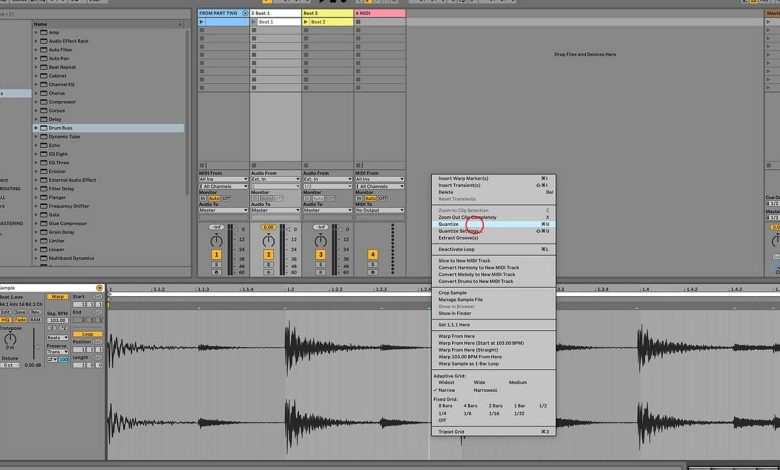
If you want to quantize your MIDI notes, you can use the “Quantize” function. To do this, select the MIDI notes you want to quantize and go to the “Clip” menu. From there, select “Quantize Settings” and choose the quantize value you want to use.
You can also use MIDI effects to add more depth and complexity to your MIDI tracks. To add a MIDI effect, simply drag and drop it onto the MIDI track. You can then adjust the settings to get the desired effect.
In addition, Ableton provides a range of features to help you create and edit MIDI tracks more efficiently. For example, you can use the “Chord” and “Scale” features to automatically create chords and scales that are in key with your project. You can also use the “Note Pitch” and “Pitch” features to adjust the pitch of your MIDI notes.
creating and editing MIDI tracks in Ableton is a straightforward process that can be done using a variety of tools and techniques. With a little bit of practice, you can create complex and engaging MIDI tracks that will take your music to the next level.
Working with Instruments and Effects
Working with instruments and effects is an essential part of music production in Ableton. Ableton comes with a wide range of built-in instruments and effects that you can use to create your music.
Instruments in Ableton can be accessed in the browser. You will notice that Live’s Synths, Audio Effects, and MIDI Effects each have their own labels in the browser’s sidebar. You can also import third-party instruments and virtual instruments to Ableton by using the “Add Folder” option in the browser.
A MIDI keyboard is a great tool to use for playing and recording instruments in Ableton. You can connect a MIDI keyboard to your computer and use it to play any instrument in Ableton. You can also use a computer MIDI keyboard to play instruments in Ableton.
Ableton’s MIDI effects are powerful tools that can be used to manipulate MIDI data in real-time. MIDI effects can be used to add accents, create arpeggios, and much more.
Ableton’s effects can be used to process audio in real-time. Effects can be used to add reverb, delay, distortion, and much more. You can also use effect racks to build complex signal processors, dynamic performance instruments, stacked synthesizers, and more.
Ableton also provides a wide range of features that can help you to work with instruments and effects efficiently. For example, you can use the “Pack” feature to download and install additional instruments and effects directly from Ableton’s website.
working with instruments and effects in Ableton is a fun and creative process that can help you to create amazing music. With Ableton’s built-in instruments and effects, as well as third-party instruments and effects, you have everything you need to get started.
Creating music can be a daunting task, but with Ableton Live, the process can be streamlined to make it more manageable. Here are some tips to help you navigate the creative process:
Workflow and Progress
One of the most important aspects of creating music is developing a workflow that works for you. This can involve setting up templates, creating custom shortcuts, and organizing your samples and plugins. By streamlining your workflow, you can focus more on the creative process and less on technical details.
It’s also important to keep track of your progress. Ableton Live’s Session View is great for experimenting with different ideas and creating loops, but eventually, you’ll need to arrange your ideas into a full song. Use the Arrangement View to organize your clips and create a structure for your song.
Beats and Melodic Ideas
When creating beats, start with a simple pattern and build from there. Use the built-in drum racks to add variety to your drum patterns. For melodic ideas, experiment with different chord progressions and use the built-in MIDI effects to create interesting harmonies.
Chord Progressions and Basslines
Chord progressions are the foundation of most songs, so it’s important to experiment with different progressions to find what works best for your track. Use the built-in MIDI effects to create interesting variations on your chord progressions. For basslines, start with a simple pattern and build from there. Use the built-in bass synths to add variety to your basslines.
Songs and Random Ideas
When creating a song, it’s important to have a clear vision of what you want to achieve. Use the Arrangement View to create a structure for your song and experiment with different ideas until you find what works best. Don’t be afraid to try new things and take risks.
Finally, don’t be afraid to explore random ideas. Sometimes the best ideas come from experimentation and happy accidents. Use Ableton Live’s built-in randomizers to generate new ideas and keep your creativity flowing.
Utilizing Ableton’s Advanced Features
Ableton Live is a powerful digital audio workstation that offers a wide range of advanced features to help you create professional-grade music. Here are some of the most useful features that you can use to add bars in Ableton:
Automation
Automation is a powerful tool that allows you to control various parameters of your tracks over time. You can use automation to add bars in Ableton by automating the length of your clips or the tempo of your project. This can be especially useful if you want to create a gradual build-up or breakdown in your music.
Sync
Ableton Live also offers a range of sync features that allow you to synchronize your tracks with external devices or software. You can use these features to add bars in Ableton by syncing your clips to a specific tempo or time signature. This can be especially useful if you are working with other musicians or DJs who need to stay in sync with your music.
Techniques
There are also various techniques that you can use to add bars in Ableton. For example, you can use the context menu to duplicate or consolidate your clips, or you can use the capture MIDI feature to record your MIDI input. You can also use the groove pool to add swing or shuffle to your tracks, or you can use the duplicate loop feature to quickly create variations of your clips.
Mixing
Finally, Ableton Live offers a range of mixing features that can help you add bars in your tracks. For example, you can use the group feature to group multiple tracks together and apply effects to them as a group. You can also use the new features in Ableton Live 11, such as the spectral resonator and hybrid reverb, to add unique textures and sounds to your music.
By utilizing these advanced features in Ableton Live, you can add bars to your tracks quickly and easily. Whether you’re a beginner or an experienced producer, these features can help you take your music to the next level.
Helpful Tips and Tricks
Adding bars in Ableton can be a bit tricky for beginners, but with a few helpful tips and tricks, you’ll be able to master it in no time. Here are some useful tips to make the process easier:
-
Use keyboard shortcuts: Keyboard shortcuts are a great way to speed up your workflow. To add bars quickly, simply press “Ctrl + Shift + M” on Windows or “Cmd + Shift + M” on Mac to insert a new time signature marker. You can also use “Ctrl + I” on Windows or “Cmd + I” on Mac to insert a new clip at the current position.
-
Map keys to your liking: You can customize the keyboard shortcuts in Ableton to your liking. To do this, go to “Options” > “Preferences” > “Key Map”. Here, you can assign new shortcuts or change existing ones.
-
Use the metronome: The metronome is a great tool to help you keep track of the beat. Simply turn it on by clicking the metronome icon in the top right corner of the screen. You can also adjust the volume of the metronome by going to “Preferences” > “Record/Warp/Launch” and changing the “Metronome Volume” setting.
-
Zoom in and out: Zooming in and out can help you see more or less of your project. To zoom in, use the “Ctrl + +” shortcut on Windows or “Cmd + +” on Mac. To zoom out, use “Ctrl + -” on Windows or “Cmd + -” on Mac.
-
Adjust the grid size: The grid size determines the size of the grid that appears on the timeline. To adjust it, simply click on the “Grid” button in the top left corner of the screen and select a new size.
-
Fold and follow: Folding and following tracks can help you focus on specific parts of your project. To fold a track, click on the small triangle next to the track name. To follow a track, click on the “Follow” button in the top left corner of the screen.
-
Adjust volume and parameters: You can adjust the volume and other parameters of your clips by clicking on the clip and using the controls that appear. You can also adjust the overall volume of your project by using the “Master” track.
-
Check the info view: The info view provides helpful information about the selected item. To access it, simply click on the item and look at the bottom of the screen.
-
Take advantage of flexibility: Ableton is a very flexible program, so don’t be afraid to experiment with different techniques and workflows. You never know what you might discover!
Troubleshooting Common Issues
If you’re having trouble adding bars in Ableton, don’t worry, you’re not alone. Here are some common issues and their solutions:
Help
If you’re stuck and need help, don’t hesitate to reach out to Ableton’s support team. They’re available 24/7 and can help you troubleshoot any issues you’re having. You can contact them through their website or through the Ableton Live software.
Windows and Mac
Adding bars in Ableton is pretty straightforward, but there are some issues that can arise on Windows and Mac. If you’re on Windows, make sure you’re running Ableton Live as an administrator. This can help prevent any issues with permissions or access to files.
If you’re on a Mac, you may run into issues with Max for Live. If you see an error message that says “MyDevice.amxd contains externals that are not compatible with Apple Silicon,” you’ll need to update your Max for Live device.
Computer Keyboard
Adding bars in Ableton can be done with your computer keyboard, but sometimes the keyboard shortcuts can be tricky to remember. If you’re having trouble, try looking up a tutorial online. There are plenty of great resources out there that can help you learn the keyboard shortcuts for adding bars in Ableton.
Tutorials
Speaking of tutorials, if you’re new to Ableton or just need a refresher, there are plenty of great tutorials available online. Ableton’s website has a great selection of tutorials that cover everything from basic functions to advanced techniques. You can also find tutorials on YouTube and other websites.
adding bars in Ableton can be tricky, but with the right resources and a little bit of troubleshooting, you’ll be able to add bars like a pro in no time.
Exploring Additional Resources
If you want to learn more about adding bars in Ableton, there are plenty of resources available to help you. Here are some of the best ones:
Tutorials
There are countless tutorials available online that can teach you how to add bars in Ableton. Some of the best resources include:
- Ableton’s official tutorial videos
- YouTube channels like Slynk, Mr. Bill, and Tom Cosm
- Online music production schools like Berklee Online and Dubspot
New Features
Ableton is constantly updating its software with new features and improvements. If you want to stay up-to-date on the latest changes, be sure to check out the Ableton website and social media channels. Some of the most recent updates include:
Deals
If you’re looking to save money on Ableton software or plugins, keep an eye out for deals and discounts. Some of the best places to find deals include:
Places
Finally, if you want to connect with other Ableton users and learn more about the software, there are plenty of places to go. Some of the best include:
By exploring these additional resources, you’ll be well on your way to becoming an Ableton expert.