GarageBand is a popular digital audio workstation that allows users to create, record and mix music on their Mac computers. One of the most sought-after features in GarageBand is the ability to bass boost songs. Bass boosting is a technique that enhances the low-frequency range of a song, making it sound more powerful and dynamic.
In this article, we will explore how to bass boost in GarageBand. We will cover the basics of using the Bass Amp controls, adjusting the EQ settings for each track in your project, and how to use the Audio Track Settings to boost the bass. Whether you’re a seasoned musician or just starting out, this guide will help you get the most out of your music production in GarageBand.
Understanding the Basics
If you’re new to GarageBand, you’re probably wondering how to bass boost in GarageBand. Before we dive into the specifics, let’s go over some basics.
GarageBand is a digital audio workstation (DAW) that allows you to create and record music on your computer. It comes with a variety of virtual instruments, including bass, that you can use to create your music.
Bass is an essential component of many genres of music, so knowing how to bass boost in GarageBand can take your music to the next level. Bass boosting is the process of increasing the low-frequency content of your audio, which can make it sound more powerful and full.
To bass boost in GarageBand, you’ll need to use the EQ (equalizer) controls on your bass track. The EQ controls allow you to adjust the frequency response of your audio, so you can boost or cut certain frequency ranges.
Learning how to use the EQ controls can be a bit intimidating at first, but with a little practice, you’ll be able to use them to create the perfect bass sound for your music.
In the next section, we’ll go over the specifics of how to use the bass amp controls and effects in GarageBand to create the perfect bass sound for your music.
Setting Up Your Project
Before you can begin bass boosting in GarageBand, you’ll need to set up your project properly. Here are the steps to get started:
-
Open GarageBand and create a new project. Choose the type of project you want to create, such as a “Keyboard Collection” or “Electronic” project.
-
Set your project preferences. Click on the “GarageBand” menu and select “Preferences.” From here, you can adjust settings for audio input and output, metronome, and more.
-
Create an audio track. To add an audio track, click on the “+” button in the bottom-left corner of the screen and select “Audio.” You can then select the type of audio track you want to create, such as “Electric Guitar” or “Bass.”
-
Record your bass track. If you already have a bass recording, you can skip this step. Otherwise, connect your bass guitar or MIDI keyboard to your computer and click the red “Record” button to begin recording.
-
Adjust your track settings. Once you’ve recorded your bass track, you can adjust the settings by clicking on the track in the timeline and selecting “Track Info” in the bottom-right corner of the screen. From here, you can adjust settings such as volume, panning, and more.
By following these steps, you’ll have a properly set up project that’s ready for bass boosting in GarageBand.
Choosing the Right Instrument
When it comes to bass boosting in GarageBand, choosing the right instrument is crucial. The instrument you choose will have a significant impact on the final sound of your track. Here are some tips to help you choose the right instrument:
Electric Bass Guitar
The electric bass guitar is a popular choice for bass boosting in GarageBand. It is a versatile instrument that can produce a wide range of sounds. The electric bass guitar is perfect for creating a deep, rich bass sound that is ideal for genres like rock and metal. It is also great for creating funky bass lines in genres like funk and R&B.
Electric Jazz Bass EQ
The electric jazz bass EQ is another great option for bass boosting in GarageBand. It is a variation of the electric bass guitar that is designed specifically for jazz music. The electric jazz bass EQ has a more mellow tone than the electric bass guitar, making it ideal for creating smooth bass lines in jazz and blues music.
Other Instruments
While the electric bass guitar and electric jazz bass EQ are the most popular instruments for bass boosting in GarageBand, there are other instruments you can use. For example, you can use a regular electric guitar and lower the pitch to create a bass sound. You can also use a synthesizer to create a bass sound.
Choosing the Right Instrument for Your Track
When choosing the right instrument for your track, it’s important to consider the genre of music you’re creating. If you’re creating a rock or metal track, the electric bass guitar is a great choice. If you’re creating a jazz or blues track, the electric jazz bass EQ is a better option. If you’re not sure which instrument to choose, try experimenting with different instruments until you find the one that works best for your track.
Adjusting the EQ Settings
GarageBand comes with a built-in EQ (equalizer) effect that lets you adjust the frequency response of your audio tracks. This is especially useful when you want to boost the bass in your music. Here’s how to adjust the EQ settings in GarageBand:
- Open your project in GarageBand and select the track you want to adjust.
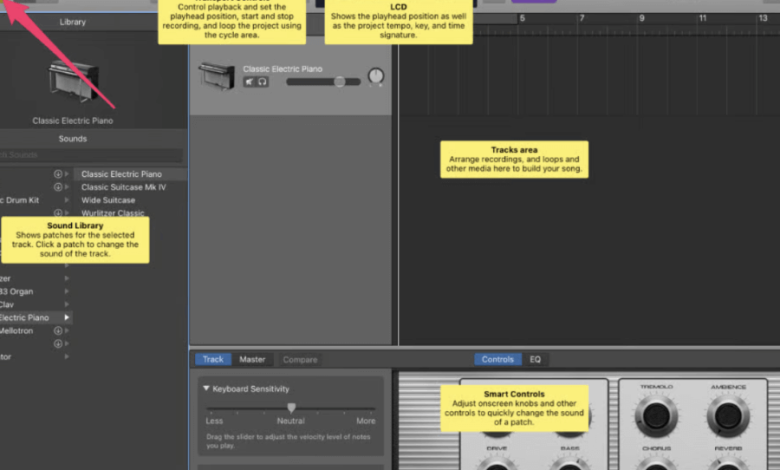
- Click on the “Smart Controls” button in the control bar to open the Smart Controls panel.
- Click on the “EQ” button in the Smart Controls panel to open the EQ settings.
- Use the knobs and sliders to adjust the EQ settings to your liking.
The EQ settings in GarageBand are divided into different frequency bands, which you can adjust individually. The bass frequencies are usually in the range of 20Hz to 200Hz, so you can use the EQ to boost those frequencies and get a more pronounced bass sound.
You can also adjust the Q (bandwidth) and gain (volume) of each frequency band to fine-tune the EQ settings. A narrower Q will affect a smaller range of frequencies, while a wider Q will affect a broader range. The gain knob lets you adjust the volume of each frequency band relative to the others.
When adjusting the EQ settings, it’s important to use your ears and listen to the changes you’re making. Don’t just rely on the visual feedback of the EQ display. Experiment with different settings and find the sweet spot that works best for your track.
In addition to the built-in EQ, GarageBand also has other effects that can help you boost the bass in your music. For example, you can use the “Bass Amp Designer” to add a simulated bass amplifier to your track, complete with EQ, compression, and other effects.
adjusting the EQ settings in GarageBand is a powerful tool for getting the perfect bass sound in your music. With a little experimentation and practice, you’ll be able to master the EQ and create tracks that sound great on any system.
Mastering Volume and Gain
When it comes to mastering your bass tracks in GarageBand, getting the right balance of volume and gain is crucial. Here’s a quick guide to help you get started.
Volume
The Volume slider in the GarageBand track header is the simplest way to adjust the overall volume of your track. Drag it left or right to lower or raise the volume level. You can also use the Option key and click on the slider to reset it to the default level.
Gain
The Gain knob in GarageBand’s Bass Amp Designer can be used to adjust the amount of preamplification applied to the input signal. This affects the amp models differently, so experiment with different settings until you find the right balance for your track.
Normalize
If you want to bring the overall volume of your track up without distorting it, you can use the Normalize function. This will adjust the volume of your track to the maximum level possible without clipping. To use Normalize, go to the Track menu and select Normalize. You can also use the keyboard shortcut Command + Shift + N.
Auto-Normalize
If you want to automate the Normalize function, you can use the Auto-Normalize feature. This will automatically normalize your track each time you export it. To enable Auto-Normalize, go to the Preferences menu and select Advanced. Check the box next to “Auto-Normalize on Export.”
Peak
When adjusting the volume and gain of your track, it’s important to keep an eye on the peak levels. These are the highest points of the waveform and if they exceed 0 dB, your track will distort. To monitor the peak levels, go to the Track menu and select Show Track Volume Levels. This will display a horizontal bar graph that shows the peak levels of your track in real-time.
Remember, mastering your bass tracks takes time and practice. Experiment with different settings and techniques until you find the right balance for your track.
Working with Compression
Compression is a powerful tool that can help you achieve a more professional and polished sound in your GarageBand projects. When used correctly, compression can help you balance the levels of different instruments and vocals, add sustain to guitar or bass tracks, and even out the dynamics of a performance.
In GarageBand, the compressor is a built-in effect that can be applied to any track. To use it, simply select the track you want to compress and click on the “Edit” button. From there, click on the “Smart Controls” button and then on the “Plugins” button. Finally, select “Compressor” from the list of available plugins.
Once you have the compressor open, you can adjust its settings to achieve the desired effect. The most important settings are the threshold, ratio, attack, and release. The threshold determines the level at which the compressor starts to work, while the ratio determines how much the signal is reduced once it crosses the threshold. The attack and release settings control how quickly the compressor kicks in and how quickly it lets go of the signal.
When working with compression, it’s important to use your ears and not just rely on the numbers. Start with conservative settings and listen to how the compressor affects the sound. If you hear distortion or pumping, you may need to adjust the settings or use less compression.
compression is a valuable tool that can help you achieve a more professional sound in your GarageBand projects. By experimenting with the settings and using your ears, you can achieve the perfect balance of dynamics and sustain for your tracks.
Exploring Sound Effects
GarageBand has a wide range of sound effects that can help you enhance your music. Whether you want to add some reverb to a vocal track or create a bass-heavy sound effect, GarageBand has got you covered.
Effects
GarageBand has a number of built-in effects that you can use to modify your audio tracks. These include distortions, filters, and modulation effects. You can apply these effects to individual tracks or to the entire project.
Sounds
GarageBand also comes with a variety of pre-recorded sounds that you can use in your projects. These include drums, keyboards, guitars, and basses. You can use these sounds to create your own unique music, or you can use them as a starting point for your own compositions.
Reverb
Reverb is an effect that simulates the sound of a room or space. You can use reverb to add depth and dimension to your tracks. GarageBand has a number of reverb presets that you can use, or you can create your own custom reverb settings.
Bass Effect
If you want to create a bass-heavy sound effect, GarageBand has a variety of tools that can help you achieve this. You can use the Bass Amp Designer to create a custom bass sound, or you can use the Bass EQ to boost the low frequencies in your tracks.
Amp Hiss
Amp hiss is a common problem when recording electric guitars or basses. GarageBand has a built-in noise gate that can help reduce this hiss. You can also use the Noise Reduction effect to further reduce unwanted noise in your tracks.
GarageBand has a wide range of sound effects and tools that can help you create professional-sounding music. With a little experimentation and practice, you can use these tools to enhance your music and take it to the next level.
Playing with Pitch and Notes
One of the most important aspects of bass boosting in Garage Band is understanding pitch and notes. In music, pitch refers to the highness or lowness of a sound. Notes, on the other hand, are the individual sounds that make up a melody or harmony.
When working with bass in Garage Band, it’s important to understand the key and scale of the song you’re working on. The key determines the set of notes that will sound harmonious together, while the scale determines the specific notes that will be used in the song.
To change the pitch of a bass track in Garage Band, you can use the Pitch Shift effect. This effect allows you to adjust the pitch of the track up or down by a certain number of semitones. It’s important to note that changing the pitch of a track can also affect its tempo and overall sound quality, so use this effect sparingly.
Another way to play with pitch and notes is to create a bass line that follows the chords of the song. A chord is a group of three or more notes that are played together to create a harmonious sound. By playing a bass line that follows the chords of the song, you can create a fuller, more dynamic sound that complements the melody.
playing with pitch and notes is a key part of bass boosting in Garage Band. By understanding the key, scale, and chords of the song, you can create a bass line that adds depth and richness to the overall sound.
Enhancing Bass Lines
GarageBand makes it easy to enhance bass lines in your tracks. Whether you’re looking to add more weight to your bass guitar or make your synth bass sound more prominent, GarageBand has the tools to help you achieve the desired results.
One of the most effective ways to enhance bass lines in GarageBand is by using the Bass EQ knob. This knob allows you to boost or cut the low frequencies of your bass instrument, giving you more control over the low-end of your mix. You can also use the Bass EQ knob to add more mid-range to your bass sound, which can help it cut through the mix better.
Another way to enhance bass lines in GarageBand is by using the Bright switch on the Bass Amp controls. This switch allows you to emphasize the highs and upper mids of your bass sound, which can help it sound more present in the mix. However, it’s important to note that using the Bright switch may lead to a perceived loss of low end. So, it’s important to use it sparingly and balance it with the Bass EQ knob.
When enhancing bass lines in GarageBand, it’s important to pay attention to the overall mix. Boosting the low frequencies of your bass instrument too much can cause it to overpower other elements in the mix. So, it’s important to use the Bass EQ knob in moderation and make adjustments based on how it fits in with the rest of the instruments.
enhancing bass lines in GarageBand is a great way to add more weight and presence to your tracks. By using the Bass EQ knob and Bright switch on the Bass Amp controls, you can achieve the desired results and make your bass sound stand out in the mix. Just remember to use these tools in moderation and pay attention to how your bass instrument fits in with the rest of the mix.
Utilizing Smart Controls
GarageBand’s Smart Controls feature is a great way to quickly adjust the sound of your tracks. The controls are customizable, so you can create your own unique sound. Here are a few tips on how to use Smart Controls to boost your bass.
Control the Autoplay Knob
The Autoplay knob is a great way to adjust the sound of your bass. You can quickly adjust the bass level, tone, and more. To use the Autoplay knob, simply click on it and drag it to the desired position. There are numbered positions on the knob, so you can easily remember your favorite settings.
Use the Chord Strip
The Chord Strip is a powerful tool that can help you create a unique bass sound. It allows you to change the notes of your bass track, which can dramatically alter the sound. To use the Chord Strip, simply click on the notes and drag them to the desired position. You can also use three fingers to adjust multiple notes at once.
Create Variations
Smart Controls also allow you to create variations of your bass sound. This is a great way to experiment with different sounds and find the perfect one for your track. To create a variation, simply click on the Variations button and select the New Variation option. You can then adjust the controls to create your desired sound.
Smart Controls are a great way to boost your bass in GarageBand. They allow you to quickly adjust the sound of your tracks and create your own unique sound. Try experimenting with different controls and see what works best for your track.
The Track Editor in GarageBand is where you can adjust and modify the audio tracks in your project. It’s a powerful tool that allows you to make precise adjustments to your audio files, including adding effects, changing volume levels, and more.
To access the Track Editor, simply double-click on the audio track you want to edit. This will open up the Track Editor window, where you can see a visual representation of the waveform of your audio file.
One of the most useful features of the Track Editor is the filter. The filter allows you to adjust the frequencies of your audio file, which can be especially helpful when you’re trying to boost the bass. To access the filter, click on the “Audio FX” button in the Track Editor window, and then select “Filter” from the list of available effects.
Once you’ve opened the filter, you can adjust the frequency and resonance settings to achieve the desired bass boost effect. You can also use the “Gain” slider to adjust the overall volume of the track, which can help to bring out the bass even more.
the Track Editor is a powerful tool that can help you to achieve the perfect bass boost effect in your GarageBand project. With a little bit of practice and experimentation, you can use the filter and other tools in the Track Editor to create a professional-sounding mix that will impress your listeners.
Incorporating Loops and Plugins
GarageBand offers a variety of loops and plugins that can be used to enhance your bass tracks. Loops are pre-recorded audio clips that can be easily added to your project. Plugins, on the other hand, are software tools that can be used to manipulate sound and add effects.
Loops
GarageBand comes with a large library of pre-made loops that you can use in your bass tracks. These loops can be found in the Loop Browser, which can be accessed by clicking on the loop icon in the top-right corner of the GarageBand window. From there, you can browse through different categories of loops, including bass, drums, synth, and more.
To add a loop to your project, simply drag and drop it from the Loop Browser onto a track in the Tracks area. You can then adjust the length and position of the loop as needed.
Plugins
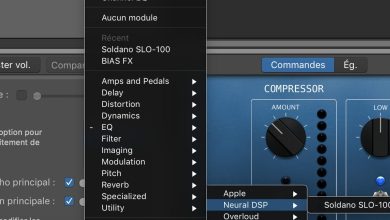
Plugins can be used to add a variety of effects to your bass tracks, including distortion, compression, and EQ. To access plugins in GarageBand, click on the Smart Controls button in the top-left corner of the window. From there, you can adjust the settings for the currently selected track, including adding and adjusting plugins.
GarageBand comes with a variety of built-in plugins, but you can also download and install third-party plugins to expand your options. Some popular plugin options for bass include Waves CLA Bass, IK Multimedia Ampeg SVX, and Native Instruments Guitar Rig.
When using plugins, it’s important to use them in moderation and not overdo it. Too much distortion or compression can make your bass track sound muddy or distorted. Experiment with different settings and find the right balance for your track.
Incorporating loops and plugins can add depth and complexity to your bass tracks in GarageBand. With a little experimentation and practice, you can create professional-sounding bass tracks that stand out.
Understanding the Spectrum Analyzer
The spectrum analyzer is a powerful tool that enables you to visualize the frequency content of your audio tracks. It shows the amplitude of each frequency band in your audio signal, allowing you to identify and isolate specific frequencies.
When you open the spectrum analyzer in GarageBand, you will see a graph that displays the frequency spectrum of your audio signal. The horizontal axis represents the frequency range, while the vertical axis represents the amplitude of each frequency band. The higher the amplitude, the louder the sound at that frequency.
Here are some key features of the spectrum analyzer:
-
Frequency range: The spectrum analyzer allows you to adjust the frequency range that is displayed. This is useful if you want to focus on a specific frequency band or if you want to see the entire spectrum.
-
Amplitude scale: You can adjust the amplitude scale of the spectrum analyzer to make it easier to see the details of your audio signal. This can be useful if you have a very dynamic audio signal with a wide range of amplitudes.
-
Peak hold: The peak hold function of the spectrum analyzer allows you to see the highest amplitude of each frequency band over a period of time. This can be useful for identifying the loudest parts of your audio signal.
-
Spectral smoothing: Spectral smoothing is a feature that allows you to smooth out the spectrum analyzer graph to make it easier to see the overall frequency content of your audio signal. This can be useful if you have a very noisy audio signal with a lot of frequency variations.
By understanding how to use the spectrum analyzer, you can identify and isolate specific frequencies in your audio signal. This can be useful for removing unwanted noise, boosting specific frequency bands, or creating custom EQ settings for your tracks.
Finalizing Your Mix
Once you have made all the necessary adjustments to your tracks, it’s time to finalize your mix. This involves adding some final polish to your project and exporting it in the desired format.
One important aspect to consider when finalizing your mix is the overall sound quality. Make sure that all your tracks are balanced and that there are no noticeable flaws or inconsistencies in the sound. You can use the EQ settings in GarageBand to fine-tune the sound and make sure that everything sounds as good as possible.
Another thing to keep in mind is the format in which you will export your project. If you plan on sharing your music online or sending it to others, you may want to export it as an MP3 file. This format is widely supported and can be played on most devices.
Before exporting your project, make sure to listen to it one last time and make any final adjustments as needed. You may want to listen to it on different devices to ensure that it sounds good across all platforms.
finalizing your mix is an important step in the music production process. It ensures that your project sounds as good as possible and is ready to be shared with others.
Conclusion
GarageBand is a powerful tool for music production that provides users with a wide range of features to create high-quality audio. Bass boosting is one of the most popular techniques used by music producers to enhance the sound of their tracks.
By following the steps outlined in this article, you can easily boost the bass in your GarageBand songs. Remember to start by selecting the right instrument, choose the right amp and effects, and adjust the EQ settings to achieve the desired sound.
It’s important to note that while bass boosting can make your tracks sound more powerful, it’s important not to overdo it. Too much bass can lead to distortion and make your tracks sound muddy. Use your ears to find the right balance and always listen to your tracks on different sound systems to ensure they sound great everywhere.
GarageBand is a fantastic tool for music production, and with the right techniques, you can create professional-sounding tracks that are sure to impress your audience.