iTunes is a popular media player and library application developed by Apple. It is used to manage and play digital music and video files on various devices such as iPhones, iPads, and iPods. iTunes also allows users to purchase and download music, movies, and TV shows from the iTunes Store.
At its core, iTunes is a media player that allows users to organize and play their digital music and video files. Users can create playlists, shuffle their music collection, and even rate their favorite songs. Additionally, iTunes offers a variety of tools for managing music files, such as the ability to add album artwork and edit song information.
Furthermore, iTunes is closely integrated with the iTunes Store, which allows users to purchase and download music, movies, and TV shows directly from the application. Users can also subscribe to Apple Music, a paid streaming service that provides access to millions of songs and curated playlists. With its powerful features and seamless integration with Apple devices, iTunes has become a go-to application for managing and enjoying digital media.
What is iTunes?
iTunes is a media player, media library, and mobile device management application developed by Apple Inc. It is used to play, download, and organize digital multimedia files, including music and video, on personal computers running the macOS and Windows operating systems. iTunes is also used to manage content on Apple’s iPod, iPhone, and iPad devices.
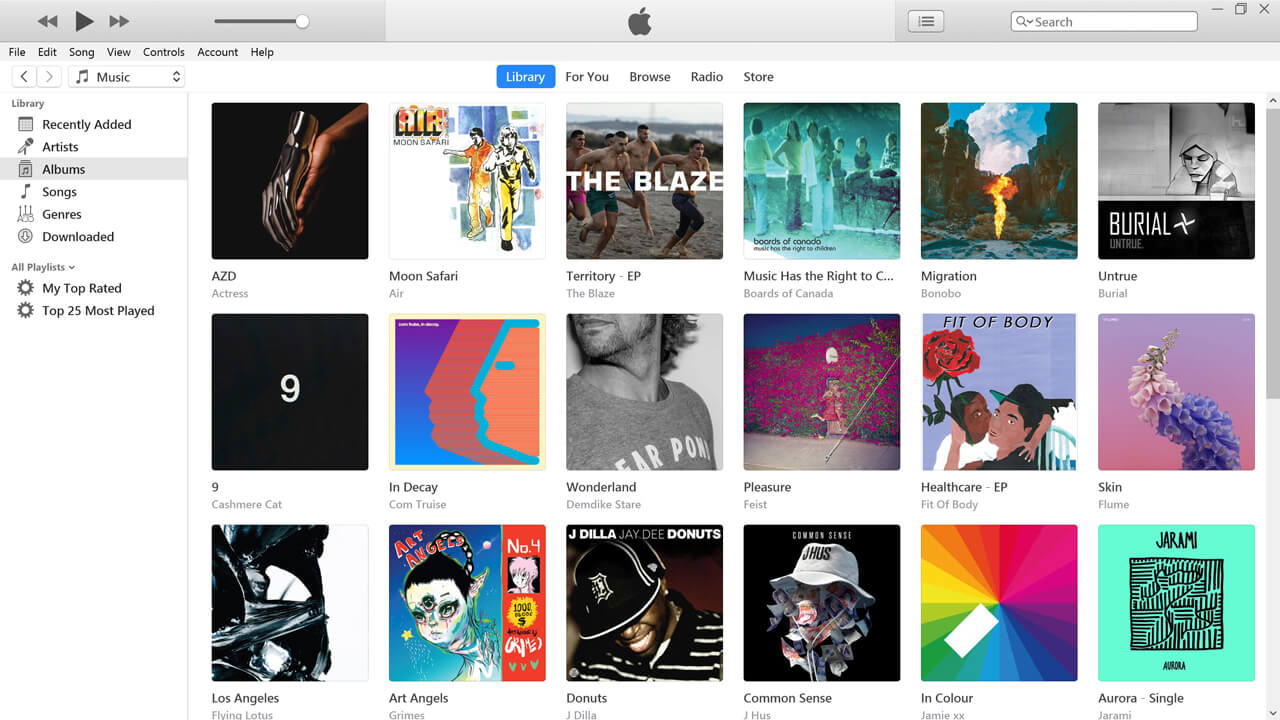
With iTunes, you can organize and play your music and videos, create playlists, and purchase music, TV shows, and movies from the iTunes Store. You can also download podcasts and listen to internet radio stations. iTunes has a user-friendly interface that allows you to easily navigate and access your media library.
One of the most popular features of iTunes is the ability to sync your media library with your Apple devices. This means that you can easily transfer music, videos, and other media files between your computer and your iPod, iPhone, or iPad. You can also use iTunes to backup and restore your device, as well as update its firmware.
Downloading and Installing iTunes
If you want to use iTunes on your Windows computer, you will need to download and install the application. Here are the steps to get started.
System Requirements
Before you begin, make sure your computer meets the following system requirements:
| System | Requirements |
|---|---|
| Operating System | Windows 7 or later |
| Processor | 1GHz Intel or AMD processor |
| RAM | 512MB RAM |
| Screen Resolution | 1024×768 or higher |
| Internet Connection | Broadband connection to the Internet |
Installation Process
To download and install iTunes on your Windows computer, follow these steps:
- Open your web browser and go to the iTunes download page.
- Click on the “Download Now” button to start the download process.
- Once the download is complete, double-click on the downloaded file to start the installation process.
- Follow the on-screen instructions to complete the installation process.
- Once the installation is complete, launch iTunes and follow the prompts to set up your account and preferences.
Note that during the installation process, you may be prompted to install additional software components, such as Apple Application Support, Apple Mobile Device Support, and Bonjour. These components are necessary for iTunes to function properly, so be sure to install them when prompted.
Setting Up an iTunes Account
Setting up an iTunes account is a simple process that allows you to access the iTunes Store, purchase music, movies, TV shows, and more. Here’s how you can do it:
- Open the iTunes app on your PC or Mac.
- Click on “Account” in the menu bar and select “Sign In”.
- If you already have an Apple ID, enter your email address and password to sign in. If you don’t have an Apple ID, click on “Create New Apple ID”.
- Follow the on-screen instructions to enter your personal information, including your name, email address, and billing information.
- Once you have entered all the required information, click on “Create Apple ID” to complete the process.
It’s important to note that you will need to provide a valid payment method, such as a credit card, in order to make purchases on the iTunes Store. You can also choose to use an iTunes gift card instead.
Once your account is set up, you can start browsing the iTunes Store and purchasing your favorite music, movies, and TV shows. You can also view your purchase history and manage your account settings by clicking on “Account” in the menu bar.
iTunes is a popular media player and library that allows users to manage their music, movies, podcasts, and applications easily. The interface is user-friendly and straightforward, making it easy for users to navigate and find what they are looking for.
Music Library
The music library is the primary feature of iTunes. It allows users to organize their music by artist, album, genre, and playlist. Users can also create their own playlists by selecting songs from their library and dragging them into a new playlist. Additionally, users can use the search function to find specific songs or artists quickly.
Movie Section
The movie section of iTunes is where users can purchase or rent movies. Users can browse movies by genre, new releases, or top-rated movies. Once a movie is selected, users can choose to rent or purchase it. The movie will then be added to their library for future viewing.
Podcast Section
The podcast section of iTunes is where users can subscribe to their favorite podcasts. Users can browse podcasts by category or search for a specific podcast. Once a podcast is selected, users can choose to subscribe to it, and new episodes will automatically download to their library.
App Store
The App Store section of iTunes is where users can download and purchase applications for their iOS devices. Users can browse apps by category or search for a specific app. Once an app is selected, users can choose to download or purchase it. The app will then be added to their library for future use.
Purchasing Content on iTunes
iTunes is a popular media player and library application that allows users to play, download, and organize digital audio and video files. One of the key features of iTunes is the ability to purchase content directly from the iTunes Store. In this section, we will explore how to purchase music, movies, and apps on iTunes.
Buying Music
To buy music on iTunes, simply navigate to the Music section of the iTunes Store and browse through the available albums and songs. Once you find a song or album that you like, click on the price button next to the item to purchase it. You will be prompted to enter your Apple ID and password to complete the purchase.
After purchasing music on iTunes, it will be added to your iTunes library and can be synced to your other Apple devices. You can also access your purchased music through the Apple Music app.
Renting Movies
In addition to buying music, you can also rent movies on iTunes. To rent a movie, navigate to the Movies section of the iTunes Store and browse through the available titles. Once you find a movie that you want to rent, click on the Rent button next to the item.
When renting a movie on iTunes, you will have 30 days from the time of rental to start watching the movie. Once you start watching the movie, you will have 24 hours to finish it before it expires.
Purchasing Apps
iTunes also allows users to purchase apps for their Apple devices. To purchase an app on iTunes, navigate to the App Store section and browse through the available apps. Once you find an app that you want to purchase, click on the price button next to the item.
After purchasing an app on iTunes, it will be added to your App Library and can be downloaded to your Apple devices. You can also access your purchased apps through the App Store on your devices.
iTunes Syncing
iTunes is a powerful media player and management tool that can sync content between your computer and your Apple devices. This includes music, movies, TV shows, podcasts, audiobooks, and more. Here’s how syncing works with various Apple devices:
Syncing with iPhone
To sync your iPhone with iTunes, connect your iPhone to your computer using a USB cable. Then, open iTunes and click on the iPhone icon in the top left corner of the window. From here, you can choose what content you want to sync to your iPhone. You can also set up automatic syncing so that your iPhone is always up to date with your iTunes library.
Syncing with iPad
Syncing your iPad with iTunes is similar to syncing your iPhone. Connect your iPad to your computer using a USB cable, then open iTunes and click on the iPad icon in the top left corner of the window. From here, you can choose what content you want to sync to your iPad. You can also set up automatic syncing so that your iPad is always up to date with your iTunes library.
Syncing with iPod
Syncing your iPod with iTunes is a bit different from syncing an iPhone or iPad. If you have an iPod classic, iPod nano, or iPod shuffle, you have to sync your device with iTunes. There’s no other way to add content to it. To sync your iPod, connect it to your computer using a USB cable, then open iTunes and click on the iPod icon in the top left corner of the window. From here, you can choose what content you want to sync to your iPod. You can also set up automatic syncing so that your iPod is always up to date with your iTunes library.
iTunes Backups
iTunes allows you to create backups of your iPhone, iPad, or iPod touch. Backups are important because they allow you to restore your device in case it is lost, stolen, or damaged.
There are two ways to back up your device using iTunes: through your computer or through iCloud. If you choose to back up through your computer, you will need to connect your device to your computer using a USB cable. Once connected, you can open iTunes and select your device. From there, you can choose to back up your device to your computer.
If you choose to back up through iCloud, you can do so wirelessly. To do this, you will need to go to Settings on your device, select iCloud, and then select Backup. From there, you can choose to back up your device to iCloud.
iCloud backups are limited in size, so if you have a lot of data on your device, you may need to purchase additional iCloud storage. Additionally, iCloud backups may take longer to complete than backups made through your computer.
To restore your device from a backup, you will need to connect your device to your computer or connect to a Wi-Fi network if you backed up through iCloud. From there, you can select your device in iTunes or go to Settings on your device and select General > Reset > Erase All Content and Settings.
Troubleshooting Common iTunes Issues
iTunes is a powerful media player and library that can help you manage your music, movies, and TV shows. However, like any software, it can have its issues. Here are some common problems that iTunes users encounter, along with some troubleshooting tips to help you resolve them.
iTunes won’t open or crashes frequently
If you’re having trouble opening iTunes or it crashes frequently, try the following steps:
- Make sure you have the latest version of iTunes installed.
- Restart your computer and try opening iTunes again.
- Remove any third-party plug-ins or add-ons that you’ve installed and try opening iTunes again.
- If you’re still having trouble, try uninstalling and reinstalling iTunes.
iTunes won’t recognize your device
If iTunes won’t recognize your iPhone, iPad, or iPod, try the following steps:
- Make sure you have the latest version of iTunes installed.
- Make sure your device is turned on and unlocked.
- Try using a different USB cable or USB port.
- Restart your computer and try connecting your device again.
- If you’re still having trouble, try resetting your device’s settings or restoring it to its factory settings.
iTunes won’t download or play music
If you’re having trouble downloading or playing music in iTunes, try the following steps:
- Make sure you have an active internet connection and that iTunes is authorized to access the internet.
- Make sure you’re signed in to your iTunes account and that your payment information is up to date.
- Check to see if there are any available updates for iTunes or your device.
- Try playing a different audio file or CD to make sure the problem isn’t with your computer or speakers.
These are just a few of the common issues that iTunes users encounter. If you’re still having trouble after trying these troubleshooting tips, you may need to contact Apple support for further assistance.
Conclusion
In conclusion, iTunes is a powerful tool to let you enjoy all sorts of media, from music and movies to podcasts and audiobooks. As we’ve explored, it works by organizing your media files in a library, where you can easily browse, play, and manage them.
Whether you’re buying new content from the iTunes Store or importing your CDs, iTunes makes the process simple and straightforward. Remember, you can also create personalized playlists and even share your favorite tunes with friends. With its user-friendly interface and versatile features, iTunes is an excellent way for you to access and enjoy your media. So, give it a try and see how it can enhance your listening and viewing experience.