

If you’re an Android user and own a pair of AirPods, you may need to check the serial number for various reasons. The serial number is a unique identifier that can be used to check warranty status, troubleshoot issues, or even report lost or stolen AirPods. However, finding the serial number on AirPods can be a bit tricky, especially if you’re using an Android device.
But don’t worry, checking the serial number on AirPods is not as difficult as it seems. There are several ways to find the serial number on AirPods using an Android phone or tablet. In this article, we’ll show you some of the easiest methods to check the serial number on your AirPods, whether you have the first generation, second generation, or AirPods Pro. So, let’s get started and learn how to check the serial number on AirPods using Android.
Understanding AirPods Compatibility with Android
If you’re an Android user and have recently purchased AirPods, you may be wondering if they’re compatible with your device. The good news is that AirPods can be used with Android phones, but there are some limitations to keep in mind.
Firstly, AirPods can still be used to listen to music and take phone calls on Android devices. However, some features that are available on Apple devices may not be available on Android, such as Siri integration and automatic ear detection.
To connect your AirPods to your Android device, simply put your AirPods in pairing mode by holding down the button on the back of the charging case until the LED light starts flashing. Then, on your Android device, go to Settings > Bluetooth and select your AirPods from the list of available devices.
It’s also important to note that not all AirPods are created equal. The original AirPods and AirPods 2 have different model numbers and may have different features. Additionally, the AirPods Pro have different features and a different design altogether.
To check which model of AirPods you have, you can find the model number and serial number on the underside of the lid of the charging case. Use these numbers to verify which model of AirPods you have and what features are available to you.
while AirPods can be used with Android devices, there may be some limitations to their functionality. However, they still provide a convenient and high-quality listening experience for Android users.
Locating the AirPods Serial Number Physically
If you’re having trouble locating your AirPods’ serial number using your Android device, you can always check it physically. Here are some ways to do it:
1. Check the Charging Case
The easiest way to locate your AirPods’ serial number is by checking the charging case. Flip open the lid of the charging case, and you should see the serial number printed on the inside of the lid. If you can’t find it there, look for it on the bottom of the charging case.
2. Check the AirPods Themselves
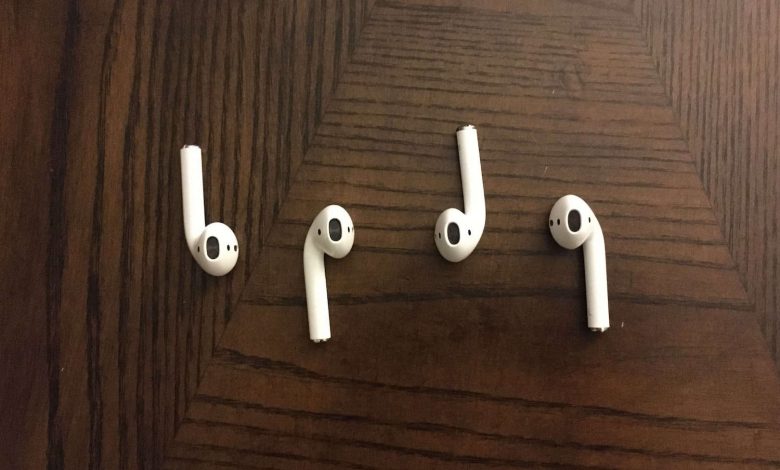
If you still can’t find the serial number on the charging case, you can check the AirPods themselves. To do this, remove the AirPods from the charging case and look for the serial number on the stem of each AirPod. The serial number will be printed in small text near the bottom of the stem.
3. Check the Original Packaging
If you still can’t find the serial number on the charging case or the AirPods themselves, you can check the original packaging. The serial number should be printed on the outside of the box, along with other information like the model number and the date of manufacture.
It’s important to note that the serial number on the AirPods and the charging case should match. If they don’t, it could be a sign that your AirPods are counterfeit or have been tampered with. In that case, you should contact Apple support for assistance.
locating the AirPods serial number physically is a straightforward process that shouldn’t take more than a few minutes. By following these steps, you should be able to find the serial number and use it for any necessary troubleshooting or support.
Using Bluetooth Settings to Check AirPods Serial Number
If you own a pair of AirPods and want to check their serial number using an Android device, you can do so by following a few simple steps. One way to check your AirPods’ serial number is through the Bluetooth settings on your Android device.
To get started, make sure your AirPods are connected to your Android device via Bluetooth. Then, follow these steps:
- Open your Android device’s Settings app.
- Tap on “Connected devices” or “Bluetooth.”
- Find your AirPods in the list of connected devices.
- Tap on the gear icon or “i” next to your AirPods to access more information.
- Look for the “Serial number” or “S/N” field to find your AirPods’ serial number.
If you can’t find the serial number field, try tapping on “About” or “Device details” to access more information about your AirPods.
It’s important to note that some Android devices may not display the AirPods’ serial number in the Bluetooth settings. In this case, you can try using Apple’s Find My app or checking the serial number on the AirPods themselves.
By using the Bluetooth settings on your Android device, you can quickly and easily check the serial number of your AirPods. This information can be useful if you need to contact Apple support or verify the authenticity of your AirPods.
Using Third-Party Apps to Find AirPods Serial Number
If you own AirPods and an Android device, you may be wondering how to check the serial number of your AirPods. While Apple provides an easy way to find the serial number on iOS devices, there is no built-in way to do this on Android. However, there are third-party apps that can help you find the serial number of your AirPods. Here are two popular options:
Using ‘AirBattery’ App
AirBattery is a free app that displays the battery level of your AirPods and their charging case. It also shows the serial number of your AirPods. Here’s how to use it:
- Download and install the AirBattery app from the Google Play Store.
- Open the app and make sure your AirPods are connected to your Android device.
- You should see the battery level of your AirPods and their charging case. Tap on the AirPods icon to see more information.
- The serial number of your AirPods should be displayed under the ‘Device Info’ section.
Note that AirBattery may not work with all Android devices or all versions of Android. It also may not be as accurate as Apple’s own method of checking the serial number.
Using ‘Podroid’ App
Podroid is another free app that displays the battery level of your AirPods and their charging case. It also shows the serial number of your AirPods. Here’s how to use it:
- Download and install the Podroid app from the Google Play Store.
- Open the app and make sure your AirPods are connected to your Android device.
- You should see the battery level of your AirPods and their charging case. Tap on the ‘i’ icon next to the AirPods name to see more information.
- The serial number of your AirPods should be displayed under the ‘Device Info’ section.
Note that like AirBattery, Podroid may not work with all Android devices or all versions of Android. It also may not be as accurate as Apple’s own method of checking the serial number.
while there is no built-in way to check the serial number of your AirPods on Android, third-party apps like AirBattery and Podroid can help you find it. However, keep in mind that these apps may not be as accurate or reliable as Apple’s own method of checking the serial number.
Troubleshooting Common Issues
Unable to Find Serial Number
If you’re having trouble finding your AirPods’ serial number on your Android device, there are a few things you can try. First, make sure your AirPods are connected to your Android device. If they’re not, try connecting them and then checking for the serial number again.
If you still can’t find the serial number, try resetting your AirPods. To do this, put your AirPods in their case and press and hold the button on the back of the case until the LED light on the front of the case starts flashing amber. Once the light stops flashing, your AirPods should be reset and you can try checking for the serial number again.
AirPods Not Connecting to Android
If you’re having trouble connecting your AirPods to your Android device, there are a few things you can try. First, make sure your AirPods are charged and in their case. Then, try resetting your AirPods by following the steps outlined above.
If you’re still having trouble connecting your AirPods, try forgetting them on your Android device and then reconnecting them. To do this, go to your Bluetooth settings, find your AirPods in the list of devices, and then tap the “Forget” button. Once you’ve done this, try connecting your AirPods again by putting them in their case and then opening the lid.
If none of these troubleshooting steps work, you may need to contact Apple support for further assistance.
Conclusion
checking the serial number of your AirPods on Android is a simple process that can be done in a few easy steps. By using the methods outlined in this article, you can quickly find your AirPods’ serial number and ensure that they are genuine and functioning properly.
Remember, the serial number of your AirPods is an essential piece of information that can help you in case of warranty claims or if you need to report them as stolen. So, it’s always a good idea to keep it handy.
Whether you prefer to check the serial number on the AirPods charging case, through the Bluetooth settings on your Android device, or by using third-party apps, the choice is yours. Just make sure to follow the instructions carefully and stay safe while doing so.
We hope that this article has been helpful in guiding you through the process of checking your AirPods’ serial number on Android. If you have any questions or comments, feel free to leave them below, and we’ll do our best to assist you.

