


If you’re a new owner of Beats headphones, you may be wondering where the power button is located. It can be frustrating not knowing how to turn on your headphones, especially if you’re excited to use them. Fortunately, finding the power button on Beats headphones is easy once you know where to look.
For in-ear wireless headphones, the power button is usually located on the right side of the cable, just below the right earbud. On the other hand, true wireless earbuds don’t have a power button. Instead, you simply take them out of the case, and they’re ready to use. If you’re having trouble turning on your headphones, there are a few things you can try to troubleshoot the issue.
Resetting your headphones is one option. To reset your Beats headphones, hold down the power button and volume down button for 10 seconds. When the Fuel Gauge flashes, release the buttons. Your headphones are now reset and ready to be set up with your devices again. If this doesn’t work, you may need to contact customer support for further assistance.
Identifying Beats Headphones Model
Beats by Dre has a wide range of headphones on the market, and it’s important to know which model you own to ensure that you can find the right parts or accessories if needed. Here are some tips to help you identify your Beats headphones model:
Look for the Model Number
The easiest way to identify your Beats headphones model is to look for the model number. The model number is usually printed on the inside of the headband or on the ear cups. Once you have the model number, you can search for it online to find out more about your headphones and what parts and accessories are available.
Check the Design
Another way to identify your Beats headphones model is to check the design. Each model has a unique design, so you should be able to tell which model you have just by looking at it. For example, the Beats Solo headphones have a distinctive on-ear design, while the Beats Studio headphones have an over-ear design with noise-cancelling technology.
Check the Features
You can also identify your Beats headphones model by checking the features. Each model has different features, such as wireless connectivity, noise-canceling technology, and on-ear or over-ear design. If you’re not sure which model you have, check the features to see if they match up with any of the models available.
By following these tips, you should be able to identify your Beats headphones model and find the right parts and accessories if needed. Remember to always check the model number, design, and features to ensure that you have the correct information.
Location of Power Button on Beats Solo3
If you’re new to using Beats Solo3 headphones, you might be wondering where the power button is located. The power button is an essential part of the headphones that allows you to turn them on and off.
The power button on Beats Solo3 headphones is located on the right earcup. It’s a small circular button that’s located at the bottom of the earcup. The button is easy to locate and press, even if you’re new to using the headphones.

To turn on the Beats Solo3 headphones, press and hold the power button for about one second. The headphones will turn on and the LED light on the earcup will flash. To turn off the headphones, press and hold the power button for about two seconds. The LED light will turn off, indicating that the headphones are powered off.
The power button on Beats Solo3 headphones also serves other functions. For example, you can use the power button to put the headphones in pairing mode, which allows you to connect them to your Bluetooth-enabled device. To enter pairing mode, press and hold the power button until the LED light on the earcup starts flashing.
Location of Power Button on Beats Studio Pro
The power button on your Beats Studio Pro headphones is known as the system button and it’s easy to find and use. Gently press and hold this button for 1 second to turn your headphones on. You’ll find it handy when you need to charge your headphones too: just connect the included USB-C cable to them and a power source.
While charging, look at the five lights on the right ear cup. They will blink. When all lights stay on, your headphones are charged up and ready to go.

The system button does more than just power on and charge. Need to pair your headphones with a phone or another device? Press the system button and check the lights: if they blink, your headphones are ready to connect. Once paired, they remember your device, so you won’t have to do this every time. And if you’re switching devices, no problem – just press the button until you see the lights blink and choose your Beats on the new device.
Controlling your music and calls is a breeze. The “b” button on the left ear cup has you covered. Click it to play or pause music, or to pick up and end calls. Volume buttons are right there, too, above and below the “b” button.
Double press the system button to toggle between Active Noise Cancellation and Transparency mode. Remember, if you misplace your headphones, the Find My app can help you locate them. And simply saying “Hey Siri” or holding the “b” button activates Siri for voice commands.
Location of Power Button on Beats Studio3
The power button on the Beats Studio3 headphones is located on the bottom of the right earcup.
To turn on your Beats Studio3 headphones, simply press and hold the power button for at least one second. You should see the LED light on the headphones turn on, indicating that they are powered on and ready to use.
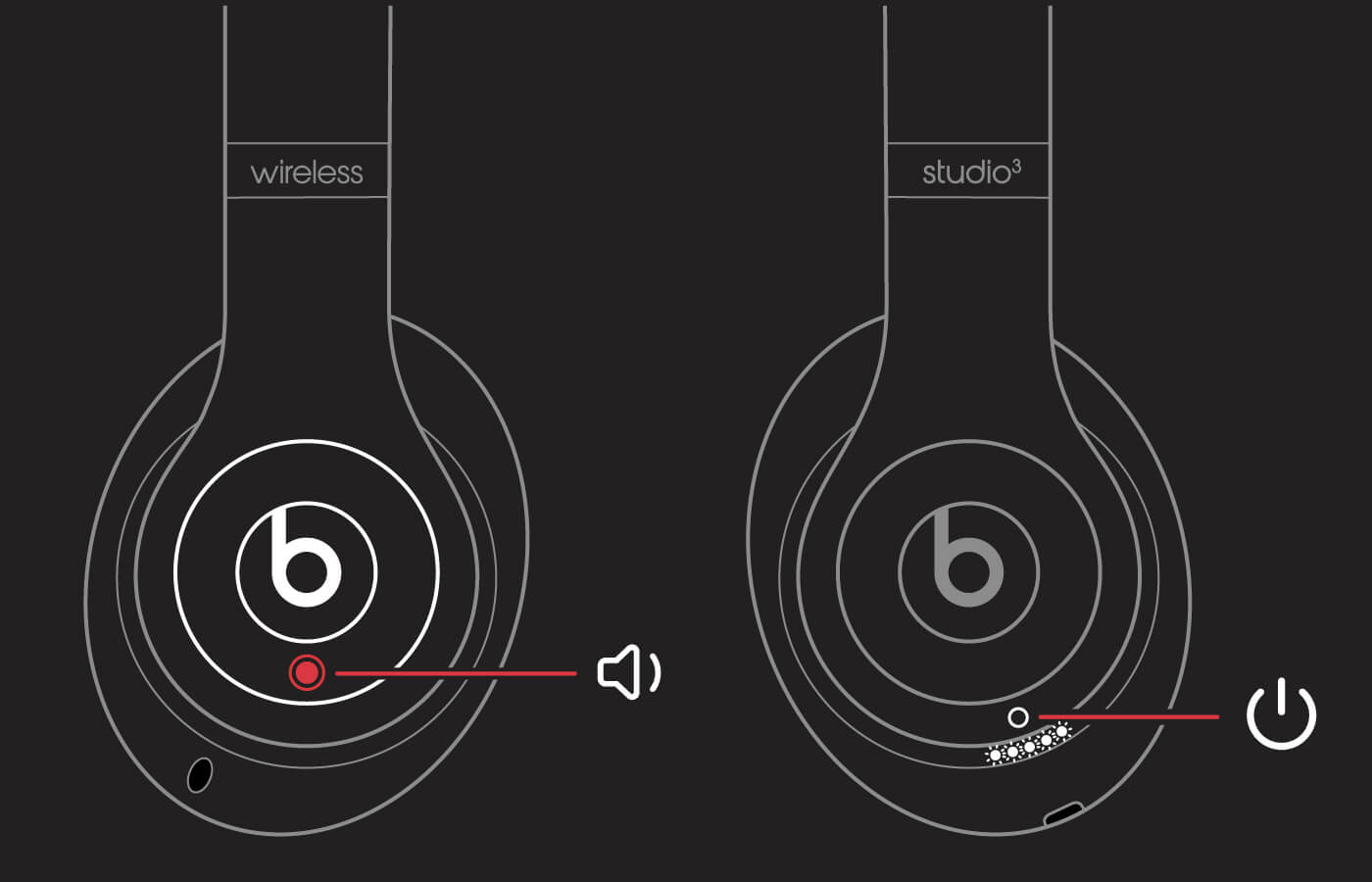
If your Beats Studio3 headphones are not turning on, it could be due to a low battery. In this case, you’ll need to charge your headphones using the included micro USB cable.
Once your headphones are fully charged, you can turn them on by pressing and holding the power button as described above.
Location of Power Button on Powerbeats Pro
The Powerbeats Pro is a popular set of wireless earbuds that provide high-quality audio and a comfortable fit for users on the go. Among its features, the power functionality is broadly managed by the ‘b’ multifunction button on each earbud. Knowing how to manage the power of your Powerbeats Pro is essential for optimizing your user experience.

Each earbud on the Powerbeats Pro is designed with a multifunction ‘b’ button that allows you to control various functions, including powering the earbuds on and off. This button also handles answering and ending phone calls and controlling music playback. Unlike what was previously mentioned, the multifunction ‘b’ button is located in the same relative position on both earbuds—the center of the outer side, marked by the Beats logo.
To turn your earbuds on or off, you can press and hold the multifunction button for about 1 second. If done correctly, you will notice an LED indicator that informs you of their power status. There might also be accompanying audio prompts when turning on or off.
Additionally, the Powerbeats Pro earbuds offer smart features to enhance usability:
- They automatically power on when taken out of the charging case and turn off when placed back into the case.
- The earbuds enter pairing mode when powered on for the first time or after being reset.
Location of Power Button on Powerbeats3 Wireless
The Powerbeats3 Wireless headphones boast a design that aims to be both sleek and modern. The power button is integrated into the design so that it doesn’t stand out, yet it remains accessible and functional.
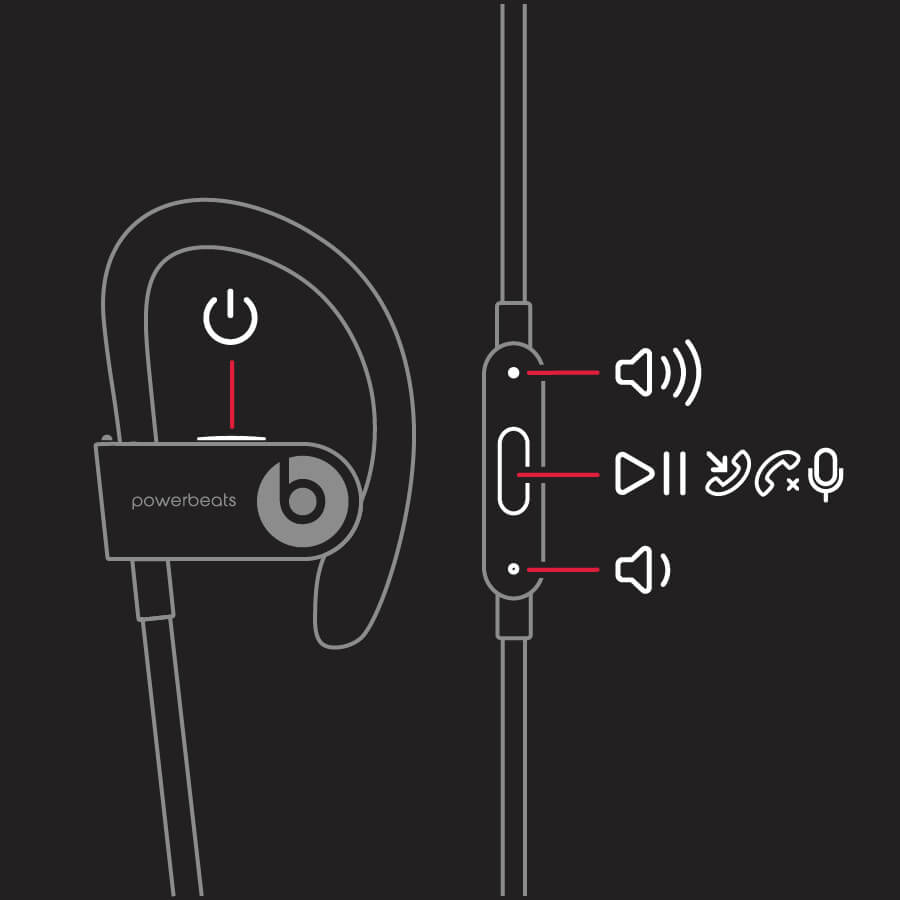
Located on the right earbud, the power button is a small, circular button adorned with the Beats logo. To switch on the headphones, you need to press and hold the power button for about one second; this will prompt the LED indicator light on the earbud to flash, signaling that the headphones are powered on.
To turn the headphones off, simply press and hold the power button again, this time for approximately four seconds. You’ll know the headphones are shutting down once the LED indicator flashes red.
The Powerbeats3’s power button is multifunctional. For instance, to initiate pairing mode and connect the headphones to a new device, press and hold the power button for several seconds while the headphones are turned off. The LED indicator light will begin to blink, indicating that it is now in pairing mode.
Troubleshooting Power Button Issues
If you’re having issues with the power button on your Beats headphones, there are a few things you can try to troubleshoot the problem. Here are some tips:
- Make sure the headphones are charged: If your headphones aren’t turning on, it could be because the battery is dead. Try charging them using the included charging cable.
- Reset the headphones: If the headphones are charged but still won’t turn on, try resetting them. The process for resetting your headphones will vary depending on the model you have. You can find instructions for resetting your headphones on the Apple Support website.
- Check the power button: If the headphones are charged and reset but still won’t turn on, the power button may be faulty. Check the button to see if it’s stuck or not responding. If the button is stuck, try gently pressing it a few times to see if it will release. If the button is not responding, you may need to have the headphones repaired.
- Contact customer support: If none of the above steps work, it’s time to contact customer support. You can reach out to Beats customer support through the Apple Support website or by calling the Beats support phone number. They will be able to help you troubleshoot the problem and determine if the headphones need to be repaired or replaced.
By following these tips, you should be able to troubleshoot power button issues with your Beats headphones. Remember to always check the battery and try resetting the headphones before assuming there’s a hardware issue with the power button.
Conclusion
the location of the power button on Beats headphones varies depending on the model. The Beats Solo 3 headphones have the power button located on the right ear cup, while the power button on the Beats Wireless headphones is located on the left ear cup.
If you are having trouble finding the power button on your Beats headphones, refer to the user manual or the manufacturer’s website for specific instructions for your model.
If your Beats headphones are not turning on, there may be other issues at play. It could be due to a low battery, a faulty charging cable, or a problem with the headphones themselves. In these cases, refer to the troubleshooting guide in the user manual or contact the manufacturer for assistance.
Beats headphones are a popular and reliable choice for music lovers and audiophiles alike. With their sleek design and high-quality sound, they are a great investment for anyone looking to elevate their listening experience.


