


Connecting a Bluetooth speaker to a computer can be a convenient way to enjoy high-quality audio without the hassle of wires. However, not all computers have built-in Bluetooth capabilities. In this article, we will explore how to connect a Bluetooth speaker to a computer through USB.
If your computer does not have Bluetooth capabilities, you can still connect a Bluetooth speaker using a USB Bluetooth adapter. This adapter can be purchased at your local electronics store and should support Bluetooth 4.0 or higher. Once you have the adapter, simply plug it into your computer’s USB port and follow the steps to connect your Bluetooth speaker.
Understanding Bluetooth and USB Connections
Connecting a Bluetooth speaker to your computer is a great way to enjoy high-quality audio without the hassle of wires. However, it can be confusing to understand the different types of connections available. In this section, we’ll discuss the basics of Bluetooth and USB connections and how they relate to connecting your speaker.
Bluetooth Connections
Bluetooth is a wireless technology that allows devices to communicate with each other over short distances. Bluetooth-enabled devices, such as speakers, phones, and computers, can connect to each other without the need for cables or wires.
To connect a Bluetooth speaker to your computer, your computer must have Bluetooth capabilities. If your computer does not have built-in Bluetooth, you can purchase a USB Bluetooth adapter to add Bluetooth capabilities to your computer.
USB Connections
USB, or Universal Serial Bus, is a standard connection protocol used to connect devices to computers. USB connections can be used for a variety of purposes, such as charging devices, transferring data, and connecting peripherals.
When it comes to connecting a Bluetooth speaker to your computer, USB can be used in a few different ways. One way is to use a USB Bluetooth adapter to add Bluetooth capabilities to your computer, as mentioned earlier. Another way is to connect your speaker directly to your computer using a USB cable. This method is less common but can be useful if your speaker has USB capabilities.
Bluetooth and USB are both important connection protocols that can be used to connect your computer to a Bluetooth speaker. Understanding the basics of these connections can help you choose the best method for your specific needs.
Choosing the Right Bluetooth Speaker
When it comes to choosing the right Bluetooth speaker, there are a few things to consider. Here are some factors to keep in mind:
Sound Quality
One of the most important factors to consider is sound quality. Look for a speaker that has good clarity, balanced bass, and clear treble. Some speakers also offer features like 360-degree sound or stereo pairing, which can enhance your listening experience.
Size and Portability
Consider where you’ll be using your speaker and how portable you need it to be. If you’ll be taking it on the go, look for a compact and lightweight option that’s easy to pack up and carry. If you’ll be using it at home, you might want a larger speaker that can fill a room with sound.
Battery Life
Another important factor to consider is battery life. Look for a speaker that offers at least 6-8 hours of playback time on a single charge. Some speakers also offer quick charging capabilities, so you can get back to listening to your music faster.
Connectivity Options
Make sure the speaker you choose is compatible with your devices and offers multiple connectivity options. Bluetooth is the most common way to connect, but some speakers also offer NFC pairing, Wi-Fi connectivity, or even a built-in AUX input.
Durability
If you plan on taking your speaker on the go, look for a durable option that can withstand bumps and drops. Some speakers are also water-resistant or even waterproof, which can be a great feature if you plan on using it by the pool or at the beach.
When choosing the right Bluetooth speaker, it’s important to consider your needs and preferences. By keeping these factors in mind, you can find a speaker that offers great sound quality, portability, and connectivity options for your listening pleasure.
Using USB for Audio Transfer
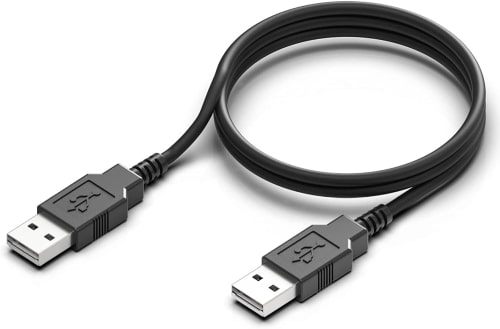
Some Bluetooth speakers do support audio input through a USB connection. This allows the speaker to act as an external sound card or audio output device. For this, you will need to follow specific instructions because it varies depending on the speaker model and the operating system you are using.
Here is a general guide for connecting a Bluetooth speaker through USB for audio transfer:
- Plug the Speaker In: Connect the Bluetooth speaker to your computer or audio source using the provided (or compatible) USB cable.
- Power the Speaker On: Make sure the speaker is turned on. Depending on the model, there may be a specific mode you need to set it in to receive audio over USB.
- Set as the Audio Output Device: On your computer, you will typically need to go to sound settings to change the output device.
- For Windows, navigate to ‘Control Panel > Hardware and Sound > Sound’, or simply right-click on the audio volume icon in the system tray and select ‘Sounds’. From there, choose the ‘Playback’ tab and select your Bluetooth speaker, which should be listed as an audio device.
- For macOS, go to ‘System Preferences > Sound’, select the ‘Output’ tab, and choose your Bluetooth speaker which should appear as an audio device.
- Install Any Necessary Drivers: Some Bluetooth speakers might require specific drivers to be installed on your computer to function correctly. Often, drivers are automatically installed when you connect the device. If necessary, though, you can visit the manufacturer’s website to download and install any required software.
If your speaker does not support audio transfer over USB and you want to connect it to a device that doesn’t have Bluetooth, you may need a Bluetooth adapter that enables Bluetooth connectivity on your device. You would then pair the speaker to the adapter using Bluetooth, and the adapter would be connected to your device via USB.
Using An Auxilary Cable

If your Bluetooth speaker lacks a USB port but features an auxiliary input (often referred to as “AUX”), you’ll need to use a 3.5mm audio cable (also known as an AUX cable). Here’s a step-by-step guide on how to connect such a speaker to a device using an AUX cable:
- Locate the AUX Input: Check your Bluetooth speaker for a port labeled “AUX IN”, “Line-In”, or something similar. This is usually a 3.5mm jack input.
- Find a Compatible AUX Cable: You will need a 3.5mm male-to-male stereo audio cable, which can typically connect to the headphone jack of a phone, tablet, computer, or another audio source.
- Connect the Cable:
- Insert one end of the AUX cable into the AUX input of your Bluetooth speaker.
- Insert the other end of the AUX cable into the headphone jack or the AUX out port of your audio source device.
- Power On the Speaker: Switch on your Bluetooth speaker. Depending on the speaker, you may need to switch it to AUX or Line-In mode. Sometimes this happens automatically when an AUX cable is connected, or you may need to select the mode manually using a button on the speaker.
- Play Audio: With the connections set up, play audio from your source device (smartphone, computer, etc.). The sound should now come through your Bluetooth speaker.
- Adjust Volume: You might need to adjust the volume on both the audio source device and the Bluetooth speaker itself to get the desired sound level.
Connecting via AUX is a straightforward process and is often preferred when a stable, wired connection is more desirable than a wireless Bluetooth connection. This method can also be a workaround for when the Bluetooth functionality isn’t available or not working properly on the speaker or the source device.
Using a USB to Aux Audio Adapter
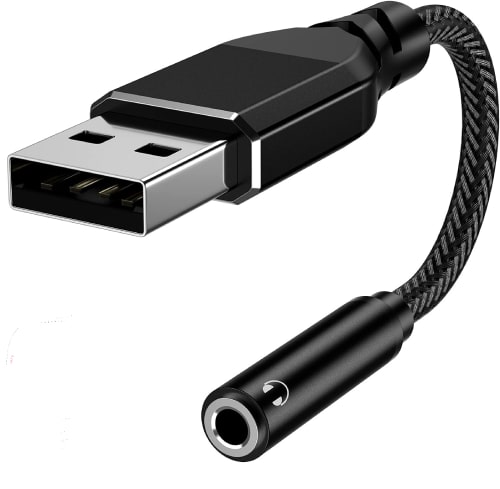
If your Bluetooth speaker has an AUX input but you cannot use a standard 3.5mm AUX cable for source audio, you can use a USB to 3.5mm jack audio adapter as an alternative. Such adapters typically have a USB connector on one end and a 3.5mm audio jack on the other. For this method, you will need a USB to Aux adapter along with a standard 3.5 to 3.5 audio cable.
Here’s how to connect using a USB to AUX adapter:
- Ensure Compatibility: Check to ensure that your audio source (e.g., a computer, laptop, or USB audio player) is compatible with a USB audio output. You should also confirm that the USB to 3.5mm adapter is designed for audio output and not just for data or charging.
- Connect the USB to the AUX Adapter:
- Plug the USB end of the adapter into an available USB port on your source device.
- Plug one end of a standard 3.5mm AUX cable into the 3.5mm jack of the USB adapter.
- Connect to the Speaker:
- Insert the other end of the AUX cable into the AUX input (‘AUX IN’, ‘Line-In’) on your Bluetooth speaker.
- Configure Audio Output (if necessary):
- On some devices, like computers, you may need to manually set the USB audio adapter as the playback device.
- For Windows: Right-click on the sound/volume icon in the system tray, select ‘Sounds’, go to the Playback tab, and set the USB audio adapter as the default device.
- For macOS: Go to ‘System Preferences’ > ‘Sound’ and choose the USB audio adapter as the output device.
- Play Audio: Play music or audio from your source device, and it should now be routed through the USB audio adapter and out through the speaker’s AUX input.
- Volume Adjustment: You may want to adjust the volume on both the source device and the Bluetooth speaker for optimal listening levels.
While using a USB to AUX adapter does provide a wired connection, it doesn’t utilize the Bluetooth functionality of your speaker. This alternative is helpful when you either don’t want to use Bluetooth, your device lacks a 3.5mm audio out port, or you need to free up the 3.5mm port for another use. It’s also a useful workaround if your source device doesn’t have a traditional headphone jack, which is increasingly common with modern laptops and smartphones.
Troubleshooting Connection Issues
If you’re having trouble connecting your Bluetooth speaker through USB, don’t worry. There are a few things you can try to resolve the issue.
Checking the USB Cable
First, make sure that the USB cable you’re using is working properly. Try using a different USB cable to see if that solves the problem. If you don’t have a spare cable, you can also try plugging the USB cable into a different USB port on your computer.
Resetting the Bluetooth Speaker
If the USB cable isn’t the issue, try resetting your Bluetooth speaker. To do this, turn off the speaker and unplug it from the power source. Then, press and hold the power button for at least 10 seconds. Release the button and plug the speaker back in. Turn it on and try connecting it to your computer again.
Updating the Device’s Software
If resetting the speaker doesn’t work, try updating the software on your computer or device. Make sure that you have the latest version of the operating system installed. You can also check for updates for your Bluetooth speaker by visiting the manufacturer’s website.
In some cases, you may need to uninstall and reinstall the driver for your Bluetooth speaker. To do this, go to the Device Manager on your computer and find the Bluetooth speaker. Right-click on it and select Uninstall. Then, restart your computer and reinstall the driver.
By following these troubleshooting steps, you should be able to connect your Bluetooth speaker through USB without any issues.
Maintaining Your Bluetooth Speaker
Taking care of your Bluetooth speaker is essential to ensure that it continues to function properly and lasts a long time. Here are some tips to help you maintain your device:
- Keep your speaker clean: Wipe down the speaker regularly with a soft, dry cloth to remove any dust or dirt that may have accumulated. Avoid using abrasive cleaners or solvents that could damage the surface.
- Protect your speaker from moisture: Bluetooth speakers are not waterproof, so make sure to keep them away from water or other liquids. If you plan to use your speaker outdoors, consider getting a protective cover to shield it from the elements.
- Charge your speaker properly: Follow the manufacturer’s instructions for charging your speaker. Overcharging or undercharging can damage the battery and reduce its lifespan.
- Store your speaker properly: When not in use, store your speaker in a cool, dry place away from direct sunlight and heat sources. Avoid storing it in a humid environment, as this can cause damage to the internal components.
- Update your speaker’s firmware: Check the manufacturer’s website regularly for firmware updates for your speaker. These updates can improve performance and fix any bugs that may have been discovered.
By following these simple tips, you can help ensure that your Bluetooth speaker stays in top condition and continues to provide you with high-quality sound for years to come.
Conclusion
And there you have it! You’ve just learned how to link your Bluetooth speaker to a device using a USB connection. It’s not too hard, right? Just get the necessary accessories, follow the steps one by one, and you should be able to enjoy your music without any trouble. Make sure your devices are compatible and your speaker is charged. Now, go ahead and fill your space with your favorite tunes. Thanks for reading, and enjoy your improved sound experience.


