

AC3Filter:Equalizer page

Here you can monitor and equalize the sound as a whole or adjust each channel individually.
Equalizer options
Enable switch turns the equalizer on or off completely.
Selection box below allows you choose the channel to monitor and adjust. When you select a channel, equalizer levels show the settings for this channel only, spectrum window monitors this channel too. ‘All channels’ means the sum of all channels, i.e. the resulting sound. So you can change the global equalization without having to adjust each channel separately.
Reset button drops equalizer sliders to zero. But this affects only the currently selected channel, other channels may be still in effect. To completely reset the equalizer you have to either disable it at all, reset each channel individually or create a special empty preset.
Custom equalizer
Custom button allows you to build your own frequency scale and to see the actual frequency response of the equalizer you have made.
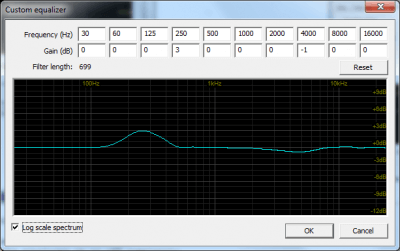
At the Frequency line you can build your own frequency scale. When you do not need some frequency band, set the frequency to 0, this will exclude this band from the equalizer.
Gain row gives you the current equalization settings for each frequency band.
Filter length shows you the current filter length (computational complexity of the filter). Longer the filter, more CPU power it takes.
Spectrum window shows you the actual frequency response of the filter. Note the slight ripple around 4kHz band at the screenshot above that shows the filter imperfectness.
Log scale spectrum checkbox allows you to switch between logarithmic and linear scale at the spectrum window.
Equalizer
Here you can adjust the equalizer itself. At the top you can see the frequency band the slider adjusts. Sliders are limited with +/-12dB, but you can enter any value at the fields below.
You can also change frequency bands using Custom button.
Equalizer preset
There’re several types of equalizer presets:
- Single equalizer. Such preset contains settings just for one channel. Such preset may be applied to any channel without affecting other channels.
- Multichannel preset. This preset contains settings for each channel. When you load such preset it loads all channels at once, except ‘All channels’ equalizer. It is useful when you want to change the whole equalizer setup without having to load each channel.
- Full preset. The same as Multichannel, but includes ‘All channels’ equalizer.
To save a preset enter the name at the edit box end press ‘Save’ button. Filter will ask you what type of equalizer you want to save. If you choose the single equalizer, only the currently selected channel will be saved. In other cases the currently selected channel does not matter.
To load a preset, just select it at drop-down list. When you load a single equalizer, it will affect the current channel only. In other cases, the currently selected channels does not matter.
Spectrum
Here you can monitor the spectrum of the currently playing sound for the channel currently selected. Log scale spectrum switch allows you to switch between logarithmic and linear scale.