Combining multiple GarageBand projects can be a great way to create a more complex and dynamic piece of music. Whether you’re a professional musician or just starting out, GarageBand’s intuitive user interface makes it easy to create and edit your own music. In this article, we’ll show you how to combine multiple GarageBand projects on a Mac, so you can take your music to the next level.
GarageBand is a powerful music creation software that comes pre-installed on all Mac computers. With its user-friendly interface, you can easily create and edit your own music, and even collaborate with other musicians. Combining multiple GarageBand projects is a great way to build on your existing work and create something truly unique. In this article, we’ll take a closer look at how to combine GarageBand projects on a Mac, so you can start creating your own masterpieces.
Understanding Garageband Projects
Garageband projects are the backbone of the music creation process in Garageband. They are essentially digital workspaces where you can record, edit, and mix your music. Here are a few things to keep in mind when working with Garageband projects:
- A project is the main file that contains all of the tracks, recordings, and other elements of your music creation.
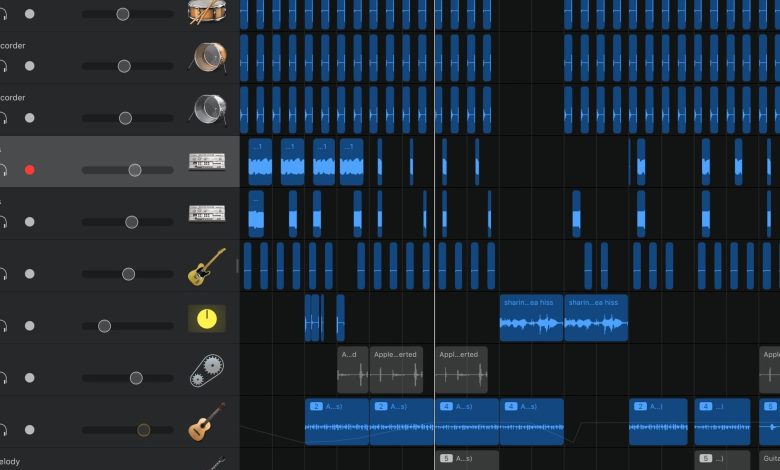
- Tracks are the individual channels in a project where you can record and edit audio or MIDI. There are several different track types, including software instrument tracks, audio tracks, drummer tracks, and more.
- The master track is a special track that controls the overall volume and effects of the entire project. You can add effects and automation to the master track to create a cohesive sound for your music.
- Recording is a key part of working with Garageband projects. You can record audio using a microphone or an instrument, or you can use MIDI to record virtual instruments and other digital sounds.
When working with Garageband projects, it’s important to keep your tracks organized and labeled properly. This will make it easier to find and edit specific parts of your music later on. You can also use the built-in tools in Garageband to mix and master your music, adding effects, EQ, and other enhancements to create a polished final product.
Garageband projects are a powerful tool for music creation, offering a wide range of features and tools for recording, editing, and mixing your music. By understanding the basics of Garageband projects and how to work with tracks, recording, and the master track, you can create professional-quality music from the comfort of your own home.
The Basics of Combining Projects
Combining projects in GarageBand can be an easy and efficient way to create a longer, more complex piece of music. Here are some basic steps to get started:
Step 1: Save and Import Projects
Before you can combine projects, you need to make sure that each individual project is saved and exported correctly. Once you have done this, you can import each project into a new GarageBand project by selecting “File” > “Import” > “Audio File” and selecting the project you want to add.
Step 2: Edit and Mix Tracks
Once you have all of your projects imported into one GarageBand project, you can begin editing and mixing the tracks to create a cohesive piece of music. This can involve adjusting the volume levels of each track, adding effects, and using automation to create dynamic changes over time.
Step 3: Merge Tracks
To combine multiple tracks into one, you can use the “Merge” function in GarageBand. Simply select the tracks you want to merge, then click “Track” > “Merge” to create a single track with all of the selected elements.
Tips for Success
Here are some additional tips to keep in mind when combining GarageBand projects:
- Make sure each project is saved in the same key and tempo to ensure smooth transitions between tracks.
- Use the “Snap to Grid” feature to keep your tracks aligned and in sync.
- Experiment with different effects and automation settings to create a unique sound for your combined project.
Working with Tracks and Regions
GarageBand projects can have different types of tracks, including audio tracks, software instrument tracks, drummer tracks, and more. Each track can contain multiple regions, which are individual pieces of audio or MIDI data. Here are some tips for working with tracks and regions in GarageBand:
- To create a new track, click the “+” button in the Tracks area and choose the type of track you want to add.
- To add a new region to a track, drag an audio file or MIDI file from the loop browser or Finder onto the track.
- To edit a region, select it and choose Edit > Trim to remove parts of the region, or use the Smart Controls to adjust the volume, EQ, and other settings.
- To mix multiple tracks together, use the Mixer to adjust the relative levels of each track and apply effects like reverb and compression.
- To arrange the regions in your project, use the Tracks area to drag and drop regions to different tracks or positions in the timeline.
Remember that GarageBand is a powerful tool for creating music, but it can take some time to master all of its features. Be patient and experiment with different techniques to find the workflow that works best for you.
Importing a Garageband Project into Another Project
If you have multiple Garageband projects that you want to combine into a single project, you can import one project into another. This is a great way to create a more complex and layered composition.
Importing a Garageband Project on macOS
To import a Garageband project on macOS, follow these steps:
- Open the Garageband project that you want to import the other project into.
- Click on the Media Browser button in the top right corner of the Garageband window.
- In the Media Browser, select the Garageband tab.
- Navigate to the project that you want to import and drag it into the timeline of the current project.
Importing a Garageband Project on iOS
To import a Garageband project on iOS, follow these steps:
- Open the Garageband project that you want to import the other project into.
- Tap the Loop Browser button in the top right corner of the Garageband window.
- In the Loop Browser, select the Files tab.
- Navigate to the project that you want to import and tap on it.
- Tap on the Share button and select “Open In”.
- Select Garageband from the list of apps.
- Garageband will open and ask you to create a new project or add the imported project to an existing project. Choose the latter option and select the current project.
Using Airdrop to Import Projects
If you have both projects on separate devices, you can use Airdrop to transfer one project to the other device and import it into a Garageband project.
To use Airdrop to import a Garageband project, follow these steps:
- On the device that has the project you want to import, open the project and tap on the Share button.
- Select Airdrop from the list of sharing options.
- On the other device, open the Garageband project that you want to import the other project into.
- Tap on the Media Browser button and select the Airdrop tab.
- Select the project that you just sent and drag it into the timeline of the current project.
Importing a Garageband project into another project is a simple process that can help you create more complex and layered compositions. Whether you’re working on macOS or iOS, or using Airdrop to transfer projects between devices, Garageband makes it easy to import and combine projects.
Exploring Garageband’s Features
Garageband is a digital audio workstation (DAW) that comes with a wide range of features to help you create professional-sounding music. Here are some of the key features you can explore when using Garageband:
Loops
Garageband has a vast library of pre-made audio loops that you can use to create your music. These loops come in different genres, including rock, pop, hip-hop, and more. You can also import your own AIFF or WAV files into Garageband to use in your projects.
Time Signature and Key
Garageband allows you to set the time signature and key for your projects. You can choose from a variety of time signatures, including 4/4, 3/4, and 6/8. You can also set the key of your project to match the key of your song.
Audio Tracks
Garageband lets you record audio tracks using your computer’s built-in microphone or an external microphone. You can also use MIDI instruments to create music in Garageband.
Apple Loops
Apple loops are pre-made audio files that you can use in your projects. These loops come in different genres and can be easily added to your project by dragging and dropping them onto the timeline.
Library
Garageband’s library contains a wide range of sounds, including drums, bass, guitars, and more. You can use these sounds to create your music and customize them using EQ, reverb, and other effects.
Transposition
Garageband allows you to transpose your audio tracks up or down by semitones. This feature is particularly useful when you want to change the pitch of a vocal track or a melody.
iPad
Garageband is also available on iPad, allowing you to create music on the go. The iPad version of Garageband has all the same features as the desktop version, including loops, audio tracks, and effects.
Track Header
The track header in Garageband allows you to control various aspects of your audio tracks, including volume, pan, and effects. You can also use the track header to add automation to your tracks.
Garageband is a versatile and powerful tool for creating music on both Mac and iPad. Whether you’re a beginner or an experienced musician, Garageband has the features you need to create professional-sounding music.
Exporting Your Combined Project
Once you have successfully combined your GarageBand projects, you may want to export the final project as an audio file. This will allow you to share your masterpiece with others or use it in other audio editing software.
To export your project, simply go to the “Share” menu and select “Export Song to Disk.” This will bring up a dialog box where you can choose the name and file format of your exported project.
GarageBand supports a wide range of file formats, including MP3, AAC, and WAV. Choose the format that best suits your needs, and then click “Export.”
GarageBand will then export your project as a high-quality audio file that you can share with others or use in other audio editing software.
It’s important to note that the quality of your exported file will depend on the quality of the original recordings and the settings you choose when exporting. If you want the best possible quality, make sure to use high-quality recordings and choose a lossless file format like WAV.
exporting your combined GarageBand project is a simple and straightforward process. Just follow the steps outlined above, and you’ll have a high-quality audio file that you can share with others or use in other audio editing software.
Conclusion
GarageBand is a powerful digital audio workstation that allows users to create professional-sounding music with a wide range of tools and features. Combining multiple GarageBand projects is a great way to create a cohesive whole and take your music to the next level.
In this article, we’ve explored a few different methods for combining GarageBand projects. Whether you prefer to drag and drop audio tracks or import Audio Previews, GarageBand makes it easy to merge multiple projects into one.
Remember to take the time to balance different parts and blend them into a cohesive whole when mixing your project. You can also add effects to tracks, including the master track, to change their sound and use automation to create dynamic changes in your project over time.
We hope this article has been helpful in showing you how to combine GarageBand projects. With a little creativity and experimentation, you can take your music to new heights using this powerful digital audio workstation.