

10 Best GarageBand Alternatives for Windows: Top Picks for Music Production


If you’re a Windows user and a music enthusiast, you might be wondering what the best GarageBand alternative for Windows is. GarageBand is a popular music production software that is exclusive to Apple devices. However, there are several GarageBand alternatives for Windows that can provide you with similar features and functionalities. In this article, we’ll explore some of the best GarageBand alternatives for Windows and their features.
Top GarageBand Alternatives for Windows
If you’re a Windows user and looking for a GarageBand alternative, you have several options to choose from. Here are some of the top GarageBand alternatives for Windows:
1. Cakewalk by BandLab
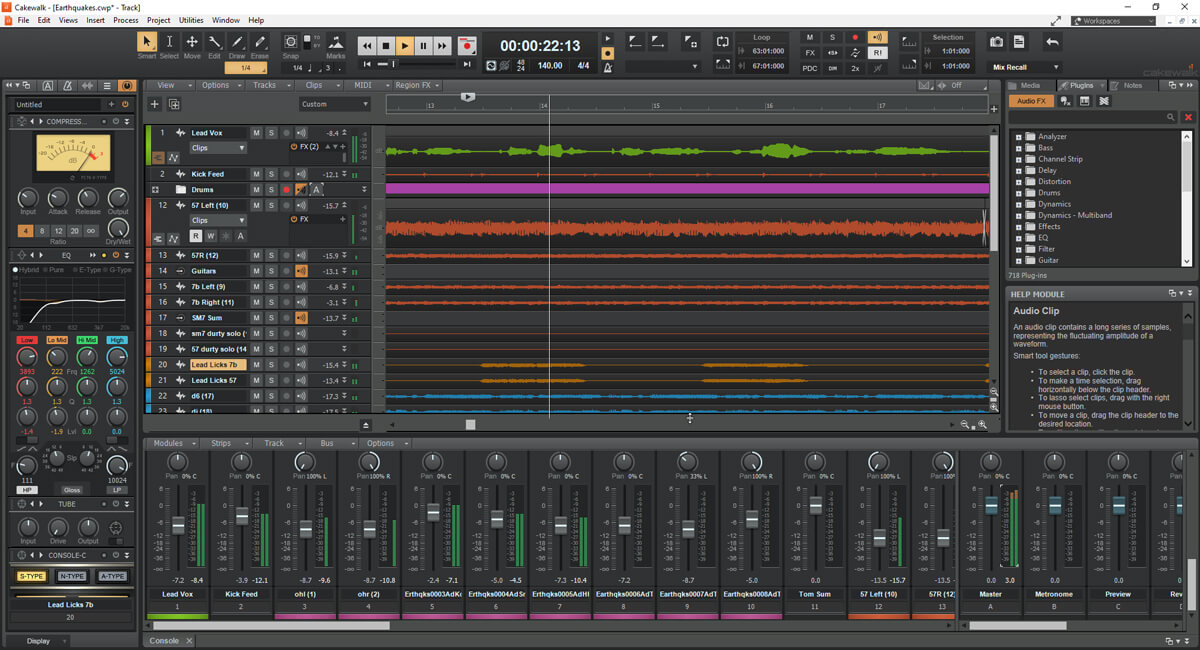
Cakewalk by BandLab is a free digital audio workstation that offers a professional-grade music production experience to Windows users. Here are some of its features, pros, and cons:
Features:
Cakewalk by BandLab comes with a range of features that make it a great choice for music production. Some of its features include:
- Audio recording
- MIDI capability
- Instruments/Effects
- Third-party plugins
- 64-bit mix engine
- Support for VST3 plugins
- Unlimited audio and MIDI tracks
- A range of virtual instruments
- A range of audio effects
- Advanced mixing and mastering tools
- And much more
Price: Cakewalk by BandLab is completely free to download and use.
Pros:
- Comprehensive set of tools for music production
- Free to download and use
- Support for VST3 plugins
- Unlimited audio and MIDI tracks
- Advanced mixing and mastering tools
Cons:
- Not as user-friendly as some other DAWs
- Some features may be overwhelming for beginners
[button color=”primary” size=”small” link=”http://https://help.cakewalk.com/hc/en-us/articles/360002690674-How-To-Download-Install-Cakewalk-by-BandLab” center=”true”]Download Cakewalk[/button]
2. LMMS
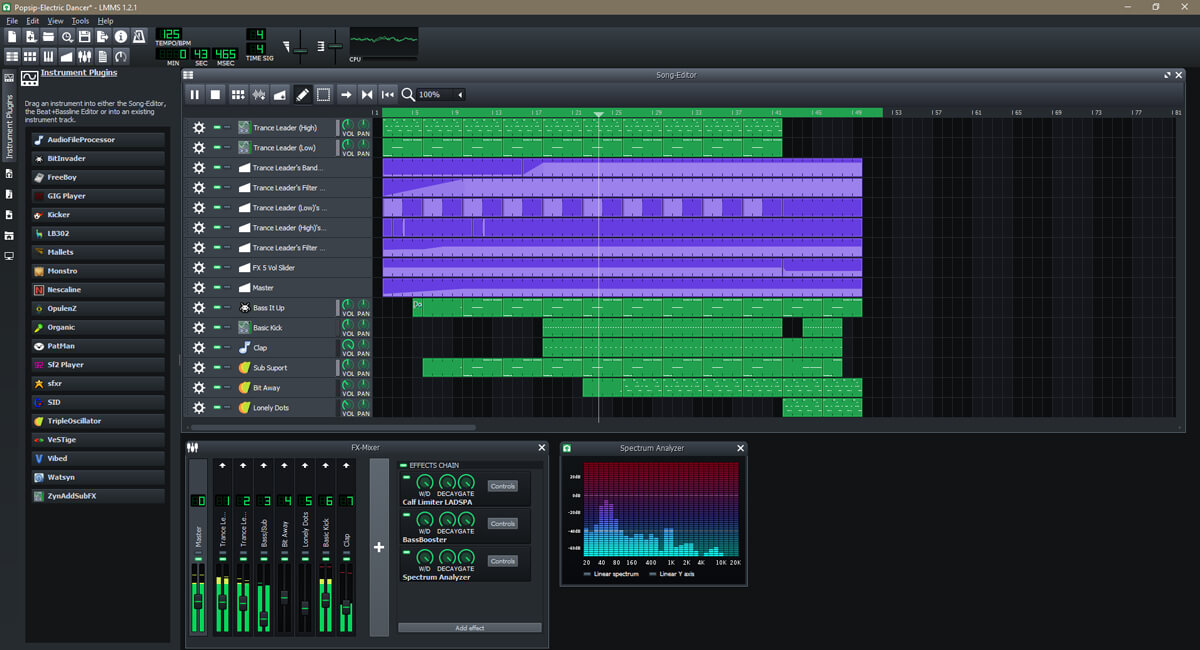
LMMS is a free, open-source digital audio workstation that offers a wide range of built-in samples and instruments. Here are some of its features, pros, and cons:
Features:
- Cross-platform compatibility
- Built-in samples and instruments
- Professional mixing and mastering tools
- Support for third-party plugins
Price: Free
Pros:
- Free and open-source
- Wide range of built-in samples and instruments
- Professional mixing and mastering tools
Cons:
- Steep learning curve
- Limited support for third-party plugins
[button color=”primary” size=”small” link=”https://lmms.io/download” center=”true”]Download LMMS[/button]
3. FL Studio
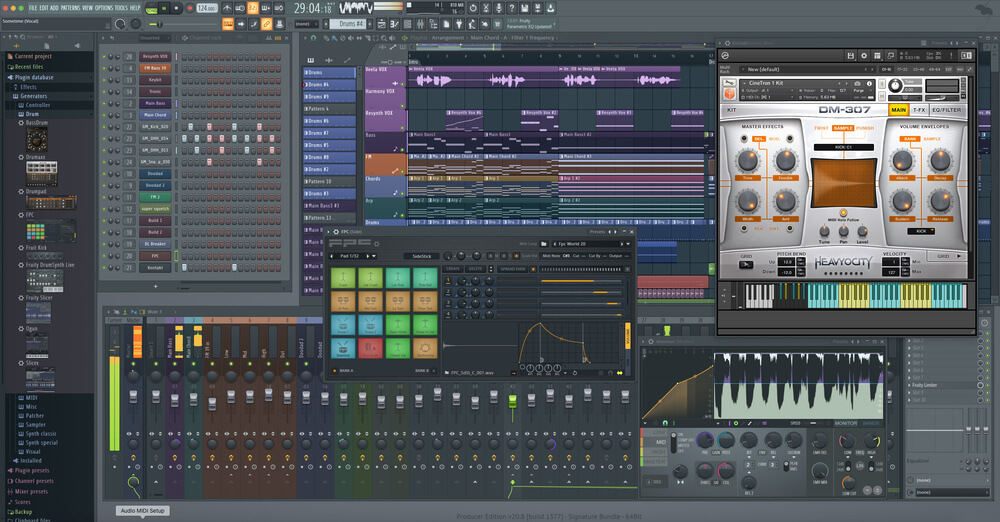
FL Studio is a popular digital audio workstation (DAW) that is known for its intuitive interface and powerful features. It is one of the best GarageBand alternatives for Windows and has been used by many professional musicians and producers.
Features:
- Multi-track recording and editing
- Virtual instruments and effects
- MIDI support
- Automation of effects and parameters
- Step sequencer for creating drum patterns
- Mixer with multiple insert tracks and effects
- Audio recording and editing
- Time stretching and pitch shifting
- VST and DX plugin support
Price:
- FL Studio offers a free trial version that can be used for an unlimited time with limited features.
- The full version of FL Studio ranges from $99 to $899 depending on the edition.
Pros:
- User-friendly interface
- Extensive library of virtual instruments and effects
- Wide range of customization options
- Compatibility with VST and DX plugins
- Regular updates and improvements
Cons:
- Expensive compared to some other DAWs
- Can be resource-intensive
- Some users may find the interface overwhelming at first
[button color=”primary” size=”small” link=”https://www.image-line.com/fl-studio-download/” center=”true”]Download FL Studio[/button]
4. Reaper
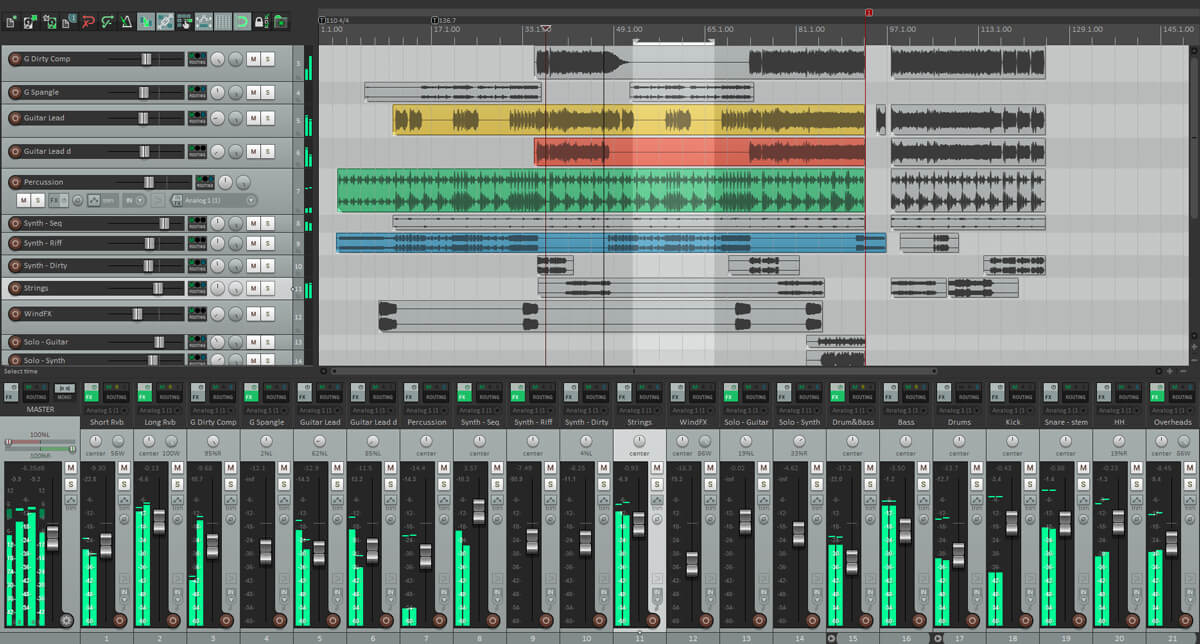
If you’re looking for a powerful and affordable GarageBand alternative for Windows, Reaper is a great option. Here are some of the features, pros, and cons of Reaper:
Features:
- Vast array of customization options
- Unlimited audio and MIDI tracks
- Support for third-party plugins
- Built-in effects and virtual instruments
- 60-day free trial
Price:
- $60 for personal use
- $225 for commercial use
Pros:
- Affordable price
- Fully-featured DAW
- Customizable interface
- Excellent for audio recording and editing
- Supports third-party plugins
Cons:
- Complex to get to grips with
- Not the simplest of interfaces
- Steep learning curve for beginners
[button color=”primary” size=”small” link=”https://www.reaper.fm/download.php” center=”true”]Download Reaper[/button]
5. Ableton Live
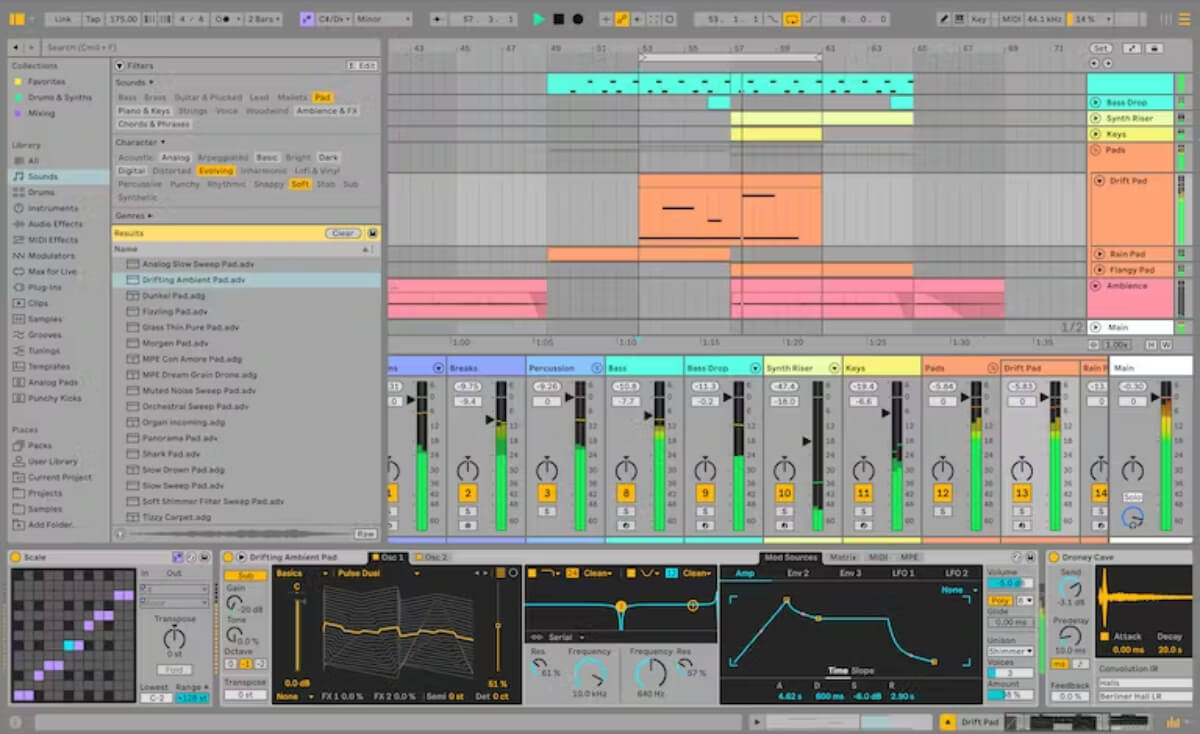
If you are looking for a GarageBand alternative for Windows, Ableton Live is a great choice. It is a professional-grade DAW that is widely used by musicians, producers, and DJs. Here are some of the key features, pros, and cons of Ableton Live:
Features:
- Intuitive interface that is easy to navigate
- Powerful audio and MIDI editing capabilities
- Advanced automation and modulation options
- Built-in instruments and effects
- Supports VST and AU plugins
- Ableton Link for syncing with other devices
- Live performance mode with session view and clip launching
Price:
- Ableton Live Standard: $439
- Ableton Live Suite: $749
- Ableton Live Intro: $99
Pros:
- Versatile and flexible DAW for music production and live performance
- Wide range of built-in instruments and effects
- Supports third-party plugins and hardware
- Ableton Link for syncing with other devices
- User-friendly interface and workflow
Cons:
- Expensive compared to some other DAWs
- Steep learning curve for advanced features
- Limited audio recording capabilities
- No built-in pitch correction or time stretching tools
[button color=”primary” size=”small” link=”https://www.ableton.com/en/trial/” center=”true”]Download Ableton Live[/button]
6. PreSonus Studio One
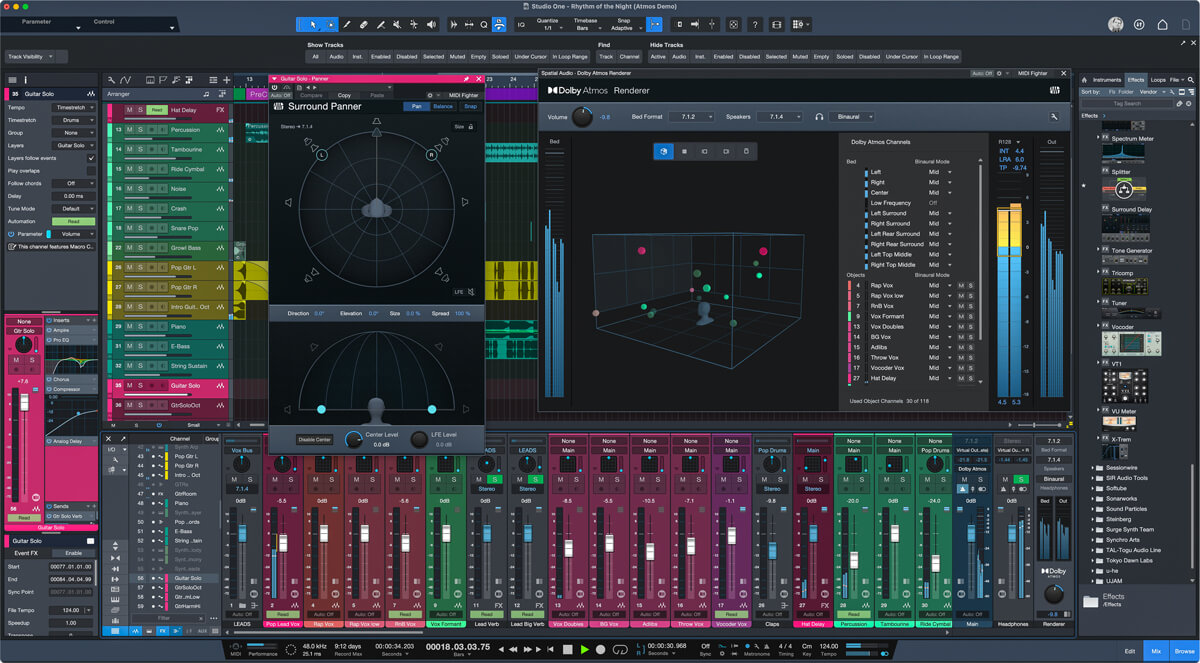
If you are looking for a GarageBand alternative for Windows, PreSonus Studio One is a popular choice. This digital audio workstation is known for its drag-and-drop workflow, which has become the standard in the industry. Here are some features, pros, and cons of PreSonus Studio One:
Features:
- Drag-and-drop interface
- Unlimited audio and MIDI tracks
- Built-in effects and virtual instruments
- Multi-touch support
- Easy-to-use mixer
Price:
- PreSonus Studio One Prime (free)
- PreSonus Studio One Artist ($99)
- PreSonus Studio One Professional ($399)
Pros:
- Intuitive and user-friendly interface
- Fast and efficient workflow
- High-quality built-in effects and instruments
- Multi-touch support for touch-screen devices
- Great value for the price
Cons:
- Limited MIDI editing capabilities compared to some other DAWs
- No built-in notation editor
- Some users may find the interface too simplistic
[button color=”primary” size=”small” link=”https://legacy.presonus.com/products/Studio-One/downloads” center=”true”]Download PreSonus Studio One[/button]
7. Pro Tools | First

If you are looking for a powerful and feature-rich GarageBand alternative for Windows, Pro Tools | First is worth considering. This digital audio workstation (DAW) is developed and released by Avid Technology, and it is available for free. Here are some key features, pros, and cons of Pro Tools | First:
Features:
- Supports up to 16 audio tracks, 16 MIDI tracks, and 4 inputs/outputs
- Comes with a variety of virtual instruments, effects, and plugins
- Offers advanced automation and editing tools
- Allows you to collaborate with other Pro Tools users online
- Supports cloud storage and sharing
- Offers a range of video editing and post-production features
Price:
- Pro Tools | First is available for free
- However, some features and plugins are only available with a paid subscription
Pros:
- Offers a professional-level DAW experience for free
- Comes with a range of powerful features and tools
- Allows you to collaborate with other Pro Tools users online
- Supports cloud storage and sharing
- Offers a range of video editing and post-production features
Cons:
- Limited to 16 audio tracks, 16 MIDI tracks, and 4 inputs/outputs
- Some features and plugins are only available with a paid subscription
- Can be overwhelming for beginners or casual users
- Requires a powerful computer to run smoothly
[button color=”primary” size=”small” link=”https://www.avid.com/pro-tools/intro” center=”true”]Download Pro Tools[/button]
8. Cubase LE
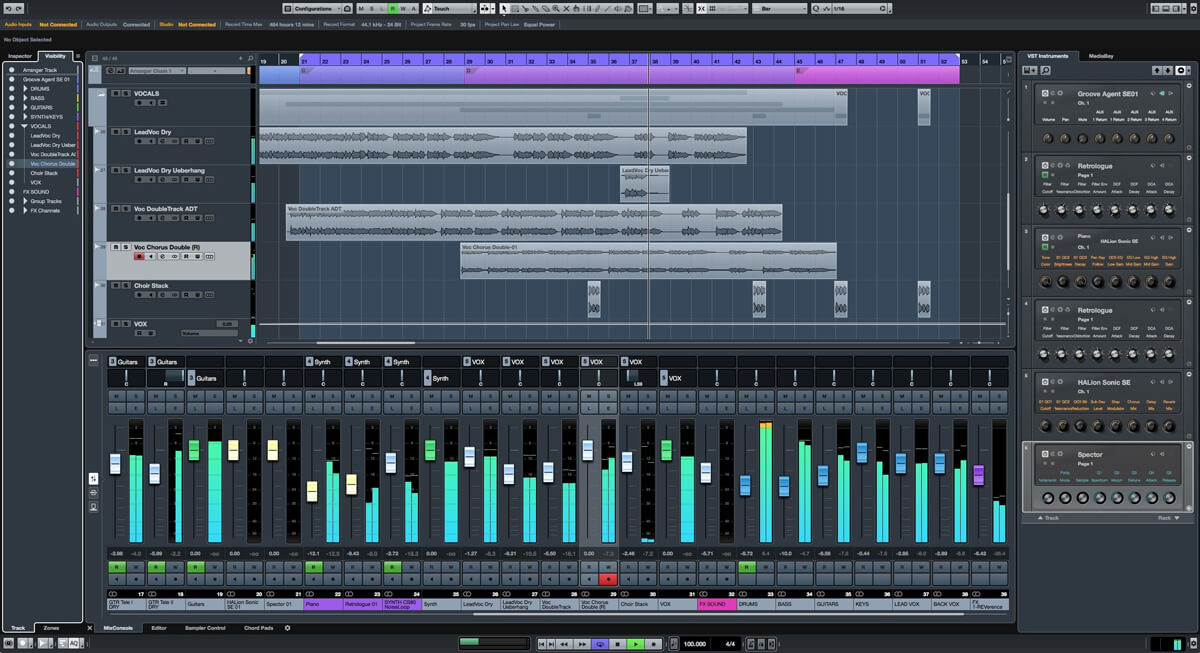
If you’re looking for a professional-grade GarageBand alternative for Windows, Cubase LE is an excellent option. It’s a streamlined version of the full Cubase software, but it still packs a punch when it comes to features.
Features:
- Supports up to 16 audio and 24 MIDI tracks
- Comes with over 20 built-in effects and virtual instruments
- Supports VST plugins
- Includes basic mixing and mastering tools
- Compatible with both Windows and Mac
Price:
Cubase LE is not free, but it’s more affordable than the full version of Cubase. You can purchase it for around $50 – $100, depending on where you buy it.
Pros:
- Professional-grade software at an affordable price
- Comes with a good selection of built-in effects and virtual instruments
- Supports VST plugins
- Compatible with both Windows and Mac
Cons:
- Limited to 16 audio and 24 MIDI tracks
- Not as feature-rich as the full version of Cubase
- Can be overwhelming for beginners
[button color=”primary” size=”small” link=”https://www.steinberg.net/go/” center=”true”]Download Cubase LE[/button]
9. Tracktion T7
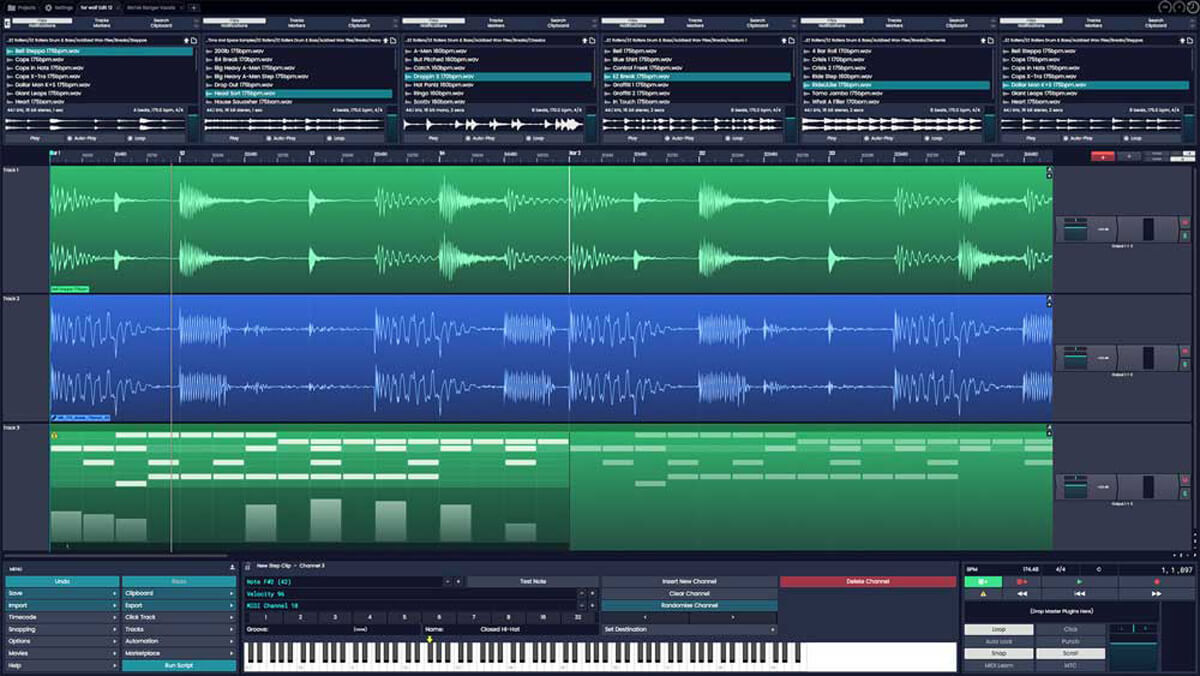
If you’re looking for a free and powerful GarageBand alternative for Windows, Tracktion T7 is a great option to consider. Here are some of the key features, pros, and cons of this software:
Features:
- Multi-track audio recording and editing
- MIDI sequencing and editing
- Built-in effects and virtual instruments
- Support for VST and AU plugins
- Automation and modulation capabilities
- Unlimited undo and redo functionality
Price:
- Tracktion T7 is completely free to download and use.
Pros:
- User-friendly interface with drag-and-drop functionality
- Intuitive workflow for both audio and MIDI editing
- High-quality built-in effects and virtual instruments
- Compatible with a wide range of plugins
- Unlimited undo and redo functionality is a great feature for experimentation
Cons:
- Some users may find the interface to be too simplistic
- Limited options for customization and advanced editing
- No built-in support for video editing or scoring
[button color=”primary” size=”small” link=”https://www.tracktion.com/welcome/waveform-free” center=”true”]Download Tracktion T7[/button]
10. Magix Music Maker
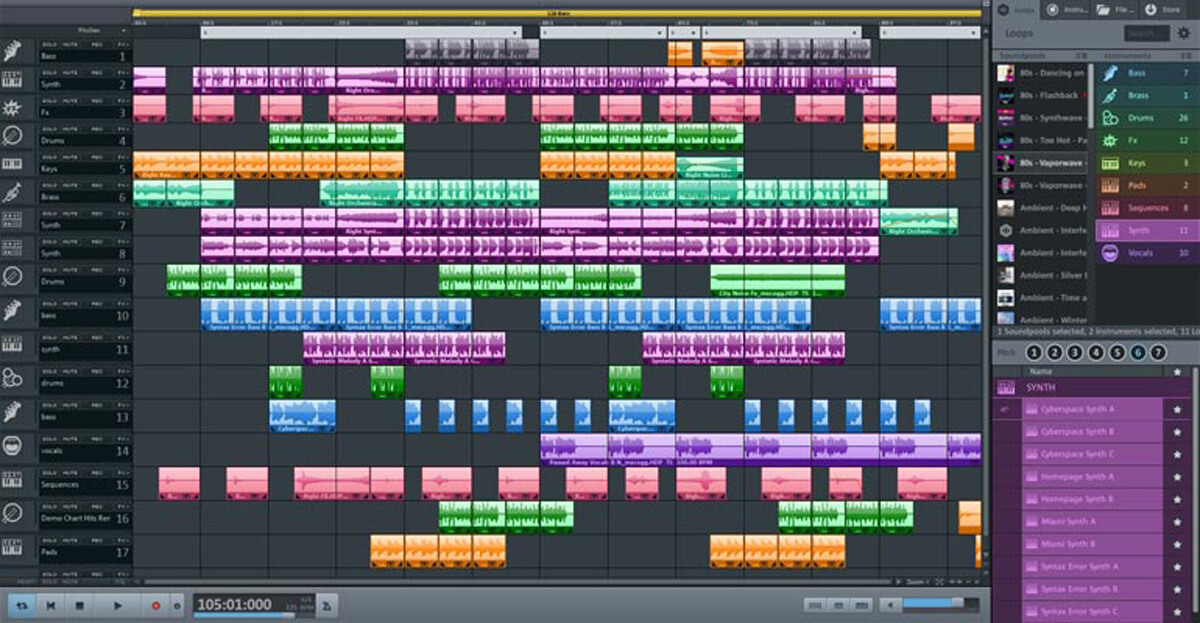
If you are looking for a GarageBand alternative for Windows, Magix Music Maker is a great option to consider. This software is designed to make music production easy and accessible for everyone. Here are some features, pros, and cons to consider:
Features:
- Drag-and-drop interface for easy music creation
- Over 8,000 sounds and loops to choose from
- Virtual instruments and effects included
- MIDI editor for precise control over your music
- Mix and mastering tools to perfect your tracks
Price:
- Magix Music Maker is available in several versions, including a free version with limited features. The full version can be purchased for $59.99 or as part of a bundle with other Magix software.
Pros:
- Easy to use interface for beginners
- Wide range of sounds and loops to choose from
- Virtual instruments and effects included
- Affordable price for the full version
- MIDI editor for precise control over your music
Cons:
- Free version has limited features
- Some users may find the interface too simplistic
- Advanced users may require more advanced features and tools
[button color=”primary” size=”small” link=”https://www.magix.com/us/music-editing/music-maker/” center=”true”]Download Magix Music Maker[/button]
Key Features of Top GarageBand Alternatives
When exploring GarageBand alternatives for Windows, your focus should be on the applications offering comprehensive features that cater to instrument variety, sound quality, and editing flexibility. Tools with rich libraries, advanced effect modules, and robust support for plugins and MIDI are critical for your music production needs.
Rich Instrument Libraries
The alternatives to GarageBand for Windows come equipped with extensive instrument libraries giving you a range of virtual instruments to choose from. For instance, Cakewalk by BandLab provides a broad selection of sampled instruments that are crucial for creating diverse musical compositions, mimicking an entire band if needed.
High-Quality Audio Effects
You expect your production software to deliver studio-grade audio effects, enhancing the final mix. Reaper stands out with its provision for a wide array of built-in effects, ranging from EQs to dynamic processors, that allow you to craft professional-sounding tracks with precision.
MIDI Editing and Recording Capabilities
MIDI editing and recording is a staple for modern music production, enabling you to manipulate notes and sequences efficiently. GarageBand alternatives like Magix Music Maker simplify this process, offering intuitive interfaces for MIDI manipulation, allowing you to adjust your performances to perfection.
Robust Plugin and VST Support
Support for third-party plugins and VSTs (Virtual Studio Technology) opens up an avenue for extending the functionality of your digital audio workstation. Applications such as Cakewalk and Reaper boast compatibility with a vast array of plugins, ensuring you have access to an expansive toolkit for your audio engineering and sound design work.
Choosing the Right DAW for Music Production
Selecting the ideal Digital Audio Workstation (DAW) is pivotal to your success in music production. The right software can streamline your workflow, support your hardware, and adapt to your growing needs as an artist.
The Importance of User Interface
Your DAW’s user interface (UI) is your primary tool for navigating the complexities of music production. A well-designed UI reduces your learning curve and allows you to focus more on creativity and less on technicalities. Consider if you prefer a single-window layout or a multi-screen setup. Simplicity might be appealing if you’re a beginner, whereas seasoned producers may seek more comprehensive interfaces with advanced features.
Compatibility with External Hardware
When producing music, external hardware such as MIDI keyboards, microphones, and audio interfaces are central to your setup. The DAW you choose must seamlessly integrate with your equipment. Check for:
- MIDI compatibility: Whether it can properly communicate with MIDI controllers.
- Audio interface support: It should support the audio interfaces you intend to use for inputting and outputing sound.
- Driver compatibility: It should work well with ASIO, Core Audio, or WDM drivers, depending on your system.
Customization and Expandability
Your DAW should not only fit your current needs but also grow with you. Customization options like adding virtual instruments, effects, and third-party plugins are essential for expanding your sound palette. Also, look at how the DAW manages updates and new features — frequent updates can mean a constantly improving and modern platform.
- Virtual instruments & effects: Look for a wide range of inbuilt options and the ability to add more.
- Third-party plugin support: The ability to use plugins from other developers can greatly enhance your DAW’s functionality.
- Update policy: Regular updates ensure the DAW stays compatible with the latest hardware and software advancements.
Free vs Paid GarageBand Alternatives
When you’re considering a Digital Audio Workstation (DAW) for Windows as an alternative to GarageBand, it’s crucial to understand the differences between free and paid options. Each category offers distinct features and benefits tailored to various needs and budgets.
Benefits of Free DAWs
Free DAWs can be a great starting point for beginners who want to experiment with music production without spending any money. Some of the benefits of free DAWs include:
- Price: Obviously, the biggest advantage of free DAWs is that they’re, well, free. You can download and use them without having to pay a dime.
- Ease of Use: Many free DAWs are designed with beginners in mind, which means they’re often easier to use than their paid counterparts.
- Community Support: Since many free DAWs are open-source, they often have a large community of users who can help you troubleshoot issues or answer questions.
- Basic Features: While free DAWs may not have all the bells and whistles of a paid version, they often come with enough features to get you started.
Free DAWs often come with ample features to get you started, but they might lack certain advanced functionalities and the polished interface of their paid counterparts.
Benefits of Paid DAWs
Paid DAWs, meanwhile, generally offer more advanced features, dedicated customer support, and regular updates. These are ideal if you’re looking for professional-grade tools and a more polished experience. Pricing can vary, offering solutions for those looking for affordable yet robust software, to those who want industry-standard capabilities. Consider these points:
- Advanced features: Paid versions often include high-end plugins, virtual instruments, and extensive sample libraries.
- Technical support: Access to customer service can help you resolve issues quickly.
- Regular updates: Expect frequent updates which include feature enhancements and security patches.
When looking for a paid alternative, FL Studio Pro stands out as a popular option among hip-hop producers and offers a sleek interface similar to GarageBand. Other paid alternatives like Reaper offer a wealth of customization options, making it versatile for a variety of audio projects.
Selecting between free and paid alternatives to GarageBand on Windows will depend on your personal needs, the level of complexity you’re comfortable with, and whether you require professional features and support.
Advanced Mixing and Mastering Tools
When you’re aiming for a professional-sounding track, the capabilities of a Digital Audio Workstation (DAW) in the realm of mixing and mastering are crucial. Your choice should offer a robust set of tools for tweaking frequencies and dynamics, as well as adding spatial effects and enabling precise automation.
Equalization and Dynamic Processing
For shaping your sound, equalization (EQ) and dynamic processing are essential. You’ll find that Ableton Live and Cakewalk by BandLab, prominent GarageBand alternatives for Windows, offer comprehensive EQ plugins that allow you to manipulate frequencies with precision. This is where you can address any clashing frequencies and sculpt the sound to fit your mix.
In terms of dynamics, using compressors and limiters effectively can enhance the punch and clarity. These tools help you control the dynamic range, making the loud parts softer and the soft parts louder, which is essential for a balanced mix. Ableton Live, for instance, provides a range of dynamic processors, including a compressor with side-chain capabilities, a limiter, and a multiband dynamics processor.
Spatial Effects and Automation
The sense of space in a mix is chiefly defined by reverbs and other spatial effects. A well-placed reverb can make elements of your track inhabit their own space, or sit well with the rest of the mix. Applications like LMMS and Reaper offer a selection of high-quality reverb effects, ranging from subtle room emulations to vast, expansive halls.
Automation plays a pivotal role in mixing and mastering, allowing you to dynamically adjust nearly any parameter over time. This can be as simple as a fade-in or as complex as automating EQ frequencies to change throughout a song. Systems like Ableton Live and Cakewalk by BandLab excel in providing precise automation tools, giving you the ability to draw in or record real-time adjustments to your tracks’ parameters, which is invaluable for both creative effects and technical adjustments in the mix or master.
Creating and Editing Your Music Workflow
When you’re creating music on a Windows platform, selecting a digital audio workstation (DAW) with a robust set of tools for MIDI sequencing and audio recording is vital. The software you choose should offer a seamless experience for laying down tracks and refining your sound.
Utilizing MIDI Tracks and Loops
You can quickly start your music project by laying down MIDI tracks. MIDI tracks control virtual instruments, allowing you to create complex compositions with multiple layers. Here’s how to manage them effectively:
- Select your instrument: Choose from a variety of virtual instruments within your DAW to find the sound that fits your track.
- Create loops: To build a song structure, utilize pre-made loops or compose original ones. Looping can help establish a consistent rhythm and makes it easy to experiment with different harmonies and melodies.
Advanced Audio Recording Techniques
Beyond MIDI, audio recording is essential for adding vocal tracks or real instruments to your project. To achieve professional results, consider these tips:
- Optimize your input: Ensure your audio interface and microphone levels are properly set to avoid clipping or recording at too low of a volume.
- Utilize editing tools: After recording, use your DAW’s editing suite to trim, align, or modify tracks. Look for tools like fade-ins and fade-outs, normalization, and noise reduction.
By focusing on these aspects, you’ll have a strong foundation for producing high-quality music on a Windows system.
The Role of Audio Plugins and Virtual Instruments
In the world of digital audio workstations on Windows, your sound is only as powerful as the tools at your disposal. Audio plugins and virtual instruments are the backbone of your music production, allowing you to enhance your tracks with a variety of effects and create sounds that range from ultra-realistic to otherworldly.
Integrating VSTs and AUs
VST (Virtual Studio Technology) and AU (Audio Units) are two types of audio plugin formats. VSTs are universally supported on Windows platforms, allowing you to extend the capabilities of your chosen DAW. You can apply VST plugins to process audio with effects like reverb and delay or to generate sound with virtual instruments. AUs, on the other hand, are not natively supported on Windows and often require a third-party wrapper or a compatible DAW to function.
Common VST plugins include:
-
- Equalizers
- Compressors
- Modulation effects
Building Unique Sounds with Synths and Samplers
Synthesizers and samplers within your DAW enable you to craft unique sounds for your tracks. Synths, short for synthesizers, use oscillators and filters to generate new sounds, while samplers allow you to manipulate recorded audio, such as samples, to produce musical phrases. By integrating virtual instrument plugins, you harness the power of both hardware-inspired synthesizers and versatile samplers in a digital environment.
To design your sounds, you might:
-
- Tweak synth parameters like oscillators, LFOs, and envelopes.
- Slice and dice samples to create new rhythms or melodic lines.
Music Creation for Electronic and Live Genres
When you’re aiming to produce music for electronic and live genres, the essence lies in mastering rhythm and texture. Your choice of digital audio workstation (DAW) should empower you with intuitive tools for beat creation and a rich library of samples and loops.
Programming Beats and Grooves
Crafting the perfect beat is foundational in electronic music production. Cakewalk by BandLab offers unlimited MIDI tracks, equipping you to sequence intricate drum patterns and basslines. With a variety of virtual instruments at your disposal, you can:
- Construct dynamic beats using the step sequencer.
- Layer different drum sounds to achieve the desired punch and clarity.
- Manipulate MIDI notes for groove quantization to tighten or loosen the feel of your rhythm section.
Harnessing the Power of Samples and Loops
Using samples and loops is a quick way to sketch ideas and build tracks. Mixcraft 9 stands out with its loop-based software, making it a solid choice for those new to music production. Here’s how you can utilize this feature:
- Access a vast library of high-quality loops that span various genres, allowing for eclectic and original compositions.
- Drag and drop loops into your project to effortlessly create complex arrangements.
- Employ the racks feature to manage and process your samples for added depth and texture in your mixes.
Optimizing Your Setup for Different Operating Systems
When you’re transitioning from GarageBand on a Mac to alternative music production software on Windows or other operating systems, it’s essential to ensure your setup is optimized to facilitate a smooth workflow. Here’s how you can configure your system environment effectively for each OS:
Windows
For the best performance on Windows:
- Ensure that your audio drivers are up to date, preferably using ASIO drivers for lower latency.
- Choose a DAW that is compatible with your version of Windows; options like Cakewalk and Reaper are favorable.
- Check the system requirements of the softwares to match your hardware capabilities.
Mac
On Mac, if you’re moving away from GarageBand:
- Confirm compatibility of the alternative software with MacOS.
- Optimize your system using Audio MIDI Setup to manage audio devices efficiently.
Linux
Working with audio on Linux:
- Use JACK Audio Connection Kit as your sound server for professional audio production.
- Select DAWs like Ardour or LMMS, which are well-supported on Linux.
Android
For mobile production:
- Apps like FL Studio Mobile can offer a portable DAW experience.
- Ensure your Android device has sufficient processing power and storage.
Here’s a concise checklist to keep in mind:
- Update Drivers: Ensure updated audio drivers for your system.
- Software Compatibility: Match the DAW with the OS you’re using.
- System Requirements: Verify the specifications needed by the software.
By following these tips, you can create an environment conducive to music production, regardless of the operating system you choose. Use this guidance to leverage the strengths of each platform and mitigate any limitations they might have.
Sharing and Distributing Your Music
When your music project is ready to see the world, choosing the right methods for sharing and exporting is crucial. This ensures your creativity reaches your audience in the best format and through the right channels.
Exporting Projects for Collaboration
When you wish to collaborate with other artists or producers, exporting your project files correctly is essential. GarageBand alternatives for Windows typically offer versatile exporting options. You can export individual tracks as WAV or AIFF files, which are widely accepted and maintain high quality.
- Reaper: Offers multi-channel file export to accommodate complex projects.
- Cakewalk by BandLab: Provides comprehensive ‘bounce to tracks’ features for detailed file management.
To successfully import your tracks into another’s DAW, ensure all files are clearly labeled and include information like the BPM.
Promoting Your Music on Platforms like YouTube
Once your music is polished and exported, it’s time to share it with the world. YouTube is a leading platform where audiences can discover your music.
- Create a YouTube channel representative of your brand and work.
- Post your tracks with engaging visuals, as videos often attract more views.
- Utilize YouTube’s description and tagging features to improve your music’s searchability.
If your DAW provides direct uploading to YouTube, take advantage of this feature for a streamlined process. Otherwise, export your final mix as an MP3 or video file to upload manually. Remember, regularly engaging with viewers and promoting your channel will help in growing your audience.
Conclusion
Even though GarageBand is not available on Windows, there are many other programs you can use. We have talked about some of the best options out there. Whether you are new to making music or you have lots of experience, you’ll find a tool that fits your needs. Take some time to try a few and see which one you like best.
Making music should be fun, so pick the software that makes you feel good and helps you be creative. Remember, it’s not about having the exact same program as someone else; it’s about finding the right one for you. So go ahead, get one of these alternatives, and start creating your own great music on your Windows computer today.


