If you’re new to music production, Ableton Live Lite is a great place to start. This software is easy to use and comes with many features that can help you create your first track. However, exporting your finished project can be a bit tricky, especially if you’re not familiar with the process. In this tutorial, we’ll walk you through the steps to export your track in Ableton Live Lite.
First, it’s important to understand that there are different ways to export your track in Ableton Live Lite. You can export it as an audio file, a MIDI file, or a project file. Each option has its own set of advantages and disadvantages, so it’s important to choose the right one for your needs. For most purposes, exporting your track as an audio file is the best option. This will allow you to share your finished track with others, upload it to streaming services, or burn it to a CD.
To export your track as an audio file, you’ll need to select the “Export Audio/Video” option from the “File” menu. This will bring up a dialog box where you can choose the settings for your export. You can choose the format, bit depth, sample rate, and other options to ensure that your exported track sounds exactly the way you want it to. Once you’ve made your selections, click “Export” and wait for the export process to finish. With these simple steps, you can easily export your track in Ableton Live Lite and share your music with the world.
Understanding Ableton Live Lite
Ableton Live Lite is a streamlined version of Ableton Live, designed for beginners and those who want to explore music production. It is a powerful software that offers many features to create music, but with some limitations. The Lite version is included with many hardware devices and can also be purchased separately.
One of the main differences between Ableton Live and Live Lite is the number of tracks available. Ableton Live Lite has a limit of 8 audio and MIDI tracks, while the full version of Ableton Live can have an unlimited number of tracks. This makes Live Lite perfect for those who are just starting out and want to learn the basics of music production.
Live Lite also has some limitations when it comes to the number of effects and instruments available. The Lite version comes with a set of essential instruments and effects, but some of the more advanced features are not included. However, this can be a good thing for beginners, as it allows them to focus on the basics and not get overwhelmed by too many options.
Another important thing to note is that if you create a set using Suite-only features and then open it in Live Lite, Intro, or Standard, the set will open in Demo Mode with saving and exporting deactivated. To save and export the set, you need to remove the Suite-only devices from the set.
If you are new to Ableton Live Lite, there are many learning resources available to help you get started. Ableton’s website offers a variety of tutorials, videos, and articles that cover everything from the basics of music production to more advanced techniques. Additionally, there are many online communities and forums where you can connect with other users and get help with any questions you may have.
Ableton Live Lite is a great option for beginners and those who want to explore music production without investing in the full version of Ableton Live. While it has some limitations, it still offers many powerful features and is a great way to learn the basics of music production.
Getting Started with Ableton Live Lite
If you are new to Ableton Live Lite, you might feel a bit overwhelmed by the number of features and options available. However, with a little bit of practice, you will find that Ableton Live Lite is an intuitive and powerful digital audio workstation (DAW) that can help you create professional-sounding tracks.
To get started with Ableton Live Lite, you should first familiarize yourself with the program’s user interface. The main window is divided into two views: the Session View and the Arrangement View. The Session View is where you can create and launch clips, while the Arrangement View is where you can arrange and edit your clips to create a complete track.
One of the first things you should do when you start using Ableton Live Lite is to set up your audio and MIDI preferences. This will ensure that your hardware is properly configured and that you can start creating music right away. To access the preferences, go to the Options menu and select Preferences.
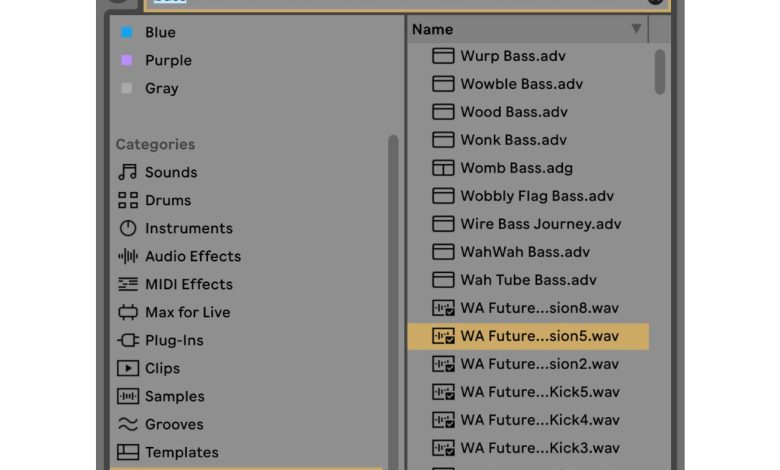
Another important aspect of Ableton Live Lite is the Browser. This is where you can access all of your clips, samples, instruments, and effects. You can drag and drop items from the Browser into the Session or Arrangement View to start building your track.
If you are new to DAW workflows, Ableton offers a range of in-depth help and learning resources. You can access the Live Reference Manual and Video Tutorials directly from the Help menu. Additionally, Ableton offers a range of Certified Trainers who can provide one-on-one training and support.
getting started with Ableton Live Lite is easy and straightforward. With a little bit of practice, you will be able to create professional-sounding tracks in no time.
Creating Your First Track
So, you’ve installed Ableton Live Lite and you’re ready to start creating your first track. Great! Here are some tips to help you get started:
1. Choose Your Tempo and Time Signature
Before you start creating your track, you need to choose your tempo and time signature. The tempo is the speed of your track, measured in beats per minute (BPM), while the time signature determines the number of beats in each bar. You can adjust these settings in the “Master” track’s tab.
2. Add Loops and Samples
Ableton Live Lite comes with a variety of loops and samples that you can use to create your track. You can find these in the “Browser” tab. Simply drag and drop the loops and samples onto the timeline to add them to your track.
3. Create Your Own Beats and Melodies
If you want to create your own beats and melodies, you can use the built-in instruments and effects in Ableton Live Lite. You can find these in the “Instruments” and “Audio Effects” tabs. Simply drag and drop them onto the timeline to add them to your track.
4. Arrange Your Track
Once you’ve added all of your elements to the timeline, you can start arranging your track. You can move, resize, and duplicate clips to create your desired arrangement. You can also use the “Mute” function to mute specific clips or tracks.
5. Mix and Master Your Track
After you’ve arranged your track, it’s time to mix and master it. You can adjust the levels, panning, and effects of each track in the “Mixer” tab. You can also use the built-in mastering tools to finalize your track.
Conclusion
Creating your first track in Ableton Live Lite is a fun and rewarding experience. By following these tips, you’ll be able to create a track that you can be proud of. Remember to experiment with different loops, samples, and effects to find your own unique sound.
Mastering and Exporting Your Track
Once you have finished arranging your track in Ableton Live Lite, the next step is to master and export it. Mastering is the process of preparing your track for distribution by balancing the levels, EQ, and dynamics of your mix. Exporting is the process of creating a final audio file that can be shared and distributed.
To master your track, you can use the built-in mastering tools in Ableton Live Lite, or you can hire a professional mastering engineer to do it for you. If you’re new to mastering, it’s a good idea to start with the built-in tools and experiment with different settings until you find a sound that you’re happy with.
Once you have mastered your track, it’s time to export it. To export your track in Ableton Live Lite, simply go to File > Export Audio/Video. From there, you can choose the format you want to export your track in, such as WAV, MP3, AIFF, or FLAC. You can also choose whether to export the entire track or individual tracks.
If you choose to export individual tracks, Ableton Live Lite will render each track separately and create a new audio file for each one. This is useful if you want to send your track to a mixing or mastering engineer for further processing.
When exporting your track, it’s important to consider the quality of the audio file. If you’re exporting your track for distribution, it’s a good idea to export it in a high-quality format like WAV or AIFF. If you’re sharing your track online, you can export it in a compressed format like MP3 or FLAC to reduce the file size.
mastering and exporting your track is an important step in the music production process. By using the built-in mastering tools in Ableton Live Lite or hiring a professional mastering engineer, you can ensure that your track sounds its best. And by exporting your track in the right format and quality, you can share it with the world and get your music heard.
Understanding Export Settings
Exporting your music in Ableton Live Lite is an essential step in the music-making process. It allows you to share your music with the world and listen to it on different devices. In this section, we will cover the different export settings available in Ableton Live Lite and how to use them.
To export your project, go to the “File” menu and select “Export Audio/Video” or use the shortcut “Cmd+Shift+R” (Mac) or “Ctrl+Shift+R” (Windows). This will open the Export Audio/Video dialog box.
In this dialog box, you can set the export parameters for your audio file. You can choose the file type, bit depth, sample rate, and more. Here is a breakdown of the different settings:
- File Type: You can choose between different file types such as AIFF, WAV, MP3, FLAC, and more. Choose the file type that best suits your needs.
- Bit Depth: This setting determines the number of bits used to represent each sample in your audio file. The most common bit depth is 16-bit, which is suitable for most music projects.
- Sample Rate: This setting determines the number of samples per second in your audio file. The most common sample rate is 44.1 kHz, which is the standard for CD-quality audio.
- Convert to Mono: This setting allows you to convert your stereo audio file to a mono audio file.
- Normalize: This setting adjusts the volume of your audio file to the maximum level without causing distortion.
- Flatten: This setting renders all the tracks in your project into a single audio file.
- Dithering: This setting reduces the noise that can occur when converting a high-resolution audio file to a lower resolution audio file.
- Rendering Options: This setting allows you to choose whether to render the audio file in real-time or offline.
- Encoding Options: This setting allows you to choose the encoding method for your MP3 file.
Once you have set the export parameters, click “Export” to start the export process. You can also choose to “Render as Loop” or “Create Analysis File” in the same dialog box.
understanding the export settings in Ableton Live Lite is crucial for sharing your music with the world. Make sure to choose the right settings for your audio file and experiment with different settings to find the best one for your project.
Exporting to Different Formats
Exporting your Ableton Live Lite project is an essential step in sharing your music with others. Ableton Live Lite allows you to export your project in various formats, including AIF, WAV, MP3, and more. In this section, we will discuss how to export to different formats.
Before exporting, ensure that your project is set up correctly. Check the bit depth and sample rate of your project, as well as the file type. You can check these settings by going to the “File” menu and selecting “Export Audio/Video.”
To export to different formats, follow these steps:
- Go to the “File” menu and select “Export Audio/Video.”
- In the “Export Audio/Video” dialog box, select the format you want to export to. Ableton Live Lite supports several file formats, including AIF, WAV, MP3, and more.
- Choose the bit depth and sample rate for your exported file. By default, Ableton Live Lite exports audio files at 16-bit depth and 44.1 kHz sample rate. You can adjust these settings to fit your needs.
- If you want to convert your project to mono, select the “Convert to Mono” checkbox.
- If you want to normalize your audio, select the “Normalize” checkbox. This will adjust the volume of your audio to the maximum level without causing distortion.
- If you want to flatten your audio, select the “Flatten” checkbox. This will render all of your audio tracks into a single audio file.
- If you want to compress your audio, select the “Compressed” checkbox. This will compress your audio file to reduce its size.
Once you have set all of your export options, click the “Export” button to export your project to the selected format. Ableton Live Lite will export your project to the selected format and save it to your computer.
Ableton Live Lite makes it easy to export your projects to different formats. By following these steps, you can export your project to the format that best suits your needs. Remember to check your project’s settings before exporting to ensure that it is set up correctly.
Sharing Your Music
Once you’ve finished your track in Ableton Live Lite, it’s time to share it with the world. Here are a few ways you can export and share your music:
Exporting Your Track
To export your track, simply select “Export Audio/Video” from the File menu. From there, you can choose the format, quality, and location of your exported file. Ableton Live Lite supports a variety of formats, including WAV, AIFF, and MP3.
Sharing on SoundCloud
SoundCloud is a popular platform for sharing music. If you have a SoundCloud account, you can easily upload your exported track to your profile. Simply click the “Upload” button, select your file, and add any relevant information, such as a title and description.
Uploading to iTunes
If you want to sell your music on iTunes, you’ll need to create an account with an aggregator service. These services will handle the distribution of your music to iTunes and other digital music stores. Some popular aggregator services include DistroKid, TuneCore, and CD Baby.
Sharing on Video Platforms
If you’ve created a music video to go along with your track, you can upload it to video platforms like YouTube or Vimeo. To export your video file from Ableton Live Lite, select “Export Audio/Video” and choose the QuickTime format. From there, you can upload your video to your preferred platform.
there are many ways to share your music with the world. Whether you want to upload it to SoundCloud, sell it on iTunes, or share a music video on YouTube, Ableton Live Lite makes it easy to export and share your work.
Troubleshooting Common Issues
Exporting your tracks in Ableton Live Lite is usually a straightforward process. However, sometimes things don’t go as planned. Here are some common issues you may encounter and how to troubleshoot them.
Help Resources
If you encounter an issue that you can’t seem to fix, don’t worry! Ableton offers a wealth of resources to help you troubleshoot your problem. You can check out their help center for articles on common issues and solutions. You can also reach out to their support team for more personalized assistance.
Operating System Compatibility
Make sure that your operating system is compatible with Ableton Live Lite. The system requirements for Ableton Live Lite can be found on the Ableton website. If you are using an older operating system, you may need to update it to ensure compatibility with Ableton Live Lite.
Mac and Windows Specific Issues
If you are using a Mac, make sure that you have the latest version of macOS installed. If you are using Windows, make sure that you have the latest version of Windows installed. Additionally, make sure that your audio drivers are up to date.
App-Specific Issues
If you are encountering issues with a specific app, make sure that you have the latest version of the app installed. You can check for updates in the app store or on the developer’s website. If the issue persists, try uninstalling and reinstalling the app.
Exporting Issues
If you are having trouble exporting your track, make sure that you have selected the correct audio format and quality settings. Also, check that the destination folder is set correctly. If you are still having issues, try exporting a shorter section of your track to see if the issue persists.
Conclusion
By following these troubleshooting tips, you should be able to resolve most common issues with exporting in Ableton Live Lite. Remember to check for help resources, ensure operating system compatibility, update your apps and audio drivers, and double-check your export settings.
Additional Resources
If you’re new to Ableton Live Lite, or if you’re looking to improve your exporting skills, there are plenty of resources available to help you along the way. Here are a few options to consider:
Help and Learning Resources
The Ableton website offers a wealth of resources for learning how to use Live Lite, including video tutorials, articles, and a comprehensive user manual. If you’re stuck on a specific issue or just need some general guidance, the Ableton Help Center is a great place to start.
Crafting Your Tracks
Exporting your tracks is just one piece of the puzzle when it comes to crafting professional-quality music. If you’re looking to take your skills to the next level, consider investing in some additional resources to help you improve your production techniques. Online courses, books, and workshops can all be great options for expanding your knowledge and improving your craft.
Bouncing Selected Tracks Only
If you’re working with a large project and only want to export certain tracks, Ableton makes it easy to do so. Simply select the tracks you want to bounce, right-click, and choose “Bounce to Disk.” From there, you can choose your export settings and save your file.
Groups and Listening
If you’re working with groups of tracks, you can also export them as a single file. Simply select the group you want to bounce, right-click, and choose “Bounce to Disk.” This can be a great way to organize your tracks and make it easier to listen to them as a cohesive unit.
Beginning Exporting
If you’re just getting started with exporting in Ableton Live Lite, it can be helpful to start with the basics. Make sure you’re familiar with the different export settings and how they impact your final product. Take some time to experiment with different settings and listen to the results to get a better sense of what works best for your tracks.
By taking advantage of these resources and experimenting with different techniques, you can improve your exporting skills and create professional-quality tracks with Ableton Live Lite.