Are you struggling to monitor your guitar in REAPER? If so, you’re not alone. Many musicians find it challenging to get the setup just right. However, with a few simple tweaks, you can achieve zero-latency monitoring and hear your guitar in real-time while recording.
One of the most important things to keep in mind is to enable software monitoring. This allows you to hear the track with any real-time plugins while playing. However, it does introduce some latency, which may affect your playing. If you have a fast computer, you may be able to get the latency down enough to play. If not, you may need to consider alternative monitoring solutions.
Understanding Reaper
Reaper is a digital audio workstation (DAW) software that is widely used for recording, editing, and mixing audio. It is a powerful and flexible tool that can handle various tasks related to audio production.
One of the key features of Reaper is its ability to monitor guitar in real-time. This allows you to hear the sound of your guitar as you play it, without any delay or latency. This is important because it helps you to play more accurately and with better timing.
Reaper has several monitoring modes that you can use, depending on your needs. These include:
-
Input Monitoring: This mode allows you to hear the sound of your guitar as it is being recorded. It is useful for recording and tracking.
-
Record Monitoring: This mode allows you to hear the sound of your guitar as it is being recorded, but only during the actual recording process. It is useful for making sure that your levels are correct and that you are not clipping.
-
Playback Monitoring: This mode allows you to hear the sound of your guitar as it is being played back. It is useful for mixing and editing.
To use these monitoring modes, you will need to set up your audio interface and configure your input and output settings in Reaper. You can find detailed instructions on how to do this on the Reaper website.
Reaper is a powerful and flexible DAW software that can help you to create high-quality audio recordings. With its real-time monitoring capabilities, you can hear the sound of your guitar as you play it, which can help you to play more accurately and with better timing.
Setting Up Your Guitar
Setting up your guitar to record in REAPER is a straightforward process that requires a few simple steps. The following guide will walk you through the process of setting up your guitar in REAPER.
Connect Your Guitar
The first step is to connect your guitar to your audio interface. Most audio interfaces have a dedicated instrument input that you can use to connect your guitar. If your audio interface doesn’t have a dedicated instrument input, you can use a DI box to connect your guitar.
Create a New Track
Once you have connected your guitar to your audio interface, the next step is to create a new track in REAPER. To create a new track, click on the “Track” menu and select “Insert New Track.” Alternatively, you can use the keyboard shortcut “Ctrl + T” on Windows or “Cmd + T” on Mac.
Set Up Your Track
After you have created a new track, the next step is to set up your track. To do this, click on the “Routing” button on the track’s mixer panel. In the routing window, select your audio interface as the input source for your track.
Arm Your Track
Once you have set up your track, the next step is to arm your track for recording. To arm your track, click on the “Arm” button on the track’s mixer panel. This will enable you to record your guitar directly into REAPER.
Monitor Your Guitar
Finally, you need to monitor your guitar to ensure that you are getting a good recording. To do this, click on the “Record Monitoring” button on the track’s mixer panel. This will enable you to hear your guitar as you play it, allowing you to adjust your playing or your settings as necessary.
By following these simple steps, you can set up your guitar to record in REAPER quickly and easily. With a little bit of practice, you’ll be recording your guitar tracks like a pro in no time!
Preparing for Recording
Before you start recording your guitar in Reaper, there are a few things you need to do to prepare. Here are some steps you can follow to make sure you’re ready to go:
1. Set up your audio interface
Make sure your audio interface is properly connected to your computer and turned on. If you’re using an external audio interface, you’ll need to select it as your ASIO audio driver in Reaper’s preferences. This will ensure that you have the lowest possible latency and the best performance when recording.
2. Choose your inputs and outputs
In Reaper’s preferences, you’ll need to select your audio inputs and outputs. If you’re using a USB microphone, it should show up as an available input. If you’re using a microphone that requires an audio interface, you’ll need to select the appropriate input channel.
3. Set your recording settings
Make sure your recording settings are set up correctly. You can adjust your sample rate, bit depth, and other settings in Reaper’s preferences. It’s a good idea to use a sample rate of 44.1kHz or higher and a bit depth of 24 bits or higher for the best quality recordings.
4. Test your setup
Before you start recording, it’s a good idea to test your setup to make sure everything is working properly. You can do this by recording a short test clip and playing it back to make sure it sounds the way you want it to.
By following these steps, you’ll be well on your way to recording your guitar in Reaper. Remember to take your time and make sure everything is set up correctly before you start recording.
Understanding Monitoring
Monitoring is a crucial aspect of recording guitar in Reaper. It allows you to hear what you are playing in real-time, so you can make adjustments to your playing or sound as necessary.
There are different types of monitoring available in Reaper, including direct monitoring, input monitoring, and software monitoring. Each type has its advantages and disadvantages, and it’s essential to understand the differences so you can choose the best option for your needs.
Direct Monitoring
Direct monitoring is a type of monitoring that allows you to hear your guitar directly, without any delay or latency. It’s ideal for recording and playing in real-time, as it provides a seamless experience that feels natural and intuitive.
To enable direct monitoring in Reaper, you need to make sure that your audio interface supports it. Once you’ve confirmed that, you can turn on direct monitoring in the Reaper preferences under “Audio > Device Settings > Direct Monitoring.”
Input Monitoring
Input monitoring is another type of monitoring that allows you to hear your guitar while recording. Unlike direct monitoring, input monitoring introduces a slight delay or latency, which can be distracting for some guitarists.
To enable input monitoring in Reaper, you need to make sure that your track is record-enabled, and input monitoring is turned on. You can do this by clicking on the “Record Monitoring” button on the track control panel, which is located next to the record arm button.
Software Monitoring
Software monitoring is a type of monitoring that allows you to hear your guitar through Reaper’s software, including any effects or plugins that are applied to the track. It can be useful for monitoring your sound while mixing or editing, but it introduces a significant amount of latency, which can make it challenging to play in real-time.
To enable software monitoring in Reaper, you need to make sure that your track is record-enabled and that software monitoring is turned on. You can do this by clicking on the “Monitor” button on the track control panel.
Latency
Latency is the delay between when you play your guitar and when you hear the sound through your speakers or headphones. It’s an essential consideration when monitoring your guitar in Reaper, as it can affect your playing and performance.
To minimize latency, you should use direct monitoring whenever possible. If you need to use input or software monitoring, you can adjust the buffer size in the Reaper preferences to reduce latency.
understanding monitoring is essential for recording guitar in Reaper. Whether you’re using direct monitoring, input monitoring, or software monitoring, it’s essential to choose the best option for your needs and to minimize latency as much as possible.
Arming the Track
To monitor your guitar in Reaper, you need to arm the track. Arming a track is a way to tell Reaper which track you want to record on and which input you want to use.
To arm a track in Reaper, follow these steps:
- Click on the track you want to arm. This will select the track and display its settings in the Track Control Panel.
- Look for the “Arm” button in the Track Control Panel. The Arm button is a red button with an “R” on it.
- Click the Arm button to turn it on. The button should turn red when it is armed.
Once you have armed the track, you can start monitoring your guitar. Reaper will use the input you have selected for the track and send the signal to your speakers or headphones.
It’s important to note that you can only arm one track at a time in Reaper. If you try to arm multiple tracks, Reaper will automatically disarm the previously armed track.
In addition, you can also right-click on the Arm button to access further options. For example, you can choose the input source you want to use for the track. This is useful if you have multiple inputs connected to your computer and want to switch between them.
arming a track in Reaper is a simple process that allows you to monitor your guitar and record your playing. Just remember to arm one track at a time and choose the input source you want to use.
Loading and Using Plugins
Plugins are essential tools for guitar recording and mixing in Reaper. They allow you to add effects such as amp simulations and reverb to your guitar tracks. Here’s how to load and use plugins in Reaper.
To load a plugin, go to the “FX” button on the track you want to add it to. This will bring up the FX window. From here, you can browse through your plugins and select the one you want to use. You can also use the search bar to find a specific plugin.
Once you have selected your plugin, click on the “Add” button to add it to your track. The plugin will appear in the FX chain, and you can adjust its settings by clicking on it. You can also add multiple plugins to your track by repeating this process.
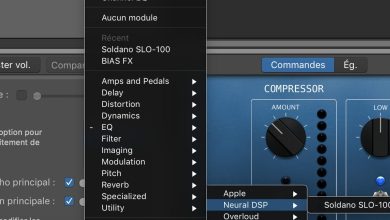
When it comes to amp sims, there are many options available. Some popular ones include Amplitube, Bias FX, and Guitar Rig. These plugins allow you to simulate the sound of different amps and pedals, giving you a wide range of tones to choose from.
Reverb plugins are also important for guitar recording. They add depth and space to your guitar tracks, making them sound more natural. Some popular reverb plugins include Valhalla Room, FabFilter Pro-R, and Waves H-Reverb.
plugins are essential tools for guitar recording and mixing in Reaper. They allow you to add effects such as amp simulations and reverb to your tracks. By following the steps outlined above, you can easily load and use plugins in Reaper to enhance your guitar recordings.
Recording Your Guitar
Recording your guitar in Reaper is a simple process that can yield professional results. Here are the steps to follow:
- Connect your guitar to your audio interface using a 1/4 inch cable. Make sure the interface is connected to your computer via USB or Firewire.
- Open Reaper and create a new project.
- Create a new track by clicking on the “+” button in the track control panel.
- Arm the track for recording by clicking on the red “Record Arm” button.
- Set the input for the track to the input that your guitar is connected to on your audio interface.
- Set the monitoring mode for the track to “In” so that you can hear your guitar as you play.
- Set the recording mode to “Record-Input (Auto Punch)” so that recording starts automatically when you start playing.
- Set the metronome click to your desired tempo by clicking on the “Click Source” button.
- Press the “Record” button to start recording.
Once you have recorded your guitar, you can edit it using Reaper’s powerful editing tools. You can also add effects to your guitar track to enhance its sound.
recording your guitar in Reaper is a straightforward process that can yield great results. With a little practice, you can become proficient at recording and editing your guitar tracks.
Routing and Mixing
When it comes to monitoring guitar in Reaper, routing and mixing are essential. Routing is the process of sending audio from one track to another, while mixing is the process of adjusting the levels and effects of each track to create a cohesive sound. Here’s how to do it in Reaper:
First, create a new track for your guitar. Then, route the guitar track to an auxiliary track, which will serve as your monitor mix. This allows you to hear the guitar track with any effects or processing applied to it.
To do this, right-click on the guitar track and select “Route to” > “New Auxiliary Channel”. In the routing matrix, make sure the guitar track is sending to the auxiliary track.
Next, create a new track for your computer speakers or headphones. Route the auxiliary track to this track so you can hear the monitor mix. Right-click on the auxiliary track and select “Route to” > “New Track”. In the routing matrix, make sure the auxiliary track is sending to the computer speaker or headphone track.
Now you can adjust the levels and effects of each track to create a balanced mix. Use the mixer to adjust the levels of each track, and use the FX window to add effects to the guitar track.
If you’re using headphones, make sure to adjust the panning of each track so you can hear the guitar in one ear and the monitor mix in the other. To do this, click on the pan knob in the mixer and drag it left or right.
routing and mixing are essential for monitoring guitar in Reaper. By following these steps, you can create a balanced and cohesive sound that will help you achieve your desired tone.
Additional Tools and Resources
If you’re looking to improve your guitar monitoring experience in Reaper, there are a few additional tools and resources that you may find helpful.
MIDI Controllers
If you’re using virtual instruments or effects plugins in Reaper, a MIDI controller can be a great tool for controlling and manipulating your sounds in real-time. There are a variety of MIDI controllers available on the market, ranging from simple keyboard controllers to more advanced controllers with faders and knobs. Some popular options include the Novation Launchkey, Akai MPK Mini, and Arturia Keylab.
YouTube Tutorials
If you’re looking to learn more about using Reaper for guitar recording and monitoring, there are a wealth of tutorials available on YouTube. Some great channels to check out include The REAPER Blog, ReaperTV, and Kenny Gioia’s Reaper Mania. These channels offer a wide range of tutorials covering everything from basic recording and editing techniques to advanced mixing and mastering tips.
Keyboard Shortcuts
Reaper is known for its extensive keyboard shortcut system, which can help you work more efficiently and quickly. If you’re not already familiar with the keyboard shortcuts in Reaper, it’s worth taking some time to learn them. You can find a full list of keyboard shortcuts in the Reaper user manual, or by pressing F1 in the program.
Vocal Recording
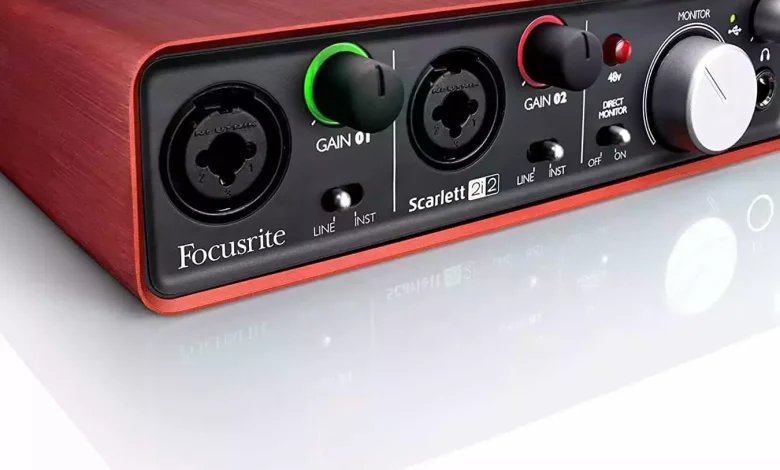
If you’re looking to record vocals along with your guitar in Reaper, there are a few things to keep in mind. First, make sure you have a good quality microphone and preamp. Some popular options include the Shure SM7B and the Focusrite Scarlett series. Additionally, it’s important to pay attention to mic placement and room acoustics to ensure a clean and clear vocal recording.
PC Optimization
If you’re experiencing performance issues or latency when monitoring your guitar in Reaper, there are a few things you can do to optimize your PC for audio production. Some tips include using an external audio interface, disabling unnecessary background processes, and adjusting buffer settings in Reaper.
with the right tools and resources, monitoring your guitar in Reaper can be a smooth and enjoyable experience.