

If you’re looking to record audio on your Android device, there are a variety of options available to you. Whether you’re recording a podcast, a lecture, or just a quick voice memo, you can easily capture high-quality audio using your smartphone. In this article, we’ll cover some of the most popular methods for recording audio on Android.
One of the easiest ways to record audio on Android is to use the built-in recorder app that comes with most devices. This app is typically pre-installed on your phone and can be accessed from the app drawer. Once you open the app, you can start recording by pressing the record button. You can also pause and resume recordings as needed, and the app will automatically save your recordings to your phone’s internal storage.
Another option for recording audio on Android is to use a third-party app. There are a variety of apps available on the Google Play Store that offer more advanced features than the built-in recorder app. For example, some apps allow you to adjust the recording quality, add effects, or even edit your recordings after the fact. Whether you’re a professional musician or just looking to record a quick voice memo, there’s an app out there that can meet your needs.
Understanding Android Audio Recording
Recording audio on Android devices is a useful feature that can be used for a variety of purposes. Whether you want to record a lecture, a conversation, or a song, Android devices have built-in audio recording capabilities that can help you achieve your goal.
There are two ways to record audio on an Android device: using the built-in microphone or an external microphone. Most Android phones and tablets come with a built-in microphone that can be used to record audio. However, if you want to record high-quality audio, it is recommended that you use an external microphone.
When it comes to recording audio on an Android device, there are several things to keep in mind. For example, you should make sure that the microphone is positioned correctly to capture the sound you want to record. You should also be aware of the recording settings, such as the recording quality and format.
Another important consideration when recording audio on an Android device is the available storage space. Audio files can take up a lot of space on your device, so it is important to make sure that you have enough storage space before you start recording.
recording audio on an Android device is a simple and straightforward process. With the right equipment and settings, you can capture high-quality audio that can be used for a variety of purposes.
Starting the Recording Process
If you’re looking to record audio on your Android device, there are a few different methods you can use. In this section, we’ll cover two of the most common ways to start the recording process: using the built-in audio recorder app and using third-party apps.
Using the Built-in Audio Recorder App
Many Android devices come with a built-in audio recorder app that you can use to record audio. To start recording with this app, follow these steps:
- Open the app drawer on your Android device.
- Look for the “Voice Recorder” app. If you can’t find it, try opening a folder that may have the phone’s name on it.
- Tap on the app to open it.
- Tap the red “Record” button to start recording audio.
- When you’re finished recording, tap the “Stop” button.
It’s worth noting that the built-in audio recorder app may have limited features compared to third-party apps. For example, you may not be able to edit your recordings or share them directly from the app. However, it’s a simple and easy way to get started with recording audio on your Android device.
Using Third-Party Apps
If you’re looking for more advanced features, you may want to consider using a third-party audio recorder app. There are many different apps available on the Google Play Store, each with its own set of features and capabilities.
To find a third-party audio recorder app, follow these steps:
- Open the Google Play Store on your Android device.
- Search for “audio recorder” or a similar keyword.
- Browse through the results and read reviews to find an app that meets your needs.
Once you’ve downloaded and installed a third-party audio recorder app, you can usually start recording by opening the app and tapping the “Record” button. Some apps may also allow you to customize settings such as the recording quality, file format, and more.
whether you choose to use the built-in audio recorder app or a third-party app, recording audio on your Android device is a simple and straightforward process. Just make sure to test your microphone and adjust your settings as needed to ensure that you get the best possible recording quality.
How to Record Internal and External Audio
Recording audio on an Android device can be useful for a variety of reasons, from recording a lecture to capturing a song that you like. There are two types of audio that you can record on your Android device: internal audio and external audio.
Internal Audio Recording
Internal audio recording is the process of recording audio that is playing on your device, such as music, podcasts, or game sounds. To record internal audio on your Android device, you need to use a screen recorder app that has this feature. Some Android devices have built-in screen recorders that allow you to record internal audio, but if your device does not have this feature, you can download a third-party screen recorder app.
External Audio Recording
External audio recording is the process of recording audio that is coming from an external source, such as a microphone or a speaker. To record external audio on your Android device, you can use the built-in microphone on your device or an external microphone that is connected to your device.
If you want to record external audio using the built-in microphone on your device, you can use an audio recorder app that allows you to choose the audio source. Make sure to place your device close to the source of the audio to get the best recording quality.
If you want to record external audio using an external microphone, you need to connect the microphone to your device using a compatible cable. Once the microphone is connected, you can use an audio recorder app to start recording.
Choosing the Audio Source
When recording audio on your Android device, it is important to choose the right audio source. If you want to record internal audio, you need to choose the media sound option in the sound settings of your screen recorder app. If you want to record external audio, you need to choose the external microphone option in your audio recorder app.
recording audio on an Android device is a simple process that can be done using a variety of apps and tools. Whether you want to record internal audio or external audio, make sure to choose the right audio source and use the right tools to get the best recording quality.
Editing and Saving Your Audio Files
Once you have recorded your audio on your Android device, you may want to edit and save it for future use. Fortunately, there are many apps available on the Google Play Store that can help you with this task.
Editing Your Audio File
When it comes to editing your audio file, you can use apps like AudioLab or Timbre. These apps allow you to trim, merge, split, and reverse your audio files. You can also adjust the volume, speed, and pitch of your audio to make it sound better.
Saving Your Audio File
After editing your audio file, you can save it in different formats such as MP3 or AAC. To do this, simply select the “Export” or “Save” option in your editing app. You can also choose the quality and bitrate of your audio file before saving it.
Pausing and Stopping Recording
When recording audio, you may need to pause or stop the recording at some point. Most recording apps have a pause or stop button that you can use for this purpose. Simply tap on the pause or stop button to pause or stop the recording.
editing and saving your audio files on Android is easy and straightforward. With the right app, you can edit your audio files to make them sound better and save them in different formats for future use.
Advanced Audio Recording Features
Android devices come with a variety of advanced audio recording features that can help you capture high-quality audio in different scenarios. Here are some of the most useful features:
Screen Recording with Internal Audio
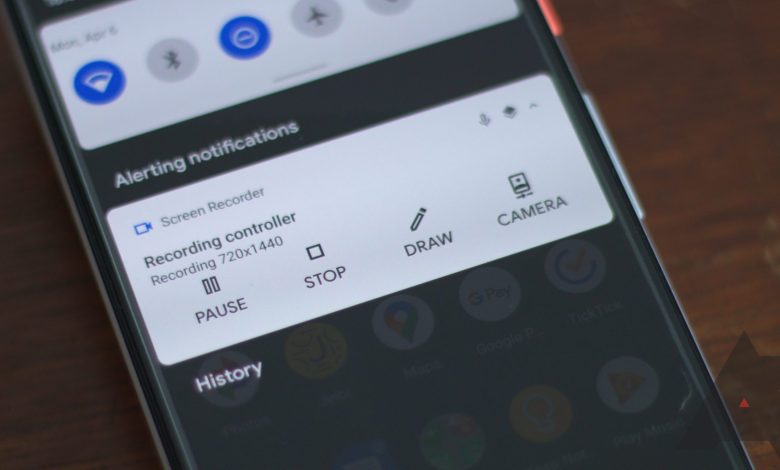
If you want to record audio from your device’s internal sources, such as music, game sounds, or app sounds, you can use the built-in screen recorder feature. To do this, open the screen recorder, choose “Media Sounds” in Sound Settings, and tap “Start Recording.” This will capture both the video and audio of your screen, including any internal audio sources.
Background Recording
If you need to record audio in the background while using other apps or when your screen is off, you can use a background recording app. These apps allow you to start recording audio and then continue using your device normally. Some popular background recording apps include Easy Voice Recorder, Smart Voice Recorder, and Hi-Q MP3 Voice Recorder.
Call Recording
If you need to record calls on your Android device, you can use a call recording app. These apps allow you to record both incoming and outgoing calls, and some even offer advanced features such as automatic recording, cloud backup, and transcription. Some popular call recording apps include Automatic Call Recorder, Cube Call Recorder ACR, and Call Recorder – ACR.
Video Recording with Audio
If you want to capture both video and audio, you can use your device’s built-in camera app or a third-party video recording app. These apps allow you to record high-quality video with audio, and some even offer advanced features such as slow motion, time-lapse, and filters. You can also use video editing apps to trim and edit your video files.
Android devices offer a variety of advanced audio recording features that can help you capture high-quality audio in different scenarios. Whether you need to record internal audio, background audio, calls, or video with audio, there are many apps and settings that can help you achieve your goals.
Using Different Android Devices for Audio Recording
Recording audio on Android devices is a straightforward process that varies slightly depending on the device you are using. In this section, we will explore how to record audio on different Android devices, including Samsung, OnePlus, and iPhone running on Android 10.
Samsung Devices
Samsung phones are some of the most popular Android devices on the market. To record audio on Samsung Galaxy devices, you can use the built-in Voice Recorder app. This app comes pre-installed on most Samsung devices and offers a range of features, including the ability to record audio in different formats, add tags to your recordings, and share them with others.
To use the Voice Recorder app, open it from your app drawer and tap the red Record button. Once you are done recording, tap the Stop button and give your recording a name. You can then choose to save it to your device or share it with others.
OnePlus Devices
If you are using a OnePlus device, you can use the built-in Recorder app to record audio. This app offers a simple and intuitive interface and allows you to record audio in different formats, including AAC, AMR, and WAV.
To use the Recorder app, open it from your app drawer and tap the red Record button. Once you are done recording, tap the Stop button and give your recording a name. You can then choose to save it to your device or share it with others.
iPhone running on Android 10
If you are using an iPhone running on Android 10, you can use the built-in Voice Memos app to record audio. This app comes pre-installed on most iPhones and offers a range of features, including the ability to record audio in different formats, add tags to your recordings, and share them with others.
To use the Voice Memos app, open it from your app drawer and tap the red Record button. Once you are done recording, tap the Stop button and give your recording a name. You can then choose to save it to your device or share it with others.
recording audio on Android devices is a simple process that can be done using the built-in apps on most devices. Whether you are using a Samsung, OnePlus, or iPhone running on Android 10, you can easily record audio and share it with others.
Troubleshooting Common Issues
Recording audio on Android can be a straightforward process, but sometimes you may encounter some issues. Here are some common problems and solutions to help you troubleshoot:
No sound is recorded
If you’re not getting any sound when you play back your recording, check if your phone’s microphone is working properly. Try recording with a different app to see if the issue persists. If it does, make sure your microphone is not blocked by anything, and try recording in a quieter environment.
Low-quality audio
If your recordings sound muffled or distorted, try recording in a different location or adjusting your phone’s microphone settings. You can also try using an external microphone or upgrading your phone’s audio hardware.
Recording stops unexpectedly
If your recording stops unexpectedly, check if you have enough storage space on your phone. Also, make sure you’re not running too many apps in the background, as this can cause your phone to slow down or freeze. If the issue persists, try restarting your phone or clearing the app’s cache.
Bluetooth connection issues
If you’re using a Bluetooth headset or speaker to record audio, make sure it’s properly connected to your phone. Check if your phone’s Bluetooth settings are turned on, and try pairing your devices again. If you’re still having issues, try resetting your Bluetooth connection or updating your phone’s software.
App not working
If you’re having trouble with a specific recording app, try checking if it’s compatible with your phone’s operating system. You can also try uninstalling and reinstalling the app, or updating it from the Google Play Store. If the app still doesn’t work, try using a different recording app.
File management issues
If you’re having trouble finding your recorded files, try checking your phone’s file manager app. Make sure your recordings are saved in the correct folder, and try renaming them to make them easier to find. You can also try transferring your recordings to your computer using a USB cable.
Accessibility settings
If you’re having trouble recording calls, check if your phone’s accessibility settings are turned on. Some phones require this feature to be enabled for call recording to work properly. You can find this setting in your phone’s settings app under “Accessibility.”
These are some common issues you may encounter when recording audio on Android. By following these troubleshooting steps, you can ensure that your recordings are of high quality and free from any technical issues.
Additional Tips and Tricks
Recording audio on your Android device is a simple process, but there are some tips and tricks that can help you get the most out of your recordings. Here are some additional tips to help you improve your audio recordings:
Use Smart Recorder for Advanced Features
If you’re looking for a more advanced audio recording app, consider using Smart Recorder. This app offers a range of features, including the ability to record in different audio formats, adjust the recording quality, and use noise reduction to improve the quality of your recordings.
Use Voice Notes for Quick Recordings
If you need to quickly record a voice note or reminder, the built-in Voice Notes app is a great option. This app allows you to quickly record a voice memo and save it to your device for later playback.
Try Dolby On for Enhanced Audio
If you want to enhance the audio quality of your recordings, try using the Dolby On app. This app uses advanced audio processing algorithms to enhance the clarity and depth of your recordings, making them sound more professional.
Use Noise Reduction for Clearer Recordings
If you’re recording audio in a noisy environment, consider using a noise reduction app like Easy Voice Recorder or Hi-Q MP3 Voice Recorder. These apps use advanced algorithms to remove background noise from your recordings, making them clearer and easier to understand.
Collaborate on Recordings with BandLab
If you’re working on a collaborative project and need to share audio recordings with others, consider using BandLab. This app allows you to record and share audio files with others, making it easy to collaborate on music or other projects.
Frequently Asked Questions
Here are some frequently asked questions about recording audio on Android phones:
Can I record audio on my Android phone without downloading an app?
Yes, you can. Most Android phones come with a built-in voice recorder app. You can find it by opening the App Drawer and searching for “Voice Recorder.” Once you find it, tap on it to open it. From there, you can start recording audio by tapping on the red record button.
How do I record internal audio on my Android phone?
To record internal audio on your Android phone, you need to use a third-party app. Some popular options include AZ Screen Recorder, RecForge II, and Easy Voice Recorder. Keep in mind that not all apps will work on all devices, so you may need to do some research to find one that works for you.
How do I record external audio on my Android phone?
To record external audio on your Android phone, you can use the built-in microphone or an external microphone. If you’re using the built-in microphone, make sure you’re in a quiet room and hold the phone close to the sound source. If you’re using an external microphone, make sure it’s compatible with your phone and that you have it connected properly.
How do I save audio recordings on my Android phone?
When you’re done recording audio on your Android phone, you’ll need to save it somewhere. Most voice recorder apps will automatically save your recordings to a specific folder on your phone. You can also save your recordings to cloud storage services like Google Drive or Dropbox.
Can I edit audio recordings on my Android phone?
Yes, you can. There are several apps available on the Google Play Store that allow you to edit audio recordings on your Android phone. Some popular options include WaveEditor for Android, Lexis Audio Editor, and Music Maker JAM.
To share audio recordings on your Android phone, you can use the share feature built into most voice recorder apps. Simply select the recording you want to share and then choose the app or service you want to use to share it. You can also share your recordings by uploading them to cloud storage services like Google Drive or Dropbox and then sharing the link with others.
These are some of the most frequently asked questions about recording audio on Android phones. If you have any other questions or concerns, feel free to consult the user manual of your phone or contact the manufacturer for assistance.
Conclusion
Recording audio on an Android device is a useful feature that can come in handy for a variety of reasons. Whether you are a journalist, a musician, or just someone who likes to keep voice notes, there are many ways to record audio on your Android device.
In this article, we have explored several methods to record audio on Android devices. From using the built-in voice recorder app to downloading third-party apps, we have covered a range of options to suit different needs. We have also discussed how to record internal audio using screen recording apps and the built-in screen recording feature on Android 11 and later versions.
It is important to note that some Android devices may have different settings and options for recording audio, so it is always a good idea to check your device’s user manual or online resources for specific instructions. Additionally, it is important to respect the privacy of others when recording audio and to obtain their consent before recording them.
We hope this article has been helpful in guiding you through the process of recording audio on your Android device. With the right tools and settings, you can easily capture high-quality audio for your personal or professional needs.


