VB Virtual Audio Cable is a powerful tool that allows you to transfer audio streams between different applications on your computer. With this software, you can create virtual audio devices that can be used to split and route audio signals in real-time. Whether you’re a musician, podcaster, or streamer, VB Virtual Audio Cable can help you capture, mix, and broadcast audio from multiple sources.
Using VB Virtual Audio Cable is easy, and there are many different ways you can configure it to suit your needs. For example, you can use it to record audio from your computer’s sound card, route audio from one application to another, or even stream audio over the internet. Whether you’re a beginner or an experienced user, this software is a must-have tool for anyone who wants to take their audio production to the next level.
Understanding Virtual Audio Cable
Virtual Audio Cable is a software that allows you to transfer audio streams between different applications or devices on your computer. It creates a virtual link between your audio output and input, allowing you to route audio signals from one application to another or to record audio streams from your computer.
Virtual Audio Cable is also known as VB-Cable or VB-Audio Virtual Cable. It is a popular software among audio professionals and enthusiasts who need to mix, record, or broadcast audio streams on their computers.
One of the benefits of using Virtual Audio Cable is that it allows you to create multiple virtual audio devices, each with its own input and output channels. This means you can route audio signals between different applications or devices without affecting the original audio source.
For example, you can use Virtual Audio Cable to route audio from your media player to your recording software, or from your microphone to your streaming software. You can also use it to mix audio streams from different applications or to create virtual audio loops for testing purposes.
Virtual Audio Cable is compatible with most Windows operating systems and supports a variety of audio formats, including WAV, MP3, and WMA. It also comes with a user-friendly interface that allows you to configure and customize your virtual audio devices.
Virtual Audio Cable is a powerful and versatile software that can help you manage and manipulate audio streams on your computer. Whether you are a musician, podcaster, or streamer, Virtual Audio Cable can help you achieve your audio goals with ease.
Downloading and Installing VB Virtual Audio Cable
If you want to use VB Virtual Audio Cable, the first step is to download and install it on your computer. Here are the steps to download and install VB Virtual Audio Cable:
Windows
- Go to the VB-Audio Virtual Apps website and download the latest version of VB-Cable.
- Once the download is complete, run the VB-Cable setup file (vbcable_setup_x64.exe) and follow the on-screen instructions to install the software.
- After the installation is complete, restart your computer to ensure that the settings take effect.
macOS
- Go to the VB-Audio Virtual Apps website and download the latest version of VB-Cable for macOS.
- Once the download is complete, open the DMG file and follow the on-screen instructions to install the software.
- After the installation is complete, restart your computer to ensure that the settings take effect.
VB Virtual Audio Cable is donationware, which means that you can use it for free, but donations are welcome. If you find the software useful, consider making a donation to support the developers.
downloading and installing VB Virtual Audio Cable is a straightforward process. Just follow the steps above, and you’ll be up and running in no time.
Setting Up VB Virtual Audio Cable
Setting up VB Virtual Audio Cable is a straightforward process that can help you route audio between applications on your computer. Here’s how to set it up on Windows and MacOS.
On Windows
To set up VB Virtual Audio Cable on Windows, follow these steps:
- Download and install the VB Virtual Audio Cable software from the official website.
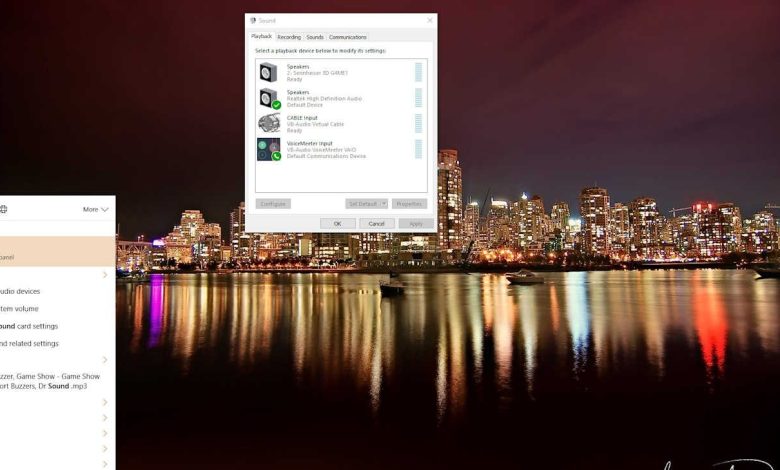
- Open the Control Panel on your computer and navigate to the Sound settings.
- In the Playback tab, you should see a new “CABLE Input” device on your list of speakers and headphones. Select it and then set it as the default.
- In the Recording tab, set the “CABLE Output” device as the default.
- Launch the application that you want to route audio from and select “CABLE Input” as the output device.
- Launch the application that you want to route audio to and select “CABLE Output” as the input device.
That’s it! You should now be able to route audio between applications using VB Virtual Audio Cable.
On MacOS
To set up VB Virtual Audio Cable on MacOS, follow these steps:
- Download and install the VB Virtual Audio Cable software from the official website.
- Open the Audio MIDI Setup application on your Mac.
- Click the “+” button in the bottom left corner and select “Create Multi-Output Device”.
- Select the “VB-Audio Virtual Cable” device as one of the outputs.
- Set the “Built-in Output” as the other output.
- In the “Master Device” dropdown, select the newly created Multi-Output Device.
- Launch the application that you want to route audio from and select “VB-Audio Virtual Cable” as the output device.
- Launch the application that you want to route audio to and select “Multi-Output Device” as the input device.
That’s it! You should now be able to route audio between applications using VB Virtual Audio Cable on MacOS.
Setting up VB Virtual Audio Cable can be a useful tool for controlling audio routing between applications on your computer. Whether you’re using Windows XP or Windows 10, or a MacOS computer, these steps should help you get started.
Configuring Audio Inputs and Outputs
Configuring audio inputs and outputs is an essential step in setting up VB Virtual Audio Cable. This section will guide you through the process of configuring your headset and microphone, as well as your speakers.
Headset and Microphone
To configure your headset and microphone, you’ll need to set the audio input and output devices in your audio settings.
First, connect your headset to your computer and make sure that it’s selected as the default audio device in your audio settings. Then, select your microphone as the default recording device.
In VB Virtual Audio Cable, set the cable input to your microphone and the cable output to your headset. This will allow you to use your microphone and headset together with VB Virtual Audio Cable.
Speakers
To configure your speakers, you’ll need to set the audio output device in your audio settings.
First, connect your speakers to your computer and make sure that they’re selected as the default audio device in your audio settings.
In VB Virtual Audio Cable, set the cable input to your audio device and the cable output to your speakers. This will allow you to use your speakers with VB Virtual Audio Cable.
It’s important to note that VB Virtual Audio Cable can work with a variety of audio devices, including headphones, real microphones, and other audio inputs. Just make sure that you configure your audio settings correctly and set the cable input and output accordingly.
configuring your audio inputs and outputs is a crucial step in setting up VB Virtual Audio Cable. By following the steps outlined above, you can ensure that your headset, microphone, and speakers are all correctly configured and ready to use with VB Virtual Audio Cable.
Using VB Virtual Audio Cable with Different Applications
VB Virtual Audio Cable is a powerful tool that can be used with a variety of applications for recording, streaming, mixing, and playback. Here are some tips on how to use VB Virtual Audio Cable with different applications.
With Audacity
Audacity is a popular free recording application that can be used with VB Virtual Audio Cable. To use VB Virtual Audio Cable with Audacity, follow these steps:
- Open Audacity and go to Edit > Preferences.
- Under the Devices tab, choose VB-Audio Virtual Cable as the Recording and Playback devices.
- Click OK to save the changes.
- In Audacity, select the track you want to record and press the Record button.
- When finished recording, stop the recording and save the file.
With Discord
Discord is a popular voice and text chat application that can be used with VB Virtual Audio Cable to add virtual microphone functionality. Here’s how to use VB Virtual Audio Cable with Discord:
- Open Discord and go to User Settings > Voice & Video.
- Under Input Device, choose VB-Audio Virtual Cable as the default microphone.
- Under Output Device, choose your default speakers or headphones.
- Click OK to save the changes.
- Start a voice chat in Discord and your virtual microphone will be active.
With Zoom
Zoom is a popular video conferencing application that can be used with VB Virtual Audio Cable to share audio from your computer. Here’s how to use VB Virtual Audio Cable with Zoom:
- Open Zoom and start or join a meeting.
- Click the Share Screen button.
- Choose the Advanced tab and select Music or Computer Sound Only.
- Click Share and VB Virtual Audio Cable will be used to share audio from your computer.
With OBS
OBS is a popular free streaming and recording application that can be used with VB Virtual Audio Cable. Here’s how to use VB Virtual Audio Cable with OBS:
- Open OBS and add a new Audio Input Capture source.
- Choose VB-Audio Virtual Cable as the device.
- Click OK to save the changes.
- Start streaming or recording and VB Virtual Audio Cable will be used to capture audio.
Using VB Virtual Audio Cable with different applications can greatly enhance your audio recording, streaming, and playback experience. With these tips, you can easily integrate VB Virtual Audio Cable into your workflow for a seamless and professional audio experience.
Troubleshooting Common Issues
Using VB Virtual Audio Cable can be a great way to manage your audio sources, but sometimes issues can arise. Here are some common issues and how to troubleshoot them:
Low Audio Quality
If you are experiencing low audio quality, the first thing to check is your sample rate. Make sure that your sample rate is set to the same value in both your recording tab and your audio drivers. If they are not the same, this can cause audio quality issues.
No Audio Output
If you are not getting any audio output, check to make sure that VB Virtual Audio Cable is selected as your default playback device. You can do this by going to your Sound settings and selecting VB Virtual Audio Cable as your default device.
Audio Delay
If you are experiencing audio delay, try adjusting the buffer size in your audio drivers. A larger buffer size can help reduce audio delay.
Audio Dropout
If you are experiencing audio dropout, try increasing the buffer size in your audio drivers. This can help prevent audio dropout by giving your system more time to process audio data.
Audio Pops and Clicks
If you are experiencing audio pops and clicks, try adjusting your buffer size. A smaller buffer size can help reduce pops and clicks by giving your system less time to process audio data.
By following these troubleshooting tips, you can ensure that you are getting the best possible audio quality from VB Virtual Audio Cable.
Understanding VB Virtual Audio Cable Licensing
VB Virtual Audio Cable is a virtual audio device that allows you to transfer audio streams between applications and devices. It is a donationware application, which means that it is free to use, but you are expected to pay your license if you find it useful or if you make any professional use.
The donationware model allows you to select the price amount according to your means or usage. You can choose to pay any amount that you think is reasonable, or you can use it for free. The license price is not fixed, and you can donate any amount you want.
If you find VB Virtual Audio Cable useful, you can donate and get two other Virtual Audio Devices: VB-CABLE A+B or VB-CABLE C+D. VB-CABLE A+B is a donationware application that allows you to transfer audio streams between two applications. VB-CABLE C+D is a donationware application that allows you to transfer audio streams between four applications.
The donationware model is a great way to support the development of VB Virtual Audio Cable. It allows you to use the application for free, but it also gives you the opportunity to support the developer if you find the application useful.
VB Virtual Audio Cable is a donationware application that allows you to transfer audio streams between applications and devices. The license price is not fixed, and you can donate any amount you want. If you find the application useful, you can donate and get two other Virtual Audio Devices: VB-CABLE A+B or VB-CABLE C+D. The donationware model is a great way to support the development of the application.
Conclusion
using VB Virtual Audio Cable can greatly enhance your audio recording and playback experience. Whether you are a content creator, musician, or just someone who enjoys high-quality audio, VB Virtual Audio Cable can help you achieve your goals.
Here are some key takeaways to keep in mind:
- VB Virtual Audio Cable is a powerful tool for routing audio between different applications on your computer.
- With VB Virtual Audio Cable, you can record audio from your computer’s output, play audio through your microphone, and much more.
- VB Virtual Audio Cable is easy to use and can be configured to suit your specific needs.
- There are many resources available online to help you get started with VB Virtual Audio Cable, including tutorials, forums, and documentation.
if you are looking to take your audio recording and playback to the next level, VB Virtual Audio Cable is definitely worth considering. With its powerful features, ease of use, and extensive documentation, it is a tool that can help you achieve your audio goals with ease.