

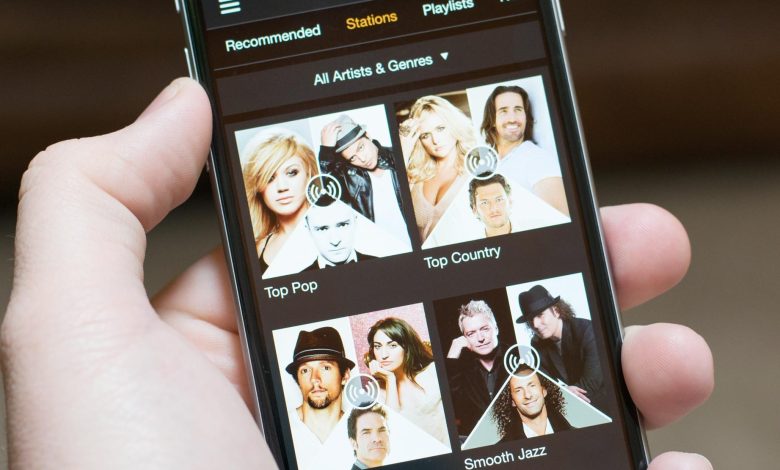
Are you looking to create a custom playlist on Amazon Music? Whether you want to organize your favorite songs or curate a playlist for a special occasion, Amazon Music makes it easy to create and customize playlists from a vast library of songs.
To get started, simply navigate to the “My Playlists” section of the Amazon Music app or website. From there, select the “Create New Playlist” option and give your playlist a name. You can then start adding songs to your playlist by browsing through the Amazon Music library and selecting the songs you want to include.
With Amazon Music, you can also take advantage of features like auto-playlists, which automatically generate playlists based on your listening history and preferences. Plus, you can easily share your playlists with friends and family, making it a great way to discover new music and share your favorite songs.
Understanding Amazon Music
Amazon Music is a streaming service that allows you to listen to music on-demand. It has a vast library of songs, albums, and playlists that you can access from your computer, phone, or tablet. Amazon Music offers two different tiers of service: Amazon Music Free and Amazon Music Unlimited.
Amazon Music Free is a free, ad-supported service that provides access to a limited selection of songs and playlists. It is available to all Amazon customers, but it does not include access to the full library of songs and albums available on Amazon Music.
Amazon Music Unlimited is a paid subscription service that provides access to the full library of songs and albums available on Amazon Music. It offers a range of features, including ad-free listening, offline playback, and the ability to create and share playlists.
To use Amazon Music, you will need an Amazon account. If you already have an Amazon account, you can sign in to Amazon Music using your existing login credentials. If you do not have an Amazon account, you can create one for free.
Amazon Music is available on a range of devices, including computers, phones, tablets, and smart speakers. You can access Amazon Music using the Amazon Music app, which is available for download on iOS and Android devices. You can also access Amazon Music using a web browser on your computer.
Amazon Music is a user-friendly streaming service with a vast library of songs and playlists. Whether you are a casual listener or a music enthusiast, Amazon Music has something to offer.
Creating an Amazon Music Account
To create a playlist on Amazon Music, you need an Amazon account. If you don’t have one already, here’s how to create one:
- Go to the Amazon website and click on “Account & Lists” in the top right corner.
- Select “Create an account” and enter your name, email address, and a password.
- Click “Create your Amazon account” and follow the prompts to enter your shipping and billing information, if you plan to use Amazon to purchase music or other items.
Once you have created your Amazon account, you can sign in to Amazon Music using your Amazon credentials.
If you are already an Amazon Prime member, you have access to a limited selection of music for free. If you want access to a wider selection of music, you can sign up for Amazon Music Unlimited, which is a paid subscription service.
creating an Amazon account is the first step to creating a playlist on Amazon Music. It’s a quick and easy process that will give you access to millions of songs and playlists.
Creating a playlist on Amazon Music is a breeze, and the interface is user-friendly. Here are some tips to help you navigate the Amazon Music interface:
-
Home Page: The home page of Amazon Music is where you can browse through featured playlists, new releases, and recommendations. You can also search for songs, albums, and artists by typing in the search bar at the top of the page.
-
Library: The Library tab is where you can access your saved songs, albums, and playlists. You can also create new playlists and edit existing ones from this tab.
-
Playlists: To create a new playlist, click on the “Create playlist” button located in the Playlists tab. From there, you can give your playlist a name, add a description, and choose a cover image.
-
Adding Songs: To add songs to your playlist, simply search for the song or album you want to add and click on the “Add to playlist” button. You can also add songs to your playlist by clicking on the three dots next to a song and selecting “Add to playlist.”
-
Editing Playlists: To edit your playlist, click on the three dots next to the playlist and select “Edit playlist.” From there, you can add or remove songs, change the name or description, and update the cover image.
-
Downloading Songs: You can download songs for offline playback by clicking on the download icon next to a song or album. You can also download entire playlists by clicking on the three dots next to the playlist and selecting “Download.”
the Amazon Music interface is easy to navigate, and creating a playlist is a simple process. With a vast library of songs and user-friendly interface, Amazon Music is an excellent choice for music lovers.
Choosing Your Music
Creating a playlist on Amazon Music is a great way to keep your favorite songs organized and at your fingertips. But before you start adding songs, it’s important to think about what kind of music you want to include in your playlist.
Here are a few tips to help you choose the right music for your playlist:
-
Think about the mood: Are you creating a playlist for a party or a workout? Or maybe you just want some relaxing background music while you work or study. Whatever the case, think about the mood you want to create and choose music that fits that mood.
-
Consider the genre: Do you prefer rock, pop, hip-hop, or country? Or maybe you like a little bit of everything. Whatever your preference, make sure to choose songs that fit within your chosen genre(s).
-
Mix it up: While it’s important to choose music that fits within a certain mood or genre, it’s also important to mix things up a bit. Don’t be afraid to include some unexpected songs or artists in your playlist. This can help keep things interesting and prevent your playlist from becoming too predictable.
-
Think about the length: How long do you want your playlist to be? If you’re creating a playlist for a specific event or activity, make sure it’s long enough to last the entire time. On the other hand, if you’re creating a playlist for everyday listening, you might want to keep it shorter so you can listen to it in its entirety more frequently.
By considering these factors, you can create a playlist that perfectly fits your needs and preferences. So start exploring your music library and get ready to create the perfect playlist on Amazon Music!
How to Create a Playlist
Creating a playlist on Amazon Music is a great way to organize your favorite songs and enjoy them in one place. In this section, we will guide you through the process of creating a playlist on Amazon Music for PC and Mac.
Step by Step Guide
- Open the Amazon Music app on your PC or Mac.
- Go to My Playlists in the navigation sidebar in the Amazon Music menu.
- Select the + Create New Playlist option.
- Give your playlist a name and click Create.
- Search for the songs you want to add to your playlist.
- Click the three dots next to the song and select Add to Playlist.
- Choose the playlist you want to add the song to.
You can also add songs to your playlist by dragging and dropping them into the playlist section.
Tips and Tricks
- Use the Amazon Music search bar to find songs quickly.
- You can add up to 100,000 songs to a playlist.
- Amazon Music also provides pre-made playlists for different moods and occasions.
- You can share your playlist with others by clicking the Share button and selecting how you want to share it.
- To delete a song from your playlist, click the three dots next to the song and select Remove from Playlist.
Creating a playlist on Amazon Music is easy and fun. Use our step-by-step guide and tips to create your own playlist and enjoy your favorite songs in one place.
Sharing Your Playlist
Once you have created your playlist on Amazon Music, you can share it with your friends and family. Sharing your playlist is a great way to introduce others to new music and to show off your musical taste. Here are a few ways to share your playlist on Amazon Music:
One way to share your playlist is by generating a link to your playlist. To do this, go to your playlist and click on the “Share” button. This will generate a link that you can send to anyone you’d like. They can click on the link to listen to your playlist on Amazon Music.
Another way to share your playlist is by sharing it on social media. Amazon Music allows you to share your playlist on Facebook, Twitter, and other social media platforms. To do this, go to your playlist and click on the “Share” button. Then select the social media platform you want to share your playlist on and follow the prompts.
Collaborate with Friends
Amazon Music also allows you to collaborate with your friends on a playlist. This means that you and your friends can add songs to the same playlist, making it a collaborative effort. To do this, go to your playlist and click on the “Collaborate” button. Then invite your friends to collaborate on the playlist by sending them an invitation.
Sharing your playlist on Amazon Music is easy and fun. Whether you want to share it with your friends or collaborate with them, Amazon Music has you covered. So go ahead and share your playlist today!
Troubleshooting Common Issues
Creating a playlist on Amazon Music is a simple process, but sometimes you may encounter some issues. Here are some common problems and their solutions that may help you:
Issue: Unable to Add Songs to Playlist
If you are unable to add songs to your playlist, make sure that you have an active subscription to Amazon Music Unlimited. If you have a subscription, try logging out of your account and then logging back in. If the issue persists, try restarting your device or clearing the app cache.
Issue: Playlist Not Syncing Across Devices
If you have created a playlist on one device but it is not showing up on another device, try logging out of your account and then logging back in on both devices. Make sure that your devices are connected to the internet and that you have enabled the “Sync Library” option in your Amazon Music settings.
Issue: Songs Skipping or Pausing
If your songs are skipping or pausing, check your internet connection. A poor internet connection can cause interruptions in your streaming. If your internet connection is good, try restarting your device or clearing the app cache.
Issue: Error Codes
If you encounter an error code, try restarting your device or clearing the app cache. If the issue persists, check the Amazon Music Help page for the specific error code and follow the troubleshooting steps provided.
By following these troubleshooting tips, you can resolve most issues with Amazon Music and enjoy creating your playlists hassle-free.
Conclusion
creating a playlist on Amazon Music is a simple and straightforward process. Whether you’re using the desktop app or the web player, you can create a playlist in just a few clicks. Simply navigate to the My Playlists section and click the Create New Playlist button. From there, you can add songs, reorder them, and customize your playlist as much as you like.
One of the biggest advantages of creating a playlist on Amazon Music is the ability to organize your music in a way that makes sense to you. Whether you want to create a playlist for a specific mood or occasion, or simply want to group your favorite songs together, playlists allow you to do just that. Plus, with Amazon Music’s vast library of songs, you’ll never run out of new music to add to your playlists.
Another benefit of creating playlists on Amazon Music is the ability to share them with others. Whether you want to share your playlist with a friend or family member, or simply want to make it public for others to enjoy, Amazon Music makes it easy to do so. Simply click the Share button and choose how you want to share your playlist.
creating a playlist on Amazon Music is a great way to organize your music and discover new songs. With its user-friendly interface and vast library of songs, it’s easy to create playlists that reflect your unique taste in music. So why not give it a try and see how easy it is to create your own playlists on Amazon Music?


