If you’re a music producer or musician, you know that MIDI keyboards are essential for creating and recording music. However, sometimes things don’t go as planned, and your MIDI keyboard may stop working in Logic Pro. This can be frustrating, especially if you’re in the middle of a project. There are several reasons why your MIDI keyboard may not be working, and in this article, we’ll explore some of the most common issues and how to fix them.
One of the most common reasons why your MIDI keyboard may not be working in Logic Pro is a connection issue. Your MIDI keyboard may not be connected properly to your computer, or there may be an issue with the USB cable. Another issue could be a driver problem. If your MIDI keyboard drivers are outdated or not properly installed, it can cause your keyboard to stop working. In some cases, the issue may be with your Logic Pro preferences, and resetting them may help to resolve the problem. We’ll explore these issues and more in the next few paragraphs.
Understanding Midi Keyboard and Logic Pro
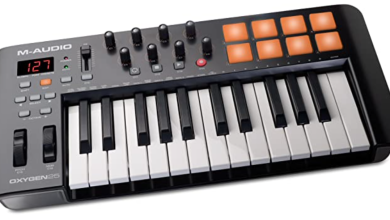
MIDI (Musical Instrument Digital Interface) is a protocol that allows electronic musical instruments, computers, and other devices to communicate with each other. It enables the exchange of information about musical notes, timing, and other performance data. MIDI keyboards are a popular input device for music production software like Logic Pro.
Logic Pro is a digital audio workstation that allows users to record, edit, and mix music. It supports MIDI input from a variety of devices, including keyboards, drum pads, and other controllers. However, sometimes MIDI keyboards may not work as expected in Logic Pro. Here are a few things to consider when troubleshooting MIDI keyboard issues in Logic Pro.
-
Check the connections: Make sure that your MIDI keyboard is properly connected to your computer. Check the cables and ports to ensure that they are functioning correctly.
-
Check the MIDI settings: In Logic Pro, navigate to Preferences > MIDI. Check that your MIDI keyboard is selected as an input device. You may need to enable MIDI input monitoring for the track you are working on.
-
Check the power source: Some MIDI keyboards require external power sources, such as batteries or AC adapters. Make sure that your keyboard is properly powered.
-
Check the MIDI channel: MIDI keyboards can send and receive information on different channels. Make sure that your keyboard is set to the correct channel in Logic Pro.
By following these steps, you can troubleshoot many common issues with MIDI keyboards in Logic Pro. If you continue to experience problems, you may need to consult the documentation for your specific MIDI keyboard or seek assistance from a support forum or professional.
Common Issues with Midi Keyboard in Logic Pro
If you are experiencing issues with your MIDI keyboard in Logic Pro, you are not alone. Many users have reported problems with their MIDI keyboards not working as expected. In this section, we will discuss some of the most common issues with MIDI keyboards in Logic Pro and provide some troubleshooting tips to help you get back to making music.
Connection Problems
One of the most common issues with MIDI keyboards is connection problems. If your MIDI keyboard is not connecting to your computer, it may be due to a faulty cable or a problem with your USB port. To troubleshoot this issue, try the following:
- Check your cable: Make sure your MIDI cable is properly connected to your keyboard and your computer. If your cable is damaged, replace it with a new one.
- Check your USB port: Try connecting your MIDI keyboard to a different USB port on your computer. If your keyboard is still not working, try connecting it to a different computer to determine if the problem is with your keyboard or your computer.
Software Compatibility Issues
Another common issue with MIDI keyboards is software compatibility issues. If your MIDI keyboard is not working in Logic Pro, it may be due to a compatibility issue with your operating system or your version of Logic Pro. To troubleshoot this issue, try the following:
- Check your software version: Make sure you are running the latest version of Logic Pro and your operating system.
- Check for driver updates: Check the manufacturer’s website for driver updates for your MIDI keyboard. Installing the latest drivers can often resolve compatibility issues.
Hardware Malfunctions
If your MIDI keyboard is still not working, it may be due to a hardware malfunction. In this case, you may need to have your keyboard repaired or replaced. To troubleshoot this issue, try the following:
- Check for physical damage: Inspect your keyboard for any physical damage. If you find any damage, such as a broken key or a loose connection, you may need to have your keyboard repaired.
- Contact the manufacturer: If your keyboard is still under warranty, contact the manufacturer for assistance. They may be able to repair or replace your keyboard at no cost to you.
if you are experiencing issues with your MIDI keyboard in Logic Pro, there are several troubleshooting tips you can try. By following the tips outlined in this section, you can quickly identify and resolve common issues with MIDI keyboards in Logic Pro.
Troubleshooting MIDI Keyboard Issues
If your MIDI keyboard is not working with Logic, there could be several reasons why. Here are some steps you can take to troubleshoot the issue.
Checking the Connection
The first thing to check is whether your MIDI keyboard is properly connected to your computer. Make sure that the USB cable is securely plugged into both the keyboard and the computer. If the connection is loose, it can cause problems with the signal.
You can also try plugging your MIDI keyboard into a different USB port on your computer. Sometimes, certain USB ports may not work properly, so switching to a different port can help.
Updating the Software
Another possible issue could be that your software is not up to date. Make sure that you have the latest version of Logic installed on your computer. You can check for updates by going to the App Store and clicking on the Updates tab.
You should also check whether your MIDI keyboard drivers are up to date. Go to the manufacturer’s website and download the latest drivers for your keyboard. Installing the latest drivers can often resolve any compatibility issues.
Inspecting the Hardware
If your MIDI keyboard is still not working, you may need to inspect the hardware. Check whether the keyboard is receiving power. If the keyboard is not receiving power, it will not be able to produce any sound. Make sure that the power cable is properly plugged in and that the power source is working.
You should also inspect the keyboard itself for any physical damage or wear and tear. Check whether any of the keys are stuck or not working properly. If you notice any issues with the hardware, you may need to take your keyboard in for repairs.
By following these troubleshooting steps, you can often resolve any issues with your MIDI keyboard and get back to making music in Logic.
Advanced Solutions
If you’ve tried the basic solutions and your MIDI keyboard still isn’t working in Logic Pro, it’s time to try some advanced solutions. Here are two things you can try:
Resetting MIDI Devices
Sometimes, MIDI devices can get stuck in a strange state, and resetting them can fix the problem. Here’s how to reset your MIDI devices:
- Open the Audio MIDI Setup app (you can find it in the Utilities folder).
- In the left-hand pane, find your MIDI device.
- Right-click on your MIDI device and select “Reset MIDI Device”.
- Close the Audio MIDI Setup app and try using your MIDI keyboard in Logic Pro again.
Reinstalling Logic Pro
If resetting your MIDI devices didn’t work, you might need to reinstall Logic Pro. Here’s how to do it:
- Back up any important data (like your projects) before you begin.
- Open the App Store app.
- Click on your name in the bottom left-hand corner.
- Click on “Purchased”.
- Find Logic Pro in the list and click “Install”.
Once Logic Pro has finished reinstalling, try using your MIDI keyboard again.
Remember, these are advanced solutions, so they should only be used if the basic solutions didn’t work. If you’re still having trouble, it might be time to contact Apple support or take your MIDI keyboard to a professional for repair.
When to Seek Professional Help
If you have tried all the troubleshooting steps and your MIDI keyboard still isn’t working in Logic, it may be time to seek professional help. Here are a few situations where you may want to consider getting assistance from a professional:
-
Hardware Issues: If you suspect that your MIDI keyboard has a hardware issue, such as a broken cable or malfunctioning keys, it may be best to take it to a repair shop or contact the manufacturer for assistance. They will have the expertise and tools to diagnose and fix any hardware-related problems.
-
Software Conflicts: If you have tried all the software troubleshooting steps and your MIDI keyboard still isn’t working, it may be due to a conflict with other software on your computer. In this case, a professional may be able to help you identify and resolve any conflicts.
-
Advanced Setup: If you are trying to set up a complex MIDI system with multiple devices and configurations, a professional can help ensure that everything is properly connected and configured. They can also provide advice on the best equipment and settings for your specific needs.
Remember, seeking professional help can save you time and frustration in the long run. Don’t hesitate to reach out to a qualified technician or support team if you need further assistance.