

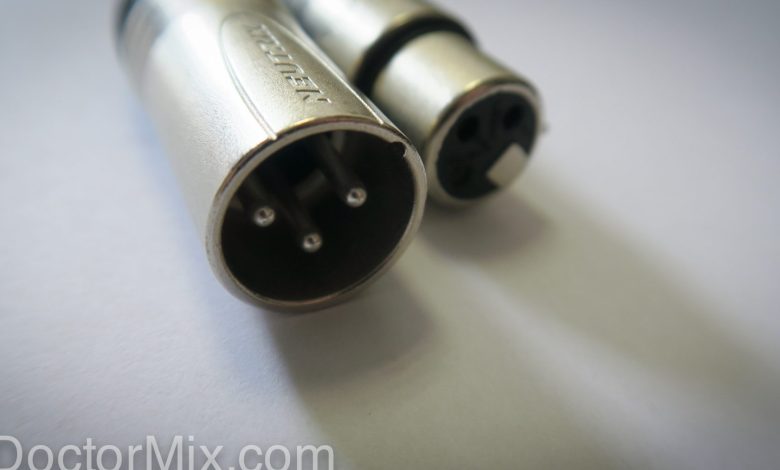
XLR cables are a common type of cable used in professional audio settings. They are designed to deliver balanced microphone and line-level signals over long distances. XLR cables have three pins and a circular connector, making them easy to use and reliable.
XLR cables are used for a variety of applications, including live shows, recording sessions, and stage lighting equipment. They are preferred by professionals due to their ability to carry robust audio signals and isolate noise. XLR cables are also known for their durability, making them a reliable choice for frequent use.
In this article, we will explore what XLR cables are, how they work, and why they are an essential component of professional audio equipment. Whether you are a musician, sound engineer, or simply interested in the world of audio, understanding XLR cables is crucial to achieving high-quality sound.
What is An XLR Cable
An XLR cable is a type of audio cable that is used to transmit balanced signals over long distances. XLR stands for “eXternal Line Return,” and it was originally developed for use in the professional audio industry. XLR cables are commonly used to connect microphones, speakers, and other audio equipment.
XLR cables come in different versions, but the most common one is the three-pin style. This type of XLR cable has three pins that are arranged in a circular pattern. The pins are surrounded by a metal casing that provides protection against interference and damage.
XLR cables are also known as microphone cables because they are commonly used to connect microphones to audio equipment. However, XLR cables can also be used for other purposes, such as connecting speakers and amplifiers.
One of the main advantages of XLR cables is their ability to transmit balanced signals. Balanced signals are less susceptible to interference and noise than unbalanced signals, which makes them ideal for use in professional audio settings. XLR cables also have a locking mechanism that keeps them securely in place, which helps prevent accidental disconnections.
XLR cables are a type of audio cable that is used to transmit balanced signals over long distances. They are commonly used to connect microphones, speakers, and other audio equipment in professional audio settings. XLR cables come in different versions, but the most common one is the three-pin style. They provide a secure and reliable connection and are less susceptible to interference and noise than unbalanced cables.
Components of An XLR Cable
An XLR cable consists of several components that work together to transmit audio signals with high fidelity. These components include conductors, shielding, and rubber boots.
Conductors
One of the critical components of an XLR cable is its conductors. These are the wires that carry the audio signals from the source to the destination. Typically, XLR cables have three conductors: a ground wire, a positive wire, and a negative wire. The positive and negative wires carry the audio signal, while the ground wire provides a reference point for the signal.
Shielding
Another essential component of an XLR cable is its shielding. Shielding helps to protect the audio signal from interference caused by external electromagnetic fields. XLR cables usually have two layers of shielding: a braided shield and a foil shield. The braided shield surrounds the conductors and provides mechanical strength, while the foil shield is placed between the braided shield and the rubber boot and provides additional protection against interference.
Rubber Boot
The rubber boot is the protective covering that surrounds the connectors at the ends of the XLR cable. It helps to prevent the connectors from becoming damaged or contaminated, which can affect the quality of the audio signal. The rubber boot also provides a comfortable grip when plugging or unplugging the cable.
an XLR cable is a crucial component of any audio setup. Its conductors, shielding, and rubber boot work together to ensure that audio signals are transmitted with high fidelity and minimal interference. By understanding the different components of an XLR cable, you can make informed decisions when selecting the right cable for your audio needs.
The Science Behind XLR Cables
XLR cables are a type of cable used in professional audio setups. They are known for their ability to deliver a balanced audio signal, which helps to reduce unwanted noise and interference. In this section, we will explore the science behind XLR cables and how they work.
Balanced Audio Signal
One of the key features of XLR cables is their ability to deliver a balanced audio signal. This means that the signal is split into two parts: the positive and negative signals. The positive signal carries the audio information, while the negative signal carries an inverted version of the same information. When the two signals are combined, they cancel out any noise or interference that may have been picked up along the way, resulting in a clean and clear audio signal.
Interference and Noise Rejection
XLR cables are designed to reject interference and noise, which can be a problem in professional audio setups. Interference can come from a variety of sources, including electromagnetic interference (EMI) and radio frequency interference (RFI). These types of interference can cause unwanted noise and distortion in the audio signal.
XLR cables are designed to reject interference by using a ground signal. The ground signal acts as a shield, protecting the audio signal from unwanted noise and interference. This helps to ensure that the audio signal remains clean and clear, even in noisy environments.
Phantom Power
Another feature of XLR cables is their ability to carry phantom power. Phantom power is a voltage that is used to power certain types of microphones and other audio equipment. This voltage is carried on the same wires that carry the audio signal, which means that only one cable is needed to power the equipment.
Phantom power is used in situations where it is not practical to run a separate power cable to the equipment. For example, in a live performance setting, it may be difficult to run a separate power cable to each microphone. In this case, phantom power can be used to power the microphones, which simplifies the setup process.
XLR cables are a type of cable used in professional audio setups. They are known for their ability to deliver a balanced audio signal, which helps to reduce unwanted noise and interference. XLR cables are also designed to carry phantom power, which simplifies the setup process in certain situations.
Types of XLR Cables
XLR cables are available in different types, each with its unique features and applications. Here are some of the most common types of XLR cables:
XLR3
The XLR3 is the most common type of XLR cable. It has three pins and is used for balanced audio connections. XLR3 cables are commonly used in professional audio equipment such as microphones, mixers, and amplifiers.
XLR7
The XLR7 is a less common type of XLR cable. It has seven pins and is used for digital audio connections. XLR7 cables are mainly used in high-end digital audio equipment to achieve high-quality audio transmission.
Male and Female XLR
XLR cables come in male and female versions. The male XLR connector has pins that plug into the female XLR connector’s holes. The female XLR connector has holes that receive the male XLR connector’s pins. The male XLR connector is usually used on cables, while the female XLR connector is usually used on equipment.
When choosing an XLR cable, it’s essential to consider the type of connector you need. Male and female connectors are not interchangeable, so you need to ensure that you have the correct connector for your equipment.
Versions of XLR Cables
There are different versions of XLR cables available in the market, each with its unique features. Some XLR cables are designed for specific applications, while others are more versatile. It’s essential to choose the right version of XLR cable for your needs.
XLR cables come in different types, each with its unique features and applications. Understanding the different types of XLR cables can help you choose the right cable for your needs.
XLR Cables in Use
XLR cables are widely used in various audio, lighting, and video equipment. Let’s take a look at some of the common uses of XLR cables in different devices.
In Audio Devices
XLR cables are commonly used in audio devices such as mixers, amplifiers, and speakers. They are used to transmit balanced audio signals over long distances with minimal loss of quality. XLR cables are preferred over other types of cables because they are less susceptible to electromagnetic interference and noise.
In Lighting
XLR cables are also used in lighting equipment such as stage lighting and DMX controllers. They are used to transmit control signals between the lighting console and the lighting fixtures. XLR cables are preferred in this application because they provide a reliable and secure connection that is less prone to interference.
In Video
XLR cables are also used in video equipment such as cameras and monitors. They are used to transmit audio signals from the camera to an external audio recorder or mixer. XLR cables are preferred in this application because they provide a balanced audio signal that is less prone to noise and interference.
XLR cables are an essential component of many audio, lighting, and video devices. They provide a reliable and secure connection that is less prone to interference and noise. Whether you are a professional audio engineer or a hobbyist, XLR cables are a must-have in your equipment arsenal.
Comparing XLR with Other Cables
When it comes to connecting audio equipment, there are several types of cables available. XLR cables are commonly used in professional audio settings, but how do they compare to other types of cables?
XLR vs TS
TS cables, also known as instrument cables, are commonly used to connect electric guitars and other instruments to amplifiers. Unlike XLR cables, TS cables are unbalanced, meaning they only have one signal wire and one ground wire. This can lead to noise and interference in the signal, especially over longer cable runs.
In contrast, XLR cables are balanced, meaning they have two signal wires and one ground wire. This helps to cancel out any noise or interference, resulting in a cleaner signal. XLR cables are also more durable than TS cables, making them a better choice for professional use.
XLR vs TRS
TRS cables, also known as balanced cables, are similar to XLR cables in that they have two signal wires and one ground wire. However, they use a different type of connector, with a tip, ring, and sleeve instead of the circular connector used by XLR cables.
While TRS cables can be a good choice for certain applications, such as connecting headphones or studio monitors, XLR cables are generally considered to be more reliable and versatile. XLR cables are also better suited for longer cable runs, as they are less susceptible to noise and interference.
XLR vs USB Mic
USB microphones have become increasingly popular in recent years, as they allow for easy recording on a computer without the need for an audio interface. However, they are not as versatile as XLR microphones, which can be used with a wide range of equipment.
XLR microphones also offer better sound quality and are less prone to interference than USB microphones. Additionally, XLR microphones can be used with a variety of accessories, such as pop filters and shock mounts, to further improve their performance.
while there are several types of cables available for connecting audio equipment, XLR cables are generally considered to be the most reliable and versatile option. Whether you’re recording in a studio or performing live, XLR cables provide a clean, noise-free signal that will help you achieve the best possible sound.
Importance of XLR Cables in Professional Audio
XLR cables are an essential component of professional audio equipment. They are widely used in studios, live performances, and other professional audio settings. XLR cables are designed to provide high-quality audio inputs, ensuring that the sound remains clear and free from interference.
One of the main advantages of XLR cables is that they carry balanced audio signals. This means that the signal is split into two equal parts, with one part carrying the positive signal and the other carrying the negative signal. The third part of the XLR cable is the ground wire, which helps to eliminate any unwanted noise or interference. This results in a clean, high-quality audio signal that is essential for professional audio applications.
Professional microphones typically use XLR cables to connect to audio equipment. XLR cables are also used to connect other audio equipment such as mixers, amplifiers, and speakers. XLR cables are designed to be durable and reliable, making them ideal for use in professional audio settings.
In addition to their high-quality audio inputs, XLR cables also provide other benefits. For example, they are less susceptible to interference from other electronic devices than unbalanced cables. They are also less likely to pick up interference from outside sources such as radio signals or electrical wiring.
XLR cables are an essential component of any professional audio setup. They provide high-quality audio inputs, are durable and reliable, and are less susceptible to interference than other types of cables. If you are looking to achieve high-quality audio in your professional audio setup, then XLR cables are a must-have.
Potential Issues with XLR Cables
XLR cables are known for their reliability and high-quality audio transmission. However, like any other piece of equipment, they are not without their potential issues. Some of the most common issues with XLR cables include ground loop noise and crosstalk.
Ground Loop Noise
Ground loop noise is a common issue that can occur when using XLR cables. It is caused by a difference in electrical potential between two devices that are connected to the same ground. This can result in a low hum or buzzing noise that can be heard in the audio signal.
To prevent ground loop noise, it is important to ensure that all devices are properly grounded. Using a ground lift adapter or isolator can also help to eliminate ground loop noise.
Crosstalk
Crosstalk is another potential issue that can occur with XLR cables. It is caused by the electrical signal from one channel leaking into another channel. This can result in noise interference and a reduction in audio quality.
To prevent crosstalk, it is important to use high-quality XLR cables that are properly shielded. It is also important to ensure that the cables are not placed near any other electrical equipment that could cause interference.
while XLR cables are generally reliable and provide high-quality audio transmission, they are not without their potential issues. By understanding the common issues such as ground loop noise and crosstalk, and taking the necessary steps to prevent them, you can ensure that your audio signals remain clear and interference-free.
History of XLR Cables
XLR cables have been around for a long time, and they have a rich history. The XLR connector originated from the Cannon X series of connectors, which were developed by James H. Cannon in the 1940s. The XLR connector was designed to be a high-quality, professional-grade connector for use in the audio industry.
By 1950, a latching mechanism was added to the connector, which produced the Cannon XL model of connector. This new connector was much more reliable than the original X connector, and it quickly became the industry standard for professional audio equipment.
In 1955, the female connector featured synthetic-rubber insulation polychloroprene (neoprene), identified with the part-number prefix XLR. This new insulation material was much more durable than the previous materials used, and it helped to further improve the reliability of the XLR connector.
Today, XLR cables are still widely used in the audio industry, and they are the preferred connector for many professional audio engineers. Manufacturers such as Neutrik, Switchcraft, and Amphenol produce high-quality XLR connectors that are used in a wide variety of applications.
the XLR cable has a long and fascinating history, and it has become an essential component in the audio industry. James H. Cannon’s original X connector paved the way for the development of the XLR connector, which has become the industry standard for professional audio equipment.
Conclusion
XLR cables are an essential component in professional audio equipment and are widely used in recording studios, live performances, and broadcasting. These cables are designed to deliver balanced audio signals over long distances, making them ideal for use in a wide range of settings.
One of the key advantages of XLR cables is their ability to provide clean, noise-free audio signals. This is due to their balanced design, which helps to cancel out any interference or noise that may be present in the signal. Additionally, XLR cables are highly durable and can withstand the rigors of frequent use, making them a reliable choice for professionals.
When choosing an XLR cable, it’s important to consider the length, quality, and type of cable that you need for your specific application. There are a variety of different XLR cables available on the market, each with its own set of features and benefits.
XLR cables are an essential tool for anyone working in the audio industry. Whether you’re a professional musician, sound engineer, or broadcaster, having a high-quality XLR cable is crucial for delivering clean, noise-free audio signals.


