In a small room, put the subwoofer in a corner first, then run the subwoofer crawl to choose the final spot, and be ready to move the seating as well as the box. Small rooms concentrate standing waves, so bass level swings hugely across a short distance. Placement decides which seats land on a peak and which land in a dead spot, and turning the volume up never fixes a dead spot.
That last point is the one most guides skip, and it is the reason people keep buying bigger subwoofers to solve a problem the room created.
Why one seat booms and the next one is dead
Low frequencies are long waves. In a room the size of a bedroom, den or small living room, those waves are long enough to bounce between opposite surfaces and interfere with themselves. Where the outgoing wave and the reflected wave line up, they add and the bass gets loud. Where they arrive out of step, they cancel and the bass drops away. These reinforcement and cancellation patterns are called room modes, and they are fixed in place by the shape of the room, not by the subwoofer.
That is why a sofa can have a boomy seat and a thin seat at the same time on the same track. Nothing is broken. Two listeners are simply sitting at two different points on the same standing wave.
Small rooms make this worse rather than better. The smaller the space, the further apart the modes sit in frequency, so instead of many small bumps you get a few large ones. One or two notes in a bass line hit hard and the rest disappear.
Before you move anything, confirm the subwoofer is getting the right signal
Placement work is wasted if the low frequencies are not arriving in the first place. Play something with continuous, sustained bass rather than a movie scene, and confirm you can hear and feel output from the subwoofer itself while it is still where it stands today.
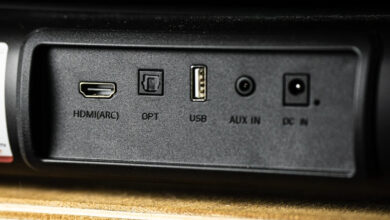
If the bar or receiver is receiving a stereo downmix instead of a surround stream, the low frequency effects channel has already been folded into left and right before it reaches the bass management stage, and what you are trying to position is not what the mix intended. Checking whether your TV is sending bitstream or PCM takes a minute and rules that out. If the subwoofer produces nothing at all rather than uneven output, this is not a placement problem: work through the ordered checklist for a soundbar that plays nothing over optical instead and come back afterward.
Start in a corner, even though you have heard not to
The usual advice is that corners make bass boomy. The reason a corner is still the right starting point is that it loads the room the most completely. SVS, which publishes its own subwoofer setup documentation, states that "corner placement excites all possible room modes, resulting in a denser standing wave pattern in the room," and that this "reduces (but doesn't eliminate) the potential to encounter nulls, which are acoustic cancellation points or 'dead spots' in the room" (SVS subwoofer placement guide, read September 8, 2026).
Read that carefully, because it inverts the usual instinct. A corner does not create the boom. It creates a denser pattern of peaks, which sounds heavier, and fewer wide dead spots. A peak can be pulled back down with level or equalization. A dead spot cannot be filled in. Starting where dead spots are least likely is starting from the recoverable failure rather than the unrecoverable one.
So a corner is a starting position for a test, not a verdict. If the result is too heavy and one-note, you move on to the crawl.
The subwoofer crawl, done properly
The crawl is the only placement method that measures your actual room instead of a diagram of a room. It works by swapping the two ends of the problem: you put the subwoofer where your ears normally are, then move your ears to every place the subwoofer could go.
- Lift the subwoofer onto the seat, at roughly the height your head sits at, facing the way it will face in the room.
- Play a loop of familiar bass heavy material. SVS describes the same step, placing the subwoofer "at or near the main listening position" and looping familiar bass heavy music.
- Crouch or kneel at each candidate location along the walls and in the corners, with your ears at the height the subwoofer's driver will sit at, and listen for a full minute in each spot.
- You are not listening for the loudest spot. You are listening for the most even spot, where every note in the bass line arrives at a similar level.
- Mark the best two or three positions, then put the subwoofer in the best one and listen from the seats.
The crawl works because low frequency behavior is reciprocal: a path that sounds even in one direction sounds even in the other. It costs an afternoon and no money, which makes it the highest value thing you can do to a small room.
Move the seat too, not only the subwoofer
In a small room the listening position often has more influence than the subwoofer position, and it is the variable most people refuse to touch. A seat pushed flat against the back wall sits in a pressure zone where bass builds up, so everything sounds thick and slow. Pulling the sofa away from that wall by even a modest distance changes which part of the standing wave your head occupies.
If the room only permits one sofa position and it is the bad one, you have a real constraint, and it is worth knowing that before you spend on hardware. This is also where the shape of the system matters: whether a soundbar or a separate AV receiver is running the room decides how much control you get over subwoofer level, phase and crossover, and a receiver with room correction can trim a peak that a bar with a fixed profile cannot.
What subwoofer placement in a small room cannot fix
This is the honest part, and it is what the pages ranking for this query leave out.
You cannot equalize a null. Boosting a frequency that is canceling at your seat sends more energy into a cancellation. The peak gets hotter everywhere else in the room, the amplifier works harder, and the dead note stays dead. SVS makes the same distinction, describing standing wave peaks as something that can be "tamed with equalization" while nulls are cancellation points. Cut peaks. Do not chase nulls.
A bigger subwoofer does not change the pattern. More output raises the whole curve, peaks included. The room decides where the peaks and nulls are, and the room does not care how much the box cost.
Room correction is not room treatment. Automatic calibration systems measure and apply filters, which handles peaks well. Nulls remain outside their reach for the same physical reason.
Small rooms have a floor on what is achievable at one seat. If two people sit at opposite ends of a sofa, one of them is often listening to a different bass response, and no single subwoofer position removes that difference completely.
When one subwoofer is not enough
The genuine fix for uneven bass across multiple seats is not a larger subwoofer, it is a second one. SVS states that "dual subwoofers greatly increases the modal density in the room," producing "a smoother frequency response at more listening positions in the room, with less potential for obvious peaks/nulls."
Two modest subwoofers in a small room will usually beat one large one for evenness across a sofa, because they fill in each other's cancellations. That is a purchase, so it belongs at the end of the list rather than the start. Run the crawl first. If the best available single position still leaves one seat thin, you now know exactly what you would be buying the second subwoofer to solve, which is a better position than guessing.
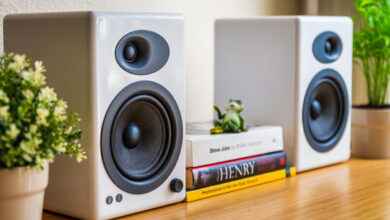
If you are still deciding what the room should hold at all, the trade offs in a soundbar system versus a pair of bookshelf speakers shape how much of this you will be able to control later.
The order to work in
| Step | What you are doing | What it costs |
|---|---|---|
| 1 | Confirm the subwoofer is receiving and reproducing low frequency content | Minutes |
| 2 | Place in a corner as a baseline and listen from the seats | Minutes |
| 3 | Run the subwoofer crawl and shortlist two or three positions | An afternoon |
| 4 | Move the seating away from the back wall and re-listen | An afternoon |
| 5 | Cut peaks with level, phase or room correction. Never boost a null | Free to modest |
| 6 | Add a second subwoofer if seats still disagree | A purchase |
FAQ
Should a subwoofer in a small room go in a corner or not?
Start in a corner. Corner placement excites the most room modes and makes wide dead spots less likely, which is the failure you cannot recover from. If the result is one-note and heavy, use the crawl to find a spot along a wall that trades some output for evenness.
Why is bass loud in one chair and missing in the next?
Because low frequencies form standing waves in the room. One chair sits where the waves reinforce each other and the other sits where they cancel. It is a property of the room's dimensions, not a fault in the subwoofer.
Does turning the subwoofer up fix a seat with no bass?
No. If a frequency is canceling at that seat, more level makes the rest of the room louder and leaves the cancellation in place. Moving the subwoofer, moving the seat, or adding a second subwoofer are the fixes that work.
Is it better to buy a bigger subwoofer or two smaller ones for a small room?
For even bass across more than one seat, two smaller subwoofers generally beat one larger one, because they increase the density of room modes and fill in each other's dead spots. A bigger single subwoofer raises everything, including the peaks.
Can room correction software fix uneven bass?
It can reduce peaks, which is most of the audible harshness. It cannot fill a null, because boosting a cancellation adds energy without adding sound at that seat. Treat correction as the last step after placement, not a replacement for it.