

Are you having trouble turning off the lights on your Logitech G733 headphones? Don’t worry, you’re not alone. Many users find it difficult to navigate the various buttons and features on these headphones, including the LED lights. But fear not, we’re here to help.
In this article, we’ll walk you through the steps to turn off the lights on your Logitech G733 headphones. Whether you’re looking to save battery life or simply prefer a more subtle look, we’ve got you covered. So sit back, relax, and let’s get started.
Understanding Your Logitech G733 Headset
The Logitech G733 headset is a wireless gaming headset designed to provide an immersive audio experience. It comes with a range of features that allow you to customize your audio settings and personalize your gaming experience. Here are some of the key things you need to know about your Logitech G733 headset:
Battery Life
The Logitech G733 headset has a built-in rechargeable battery that provides up to 29 hours of continuous use on a single charge. When the battery life is below 10%, the audio will beep every 15 minutes. When the battery life is below 2%, the lights will flash red and the audio will beep every 15 minutes. You can charge the headset by plugging in the charging cable, and the lights will breathe green five times and revert to their previous state.
Microphone
The Logitech G733 headset has a built-in microphone that you can mute by pressing the microphone button on the left earcup. When muting the mic, the lights will flash red, and the audio will beep twice. When unmuting the mic, the lights will flash green, and the audio will beep three times. You can adjust the microphone settings using the Logitech G HUB software.
Lightsync RGB
The Logitech G733 headset features Lightsync RGB lighting that allows you to personalize your headset with custom lighting effects. You can choose from a range of preset lighting effects or create your own using the Logitech G HUB software. To turn off the Lightsync RGB lighting, press and hold the microphone button on the left earcup for two seconds.
Audio Controls
The Logitech G733 headset has a range of audio controls that allow you to adjust the volume, change tracks, and answer calls. You can control the audio using the buttons on the right earcup or using the Logitech G HUB software. The headset also features DTS Headphone
the Logitech G733 headset is a versatile and customizable gaming headset that provides high-quality audio and a range of features to enhance your gaming experience.
Locating the Light Controls
The Logitech G733 headphones come with customizable RGB lighting that adds a touch of personalization to your gaming setup. However, sometimes you may want to turn off the lights to conserve battery or reduce distractions. Here’s how to locate the light controls on your Logitech G733 headphones.
Using Logitech G HUB
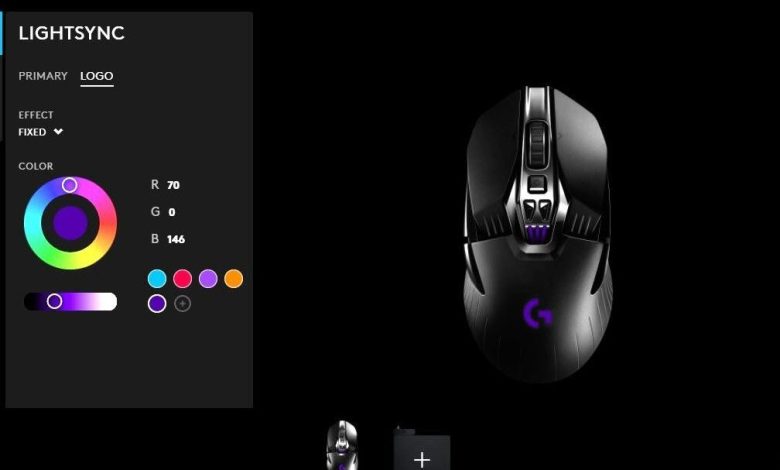
The Logitech G HUB software provides an easy way to customize the lighting settings on your G733 headphones. Here’s how to turn off the lights using Logitech G HUB:
- Open the Logitech G HUB software on your computer.
- Click on the G733 headset icon on the home screen.
- Click on the “Lighting” tab on the left-hand side of the screen.
- Toggle the “Lighting Effect” switch to the off position.
Using the Physical Controls
The Logitech G733 headphones also have physical controls that allow you to turn off the lights without needing to use the Logitech G HUB software. Here’s how to turn off the lights using the physical controls:
- Locate the power button on the left earcup of the headphones.
- Press and hold the power button for 2 seconds to turn off the headphones.
- Press and hold the power button again for 2 seconds to turn on the headphones and restore the lighting settings.
Using the PS4
If you’re using the Logitech G733 headphones with a PS4, you may notice that the lighting settings are automatically turned on when you switch to the PS4. Here’s how to turn off the lights on your Logitech G733 headphones when using a PS4:
- Connect the wireless dongle to the PS4.
- Press and hold the power button on the headphones for 2 seconds to turn them off.
- Press and hold the power button again for 2 seconds to turn them on and restore the lighting settings.
That’s it! With these simple steps, you can easily turn off the lights on your Logitech G733 headphones and enjoy a distraction-free gaming experience.
Steps to Turn Off Lights on Logitech G733
Logitech G733 is a great wireless gaming headset that comes with customizable RGB lighting. However, if you prefer to turn off the lights to save battery or reduce distractions, it’s a simple process. Here are the steps to turn off the lights on Logitech G733:
-
Press and hold the power button on the headset for about two seconds. This will turn off the headset and the lights.
-
Alternatively, you can turn off the lights through Logitech G HUB software. If you haven’t installed it yet, you can download it from the official Logitech website. Once you have installed it, follow these steps:
- Open Logitech G HUB software on your PC.
- Click on the G733 headset icon to access its settings.
- Click on the Lighting tab.
- Toggle off the switch next to “Enable per profile lighting” to turn off the lights.
-
If you want to turn off the lights temporarily without turning off the headset, you can use the mute button on the microphone. When you mute the microphone, the lights will turn off, and when you unmute it, they will turn on again.
turning off the lights on Logitech G733 is a simple process that can be done in a few seconds. Whether you want to save battery or reduce distractions, you can easily turn off the lights using the power button, Logitech G HUB software, or the mute button on the microphone.
Using Logitech G HUB Software
If you own a Logitech G733 headset and want to turn off the lights, you can easily do so using the Logitech G HUB software. Here’s how:
Downloading the Software
First, you need to download and install the Logitech G HUB software. You can do this by visiting the Logitech website and downloading the latest version of the software. Once you have downloaded the software, install it on your computer.
Once you have installed the software, open it and navigate to the settings for your Logitech G733 headset. You can do this by clicking on the headset icon in the Devices tab. From there, you can adjust a wide range of settings, including the lighting.
Adjusting Light Settings
To turn off the lights on your Logitech G733 headset, navigate to the Lighting tab and click on the On/Off switch. This will disable the lights on your headset. You can also adjust the brightness and color of the lights if you prefer.
the Logitech G HUB software is a powerful tool for customizing your Logitech G733 headset. With just a few clicks, you can adjust the lighting, sound, and other settings to create the perfect gaming experience.
Preserving Battery Life
The Logitech G733 is a wireless headset that runs on battery power. To ensure that your headset lasts as long as possible on a single charge, there are a few things you can do to preserve the battery life.
1. Turn off the Lights
The G733 has customizable RGB lighting that can be turned off to save battery life. To turn off the lights, you can either uncheck the “Allow games and application to control illumination” option in the Logitech G HUB software or create a profile for each game that turns off the Lightsync feature.
2. Adjust the EQ Settings
The EQ settings can also have an impact on the battery life of your G733. Using the default settings may drain the battery faster than necessary. You can adjust the EQ settings to get the best sound quality while also preserving battery life.
3. Use the Auto-Sleep Feature
The G733 has an auto-sleep feature that can be enabled to save battery life. This feature automatically puts the headset to sleep when it’s not in use for a certain amount of time. You can adjust the sleep timer in the Logitech G HUB software.
4. Monitor the Battery Life
It’s important to keep an eye on the battery life of your G733. When the battery life is below 10%, the audio will beep every 15 minutes. When the battery life is below 2%, the lights will flash red and the audio will beep every 15 minutes. When plugging in the charging cable, the lights will breathe green 5 times and revert to their previous state.
By following these tips, you can extend the battery life of your Logitech G733 and enjoy your wireless gaming headset for longer periods of time.
Troubleshooting Common Issues
If you’re having trouble with your Logitech G733 headset, there are a few common issues that you may encounter. Here are some troubleshooting tips to help you resolve these issues.
Software Not Recognizing Headset
If the software is not recognizing your headset, there are a few things that you can try:
- Make sure that the headset is properly connected to your computer.
- Check that the USB receiver is plugged into your computer and that it is working properly.
- Restart your computer and try again.
- Uninstall and reinstall the Logitech G HUB software.
Unable to Adjust Light Settings
If you’re unable to adjust the light settings on your Logitech G733 headset, there are a few things that you can try:
- Make sure that the headset is properly connected to your computer.
- Check that the USB receiver is plugged into your computer and that it is working properly.
- Restart your computer and try again.
- Uninstall and reinstall the Logitech G HUB software.
- Make sure that you have the latest version of the software installed.
- Try adjusting the light settings using the Logitech G HUB software on another computer to see if the issue is with your computer or the headset.
If you’ve tried all of these troubleshooting tips and you’re still having issues with your Logitech G733 headset, you may need to contact Logitech support for further assistance.
Conclusion
turning off the lights on your Logitech G733 headset is a simple process that can be done through the Logitech G HUB software. By following the steps outlined in the user manual or the various online guides available, you can easily turn off the lights or adjust their brightness to your liking.
It’s important to note that turning off the lights may impact the battery life of your headset, so it’s recommended to only turn them off when necessary. Additionally, if you’re experiencing any issues with turning off the lights or adjusting their brightness, it’s always a good idea to check for any software updates or contact Logitech customer support for assistance.
the Logitech G733 is a high-quality headset that provides a great gaming experience. With its customizable lights, comfortable design, and advanced features, it’s no wonder that it’s a popular choice among gamers worldwide.


