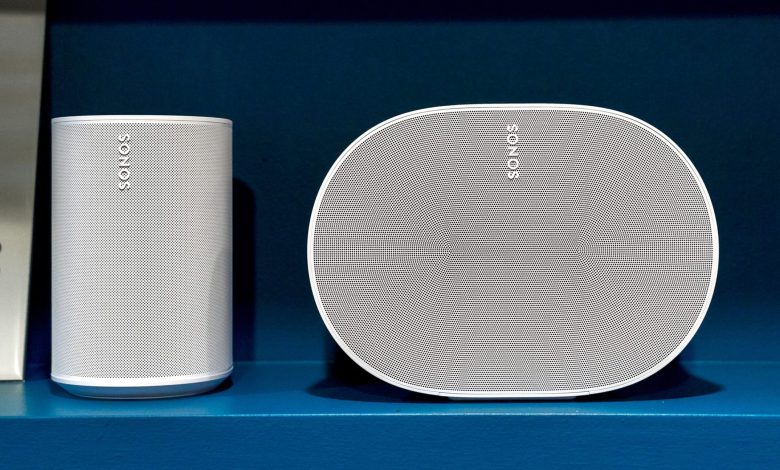
Sonos is a popular brand when it comes to wireless multi-room speakers. They offer great sound quality and are easy to use thanks to their intuitive companion app. However, some users may wonder if they can use their Sonos One as computer speakers. The answer is yes, but it requires a bit of setup.
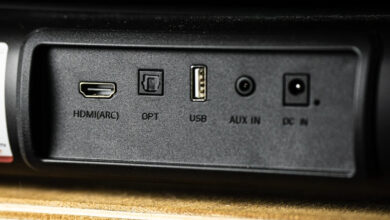
If you have a Bluetooth-enabled Sonos speaker like the Move or Roam, connecting it to your computer is easy. You can simply connect through the Bluetooth settings. However, if you have other Sonos speakers, you will need to connect to your computer using a Sonos Port. This may require additional equipment and setup, but it is possible to use your Sonos One as computer speakers.
In this article, we will explore the steps to use your Sonos One as computer speakers. We will also discuss the benefits and drawbacks of using Sonos as computer speakers, and provide tips to get the most out of your setup. Whether you’re looking to upgrade your computer audio or integrate your computer sound into your Sonos system, this article will provide you with the information you need to make an informed decision.
What is Sonos One?
Sonos One is a smart speaker that delivers high-quality sound and can be used to stream music, podcasts, and audiobooks. It is a compact and sleek device that can fit into any room in your house. The speaker is designed to be used with the Sonos app, which allows you to control the music and adjust the volume from your smartphone, tablet, or computer.
The Sonos One is equipped with Amazon Alexa and Google Assistant, which means you can use your voice to control the speaker and other smart devices in your home. You can also use the Sonos app to set up the speaker and connect it to your Wi-Fi network. Once the speaker is connected, you can stream music from popular services like Spotify, Apple Music, and Amazon Music.
One of the unique features of the Sonos One is its ability to pair with other Sonos speakers to create a multi-room audio system. This means you can have music playing in different rooms of your house, all controlled from the same app. The Sonos One is also compatible with AirPlay 2, which allows you to stream music directly from your Apple device.
In terms of design, the Sonos One has a sleek and modern look that blends in well with any decor. It comes in black or white and has touch controls on the top of the speaker for easy access to volume and playback controls. The speaker also has a humidity-resistant design, which means it can be used in bathrooms and other damp environments without any issues.
The Compatibility of Sonos One with Computers
Sonos One is a popular smart speaker that offers exceptional sound quality and can be used to play music, podcasts, and audiobooks. One of the questions that many people ask is whether Sonos One can be used as computer speakers. In this section, we’ll explore the compatibility of Sonos One with computers.
Firstly, it’s important to note that Sonos One is not a traditional computer speaker. It does not connect to a computer via a 3.5mm audio jack or USB cable. Instead, it connects to a Wi-Fi network and streams audio wirelessly. This means that you cannot use Sonos One as a speaker for system sounds or alerts on your computer.
However, there are several ways to use Sonos One to play audio from your computer. One of the easiest ways is to use the Sonos app for desktop. The Sonos app is available for Windows and macOS and allows you to stream audio from your computer to your Sonos One speaker. To use the Sonos app, you’ll need to connect your Sonos One speaker to your Wi-Fi network and install the Sonos app on your computer.
Another way to use Sonos One as computer speakers is to use Spotify Connect. If you have a Spotify Premium account, you can use the Spotify app on your computer to stream audio to your Sonos One speaker. To use Spotify Connect, you’ll need to connect your Sonos One speaker to your Wi-Fi network and sign in to your Spotify account on your computer.
It’s worth noting that Sonos One is not compatible with Bluetooth. This means that you cannot use it to play audio from your computer via Bluetooth. However, there are third-party Bluetooth adapters that you can use to connect your computer to Sonos One via Bluetooth.
How to Connect Sonos One to Your Computer
If you’re wondering if you can use your Sonos One as a computer speaker, the answer is yes!
Here are a few methods you could use to connect a Sonos One to your computer:
Using WiFi with the Sonos App
The Sonos app allows you to play music from various streaming services directly on your Sonos One speaker. To do this, you would need to have the Sonos app installed on your computer and the speaker connected to the same WiFi network.
However, this is not a direct method to play all computer sounds, such as notification sounds, YouTube videos, or audio from games. It is limited to the services and functionality supported within the Sonos app ecosystem.
AirPlay (For Mac users)
If your Sonos One and Mac computer both support AirPlay 2, you can use this to stream audio wirelessly.
On your Mac, click the audio icon in the menu bar (or go to System Preferences > Sound), and select your Sonos One from the list of available AirPlay 2 speakers.
This will send the audio from your Mac to the Sonos One. This method is beneficial for music, movies, and more, as most audio playing on your Mac can be sent via AirPlay 2.
Using a Sonos Port or Connect
If you own a Sonos Port or Connect (now a discontinued product), you could connect it to your computer via a line-in connection and then stream the audio to your Sonos One over WiFi.
These devices are designed to integrate traditional audio equipment into the Sonos wireless, multi-room ecosystem.
Connect the Sonos Port or Connect to your computer using the appropriate cable (usually a 3.5mm to RCA or a direct RCA to RCA, depending on your computer output).
Once connected and set up through the Sonos app, you can configure these devices to send the input signal to your Sonos One.
This approach allows you to play computer audio including system sounds and audio from any application.
Streaming Services
If you use streaming services such as Spotify, Tidal, or Apple Music, and they have desktop applications compatible with Sonos, you can stream music from your computer to your Sonos One directly.
These services have an option to choose Sonos speakers as the playback device within their applications.
Third-Party Apps
There are third-party applications, such as SonoAir for Mac or Phonos for Windows, that mimic AirPlay capabilities for non-Mac users or provide other methods to stream audio from a PC to Sonos speakers.
These applications can be a bit technical to set up, and their performance is not guaranteed since they are not officially supported by Sonos.
Moreover, the availability and reliability of such software can vary, and using them often requires some technical knowledge and a tolerance for delayed audio or reduced audio quality.
Please consider that regardless of which method you use, there may be a slight delay in the audio (latency), which could be particularly noticeable if you’re trying to watch videos or play games. For critical listening or tasks that require precise audio-video synchronization, Sonos speakers may not be the best choice due to this inherent lag in wireless audio transmission.
Benefits of Using Sonos One as Computer Speakers
The Sonos One is a great option for those looking to use their speakers as computer speakers. Here are some benefits of using the Sonos One as computer speakers:
- High-quality sound: The Sonos One delivers great sound quality, making it an excellent choice for computer speakers. With its built-in amplifier and custom-tuned drivers, the Sonos One produces clear and powerful sound that is perfect for music, movies, and games.
- Easy setup: Setting up the Sonos One as computer speakers is quick and easy. Simply connect the speakers to your computer using the Sonos app and enjoy high-quality sound in no time.
- Wireless convenience: The Sonos One is a wireless speaker, which means you can use it as computer speakers without having to deal with messy cables. This makes it easy to move the speakers around your workspace or home without having to worry about tripping over cables.
- Multi-room audio: If you have other Sonos speakers in your home, you can easily create a multi-room audio system by adding the Sonos One as computer speakers. This allows you to play the same music or audio throughout your home, or different audio in different rooms.
- Voice control: The Sonos One has built-in voice control, which means you can control your computer audio with your voice. This is a great feature for those who want to control their audio without having to use their hands.
The Sonos One is an excellent choice for those looking to use their speakers as computer speakers. With its high-quality sound, easy setup, wireless convenience, multi-room audio, and voice control, the Sonos One is a great investment for anyone who wants to enhance their computer audio experience.
Potential Drawbacks
While using Sonos One as computer speakers can be a great solution for those looking to enhance their audio experience, there are some potential drawbacks to consider.
Firstly, Sonos One speakers are not designed specifically for use with computers. As a result, setting up the speakers to work with your computer can be a bit more complicated than using traditional computer speakers.
Additionally, Sonos One speakers can be quite expensive compared to other computer speaker options on the market. While the sound quality is excellent, the cost may be prohibitive for some users.
Another potential drawback is that Sonos One speakers require a Wi-Fi connection to function. This means that if your Wi-Fi connection is weak or unreliable, you may experience interruptions or dropouts in your audio playback.
Finally, while Sonos One speakers can be used to play audio from a variety of sources, they are primarily designed for use with streaming services like Spotify and Apple Music. If you primarily use your computer to play audio from sources like YouTube or local media files, you may find that the Sonos One speakers are not as well-suited to your needs.
Alternatives to Sonos One for Computer Speakers
While Sonos One can be used as computer speakers, there are several alternatives available in the market that can offer similar or better audio quality. Here are a few options to consider:
1. Bose Companion 2 Series III Multimedia Speakers
These speakers from Bose are a popular choice for computer speakers. They offer clear, high-quality sound and are easy to set up. The speakers come with a volume control and headphone jack for convenience.
2. Logitech Z623 2.1 Speaker System
The Logitech Z623 2.1 Speaker System is another great option for those looking for computer speakers. This system includes two satellite speakers and a subwoofer, providing a powerful and immersive sound experience. The speakers are THX-certified, ensuring high-quality audio.
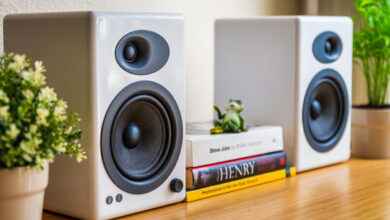
3. Audioengine A2+ Wireless Speakers
The Audioengine A2+ Wireless Speakers are a premium option for computer speakers. These speakers offer excellent sound quality, with deep bass and clear highs. They are also wireless, making them easy to set up and use.
4. Creative Pebble 2.0 USB-Powered Desktop Speakers
The Creative Pebble 2.0 USB-Powered Desktop Speakers are a budget-friendly option for those looking for computer speakers. These speakers offer decent sound quality and are powered by USB, making them easy to use.
When choosing computer speakers, it’s important to consider factors such as sound quality, connectivity options, and budget. While Sonos One can be used as computer speakers, these alternatives provide a range of options for those looking for high-quality audio.
Conclusion
While a Sonos One speaker can provide high-quality audio for music and streaming, it’s not designed as a conventional computer speaker and has limitations in this respect. For direct audio playback from a computer, solutions like AirPlay for Mac users or additional Sonos hardware like the Port for line-in capabilities may be necessary.
Streaming services with Sonos support offer a more seamless experience for music lovers. Third-party apps can bridge some gaps but expect potential trade-offs in reliability and quality. Remember to consider latency, which may affect synchronized audio-visual experiences. Choose the method that best suits your setup and needs, and enjoy the rich sound of Sonos with your computing experience.