Are you looking to use Pro Tools without an Mbox interface? While Pro Tools is designed to work with Mbox, there are ways to use it without one. This article will guide you through the steps to use Pro Tools without an Mbox interface.
First, it’s important to note that Pro Tools Express requires an interface to operate. However, if you have Pro Tools Standard or Pro Tools Ultimate, you can use it without an Mbox interface. To do this, you’ll need to configure your audio settings in Pro Tools to use your computer’s built-in audio or another audio interface.
If you’re using a Mac, you can use the built-in Core Audio driver. If you’re using Windows, you’ll need to install the ASIO4ALL driver. Once you’ve installed the driver, you can select it as your playback engine in Pro Tools. From there, you can configure your input and output settings to use your computer’s built-in audio or another audio interface. If you need further assistance, Pro Tools offers extensive help documentation and customer support.
Understanding Pro Tools and Mbox
Pro Tools is a popular digital audio workstation (DAW) used by professionals and enthusiasts alike. It is known for its powerful editing and mixing capabilities, making it the go-to software for music and audio production. Mbox, on the other hand, is a hardware interface that was designed to work seamlessly with Pro Tools. It provides high-quality audio input and output, making it an essential component of any Pro Tools setup.
Pro Tools comes in different versions, including Pro Tools LE, which is the entry-level version of the software. Pro Tools LE was bundled with Mbox, making it a popular choice for home studios and small projects. However, as technology advances, Mbox has become outdated, and many users are now looking for ways to use Pro Tools without it.
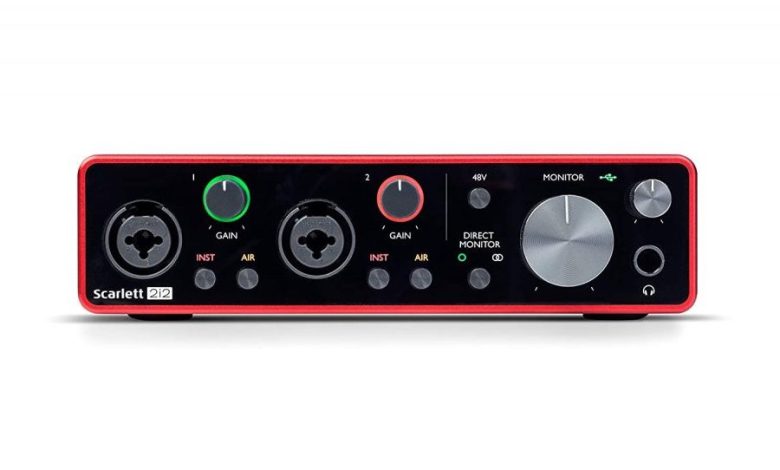
Fortunately, it is possible to use Pro Tools without Mbox. Pro Tools now supports a wide range of audio interfaces, giving users the flexibility to choose the hardware that best suits their needs. To use Pro Tools without Mbox, you need to have a compatible audio interface and the necessary drivers installed on your computer.
Before you begin using Pro Tools without Mbox, it is essential to have a good understanding of the software and its features. Pro Tools has a steep learning curve, and it can take some time to get used to its interface and workflow. However, with some practice and patience, you can master the software and create professional-quality audio projects.
Pro Tools and Mbox have been a popular combination for many years, but it is now possible to use Pro Tools without Mbox. With a compatible audio interface and some knowledge of the software, you can create high-quality audio projects without the need for Mbox.
Setting Up Pro Tools Without Mbox
If you want to use Pro Tools without an Mbox interface, you can do so by following these steps. The process is slightly different depending on whether you are using a Mac or a Windows computer.
On Mac
- First, make sure that your Mac meets the minimum system requirements for Pro Tools. You can find these requirements on the Avid website.
- Download and install the latest version of Pro Tools from the Avid website.
- Connect your audio interface to your Mac using a USB cable.
- Open the Audio MIDI Setup application on your Mac.
- In Audio MIDI Setup, select your audio interface from the list of devices.
- Click the “Configure Speakers” button and set up your speakers or headphones.
- Launch Pro Tools and go to the “Setup” menu.
- Select “Playback Engine” and choose your audio interface from the list of available devices.
- You should now be able to record and play back audio in Pro Tools using your audio interface.
On Windows
- Make sure that your Windows computer meets the minimum system requirements for Pro Tools. You can find these requirements on the Avid website.
- Download and install the latest version of Pro Tools from the Avid website.
- Connect your audio interface to your Windows computer using a USB cable.
- Open the “Sound” settings in Windows and select your audio interface as the default playback and recording device.
- Launch Pro Tools and go to the “Setup” menu.
- Select “Playback Engine” and choose your audio interface from the list of available devices.
- You should now be able to record and play back audio in Pro Tools using your audio interface.
It’s important to note that depending on your hardware and settings, you may need to adjust some additional settings in Pro Tools to optimize your audio performance. Be sure to consult the Pro Tools documentation or seek help from the Pro Tools community if you encounter any issues.
Creating and Editing Tracks
When using Pro Tools without an mbox interface, creating and editing tracks is a crucial part of the music production process. In this section, we’ll cover the basics of recording, mixing, and editing tracks in Pro Tools.
Recording Tracks
To get started with recording in Pro Tools, follow these steps:
- Click on the Track tab in the menu bar, then select New. Alternatively, hold Shift+Command+N to open the New Tracks window.
- Choose the track type you want to create. For example, you can create an audio track, MIDI track, or instrument track.
- Name the track and select the inputs and outputs you want to use.
- Arm the track for recording by clicking the red “R” button.
- Press the record button and start playing or singing into your microphone or instrument.
Once you’ve recorded your track, you can use the editing tools in Pro Tools to trim, cut, and paste sections of the recording as needed.
Mixing Tracks
Mixing tracks in Pro Tools involves adjusting the levels, panning, and effects of each track to create a cohesive sound. Here are some tips for mixing tracks in Pro Tools:
- Use the faders to adjust the volume of each track. You can also use the pan controls to adjust the stereo field.
- Add effects like reverb, delay, and compression to each track to enhance the sound.
- Use EQ to adjust the frequency balance of each track and create a more balanced mix.
Editing Tracks
Editing tracks in Pro Tools involves manipulating the audio and MIDI data to create a polished final product. Here are some tips for editing tracks in Pro Tools:
- Use the editing tools to trim, cut, and paste sections of the recording as needed.
- Use the MIDI editor to adjust the timing and velocity of MIDI notes.
- Use automation to adjust the levels, panning, and effects of each track over time.
By following these tips for recording, mixing, and editing tracks in Pro Tools, you can create professional-quality music without an mbox interface.
Using Pro Tools Features
If you’re using Pro Tools without an mbox interface, you can still take advantage of some of the great features that the software has to offer. Here are some tips on how to use automation and plugins in Pro Tools without an mbox.
Understanding Automation
Automation is a powerful feature in Pro Tools that allows you to control various parameters of your tracks over time. This can be used to create dynamic changes in volume, panning, and other effects. To use automation in Pro Tools without an mbox, you can use the built-in automation features in the software.
One way to use automation is to create a new automation track. To do this, right-click on the track you want to automate and select “New” and then “Automation.” This will create a new track that is dedicated to automation. You can then use the automation controls to adjust the parameters of the track over time.
Another way to use automation is to use the “Write” mode. This mode allows you to record your changes in real-time, so you can create dynamic changes in your tracks. To use this mode, simply select the parameter you want to automate and then click the “Write” button. You can then adjust the parameter as the track plays, and Pro Tools will record your changes.
Working with Plugins
Plugins are another great feature in Pro Tools that can help you create professional-quality recordings. There are many different types of plugins available, including EQs, compressors, reverbs, and more. To use plugins in Pro Tools without an mbox, you can use the built-in plugin features in the software.
To add a plugin to a track, simply click on the “Inserts” button on the track and then select the plugin you want to use. You can then adjust the parameters of the plugin to create the desired effect. You can also use multiple plugins on a track to create more complex effects.
Another way to use plugins in Pro Tools is to use the “Send” feature. This allows you to send a portion of the track to a separate track, where you can apply a different effect. To use this feature, simply click on the “Sends” button on the track and then select the track you want to send the signal to. You can then apply a different effect to the second track, which will be blended with the original track.
while using Pro Tools without an mbox interface may limit some of the features available, you can still take advantage of many of the great features that the software has to offer. By understanding automation and plugins, you can create professional-quality recordings that sound great.
Troubleshooting Common Issues
If you’re experiencing issues with using Pro Tools without Mbox interface, it’s important to go through a checklist to determine what could be causing the problem. Here are some common issues and solutions that can help you get back on track.
Driver Issues
One of the most common issues with Pro Tools is driver-related. If you’re experiencing issues with your Pro Tools system, it’s important to ensure that you have the latest drivers installed. Check the manufacturer’s website for updates and install them if available. If you’ve recently updated your operating system, it’s possible that your current drivers are no longer compatible. In this case, you may need to install new drivers that are compatible with your operating system.
Operating System Compatibility
Another common issue with Pro Tools is operating system compatibility. If you’re using an older operating system, it’s possible that your Pro Tools software may not work properly. Check the system requirements for your version of Pro Tools to ensure that it’s compatible with your operating system. If not, you may need to upgrade your operating system to a newer version that is compatible with your Pro Tools software.
iLok Issues
iLok issues can also cause problems with Pro Tools. If you’re using iLok to manage your Pro Tools licenses, ensure that your iLok is properly connected and recognized by your computer. If you’re experiencing issues with your iLok, try unplugging it and plugging it back in. If that doesn’t work, try restarting your computer.
If you’re still experiencing issues with Pro Tools, it’s important to seek help from a professional. Contact the manufacturer’s support team or visit their website for additional troubleshooting tips and solutions.
Additional Resources
If you’re looking for more information on how to use Pro Tools without an Mbox interface, there are plenty of resources available online. Here are some of the best places to find help and advice:
Sweetwater
Sweetwater is a great place to start if you’re looking for resources on Pro Tools. They have a wide range of articles, tutorials, and guides that cover everything from getting started with Pro Tools to advanced techniques for pro musicians. They also have a team of gear experts who can help you choose the right equipment for your needs.
Tech Articles
There are many tech articles available online that can help you troubleshoot any issues you may be having with Pro Tools. These articles cover a wide range of topics, from setting up your system to optimizing your workflow. Some good places to look for tech articles include Pro Tools Expert and Avid Blogs.
Pro Musicians
Pro musicians are a great resource for learning how to use Pro Tools without an Mbox interface. Many of these musicians have years of experience working with Pro Tools and can offer valuable insights and advice. Some good places to find pro musicians include online forums and social media groups.
Sweetwater.com
Sweetwater.com is a great resource for finding parts and accessories for your Pro Tools setup. They have a wide range of products available, including audio interfaces, headphones, and microphones. They also offer free shipping on most orders, so it’s a great place to shop if you’re on a budget.
Guides and Tutorials
There are many guides and tutorials available online that can help you learn how to use Pro Tools without an Mbox interface. Some good places to look for guides and tutorials include YouTube and online forums. These resources can be especially helpful if you’re new to Pro Tools and need some guidance getting started.
Resources
Finally, there are many other resources available online that can help you learn how to use Pro Tools without an Mbox interface. These resources include online courses, books, and podcasts. Some good places to look for these resources include Udemy, Amazon, and iTunes.
there are many resources available online that can help you learn how to use Pro Tools without an Mbox interface. Whether you’re a beginner or an experienced pro, there’s something out there for everyone. So don’t be afraid to explore and experiment, and always remember to have fun!