GarageBand is a popular digital audio workstation that is available for macOS and iOS devices. It comes with a vast collection of sounds, loops, and instruments that you can use to create music. However, you may want to expand your library with additional content to add more variety to your tracks. In this article, we will show you how to download the GarageBand sound library so you can access more sounds and loops.
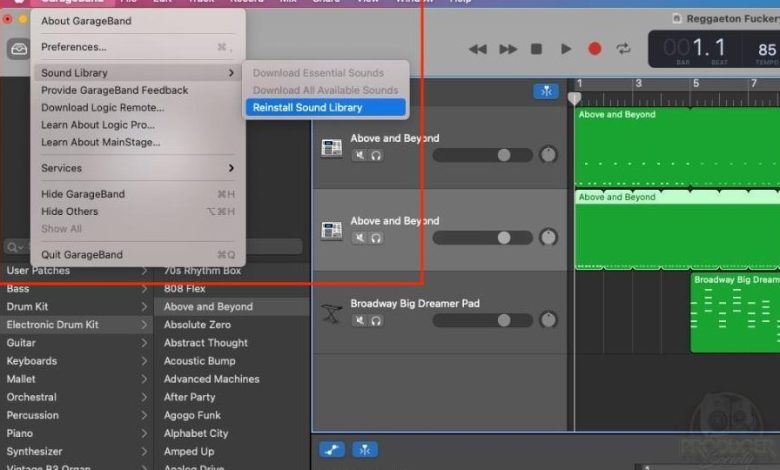
To get started, you will need to open GarageBand and navigate to the Sound Library. From there, you can download additional content packs that include sound packs, producer packs, and remix sessions. These packs contain a variety of sounds, loops, and other content that you can use to enhance your music. Keep in mind that some content may require additional storage space, so make sure you have enough space available before downloading.
Downloading the GarageBand sound library is a simple process that can greatly enhance your music production capabilities. With the additional sounds and loops, you can create more unique and diverse tracks that stand out from the rest. So, let’s dive in and explore how to download the GarageBand sound library.
Understanding Garageband Sound Library
Garageband is a powerful digital audio workstation that comes pre-installed on Mac and iOS devices. It allows users to create music and podcasts with ease. One of the key features of Garageband is its Sound Library, which contains a vast collection of sounds, loops, and instruments that you can use to create your music.
When you first open Garageband, you will notice that the Sound Library is located in the bottom-right corner of the screen. Clicking on the Sound Library icon will open up the Sound Library window, where you can browse through the different categories of sounds and loops.
The Sound Library is divided into several categories, including:
- Instruments: This category contains a wide range of virtual instruments, such as pianos, guitars, basses, drums, and more.
- Drummers: This category contains virtual drummers that you can use to create drum tracks for your songs.
- Loops: This category contains pre-recorded loops of various instruments and genres that you can use to create your music.
- Sound Effects: This category contains a variety of sound effects that you can use to enhance your music or podcasts.
To download additional sounds and loops for Garageband, you can visit the Apple website or use the in-app download feature. Additional content, including patches, drummers, and Apple Loops, may be available after you install Garageband on your computer or iPad.
the Sound Library is an essential feature of Garageband that provides users with a vast collection of sounds, loops, and instruments to create their music. With its intuitive interface and extensive library, Garageband is an excellent choice for musicians, podcasters, and anyone looking to create high-quality audio content on their Mac or iOS device.
Downloading Garageband Sound Library
If you want to create music with Garageband, you’ll need to download the sound library. Here’s how to do it.
Checking Your System Requirements
Before you download the sound library, you need to make sure your system meets the requirements. For Mac users, you’ll need macOS 10.13 or later, and for iOS users, you’ll need iOS 11 or later. You’ll also need at least 4GB of RAM and 2GB of free disk space.
Finding the Sound Library in Garageband
Once you’ve confirmed your system meets the requirements, open Garageband. In the control bar, click on the “Library” button. You should see a list of available sound libraries. If you don’t see the sound library you want, click on “Sound Library Manager” to see all available libraries.
Starting the Download Process
To download a sound library, click on the “Get” button next to the library you want. The download will start automatically, and you’ll be able to see the progress in the “Downloads” tab of the Sound Library Manager. Once the download is complete, you can start using the new sounds in your Garageband projects.
That’s it! With just a few clicks, you can expand your Garageband sound library and create even more amazing music.
Troubleshooting Common Download Issues
If you’re having trouble downloading the GarageBand sound library, don’t worry, you’re not alone. Here are some common issues and their solutions.
Insufficient Storage Space
GarageBand sound library is a large file, and it requires a significant amount of storage space on your device. If you don’t have enough storage space, the download may fail. To check your storage space:
- Click on the Apple menu and select “About This Mac.”
- Click on the “Storage” tab to see how much space you have available.
If you don’t have enough space, try deleting some files or moving them to an external hard drive. Once you have enough space, try downloading the sound library again.
Interrupted Download
If your internet connection is interrupted during the download process, the download may fail. To resume the download:
- Open GarageBand and go to the Sound Library.
- Click on the “Download” button again.
GarageBand will resume the download where it left off. If the download still fails, try restarting your device and your internet router.
Incompatible System
GarageBand sound library requires a compatible system to download. If your system is not compatible, the download may fail. To check if your system is compatible:
- Go to the Apple menu and select “About This Mac.”
- Click on the “Overview” tab to see what version of macOS you’re using.
If you’re not using a compatible version of macOS, you’ll need to update your system. Go to the App Store and check for updates. Once you’ve updated your system, try downloading the sound library again.
By following these troubleshooting tips, you should be able to download the GarageBand sound library without any issues.
How to Use Downloaded Sounds
If you have downloaded additional sounds and loops for GarageBand, you can easily access and use them in your projects. Here’s how to do it:
Accessing Your Downloaded Sounds
- Open GarageBand on your Mac or iPad.
- Click on the “Sound Library” button in the top-right corner of the screen.
- Scroll down to the “Downloaded” section to see all of the additional content you have downloaded.
- Click on a sound or loop to preview it and make sure it’s the one you want to use.
Adding Sounds to Your Project
Once you have found the sound or loop you want to use, here’s how to add it to your project:
- Drag and drop the sound or loop from the Sound Library into the track area of your project.
- Alternatively, you can click and hold the sound or loop and then drag it to the track area.
- You can also use the “Loop Browser” to find loops and then drag and drop them into your project.
If you want to use a downloaded sound or loop in multiple projects, you can save it as a favorite. To do this, simply click on the “Add to Favorites” button next to the sound or loop in the Sound Library.
That’s it! With these simple steps, you can easily access and use all of the additional sounds and loops you have downloaded for GarageBand.
Conclusion
downloading the GarageBand sound library is a simple process that can greatly enhance your music production experience. Whether you are using GarageBand on your Mac or iPad, there are plenty of additional sound packs, loops, and instruments available to download and use in your projects.
Remember, before you can download any additional content, you must first install GarageBand on your device. Once you have done that, you can access the Sound Library and begin browsing the available content packs. From there, you can choose which packs you want to download and install.
If you are looking for some inspiration, consider downloading some of the free sound packs available in the Sound Library. These packs contain a variety of individual and combined Touch Instruments, Apple Loops, Live Loops templates, and guitar and instrument presets, all of which can be used to create unique and professional-sounding music.
downloading additional content for GarageBand is a great way to expand your library of sounds and instruments, and to take your music production to the next level. So why not give it a try and see what new sounds you can create with GarageBand?