

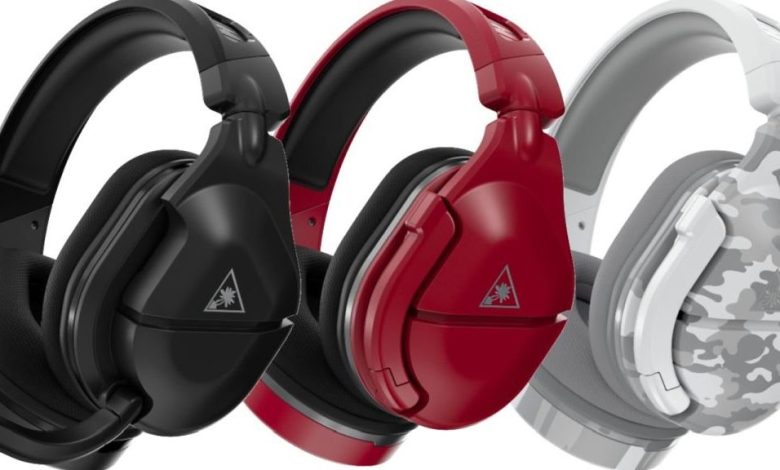
If you’re a gamer, you know how important it is to have a good headset that provides clear and crisp sound. The Turtle Beach Stealth 600 is a popular wireless headset that is compatible with Xbox One and PS4 consoles. However, did you know that you can also connect it to your PC? In this article, we will guide you through the steps on how to connect Turtle Beach Stealth 600 to PC.
Connecting the Turtle Beach Stealth 600 to your PC is a straightforward process. You can either connect it using the Xbox Wireless Adapter or through Bluetooth connectivity. We will discuss both methods in detail, so you can choose the one that works best for you. Whether you’re using it for gaming or for listening to music, connecting your headset to your PC will enhance your audio experience. So, let’s get started and learn how to connect Turtle Beach Stealth 600 to PC.
Understanding Turtle Beach Stealth 600
The Turtle Beach Stealth 600 is a wireless gaming headset that offers a comfortable fit and great sound quality. It is designed for use with Xbox One and PlayStation 4 consoles, but it can also be used with a PC.
The headset uses Xbox Wireless technology to connect to Xbox One consoles and a USB dongle to connect to PlayStation 4 consoles and PCs. It has a built-in rechargeable battery that provides up to 15 hours of gameplay on a single charge.
The Turtle Beach Stealth 600 features a flip-to-mute microphone that allows you to easily mute your voice when you don’t want to be heard. The microphone also has a variable mic monitoring feature that allows you to hear your own voice in the headset, so you can avoid shouting or speaking too loudly.
The headset has a number of controls that allow you to adjust the volume, mute the microphone, and power on/off the device. It also has a Superhuman Hearing feature that enhances the sound of footsteps and other in-game sounds, making it easier to locate enemies and other players.
the Turtle Beach Stealth 600 is a great wireless gaming headset that offers excellent sound quality and a comfortable fit. Whether you’re playing on Xbox One, PlayStation 4, or PC, this headset is a great choice for gamers who want a high-quality audio experience.
Basic Requirements for Connection
Connecting your Turtle Beach Stealth 600 headset to your PC is a straightforward process that requires a few basic requirements. Here are the essential things you need to get started:
1. A Windows PC
The first thing you need to connect your Turtle Beach Stealth 600 headset to your PC is a Windows PC. The headset is compatible with Windows 10, Windows 8.1, and Windows 7. Ensure that your PC meets the minimum system requirements for Windows.
2. Xbox Wireless Adapter or Xbox Wireless Feature
The Turtle Beach Stealth 600 headset uses Xbox Wireless technology to connect with your PC. To connect the headset to your PC, you need an Xbox Wireless Adapter or a built-in Xbox Wireless feature in your PC. If you don’t have an Xbox Wireless Adapter, you can still connect your headset using the built-in Xbox Wireless feature in your PC.
3. USB Port
You need a free USB port on your PC to connect the Xbox Wireless Adapter. Ensure that the USB port is working correctly and has no issues. If you’re using a laptop, ensure that the USB port provides enough power to the Xbox Wireless Adapter.
4. Fully Charged Headset
Before connecting your Turtle Beach Stealth 600 headset to your PC, ensure that it’s fully charged. You can charge the headset using the included USB cable. The headset has a battery life of up to 15 hours on a single charge.
5. Sound Card
The Turtle Beach Stealth 600 headset uses a USB 2.0 sound card to connect with your PC. Ensure that your PC has a USB 2.0 port and that it’s working correctly. If your PC doesn’t have a USB 2.0 port, you can use a USB 2.0 to USB 3.0 adapter.
By ensuring that you have the basic requirements, you can quickly connect your Turtle Beach Stealth 600 headset to your PC and enjoy a fantastic gaming experience.
Step by Step Guide
Connecting your Turtle Beach Stealth 600 headset to your PC is a straightforward process. Follow these simple steps to get started:
Switching on the Headset
- Press and hold the power button on the headset until the LED light turns on.
- Once the LED light is on, release the power button.
PC Bluetooth Settings
- Click on the Windows icon on your taskbar and go to Settings.
- Click on Devices and then select Bluetooth & other devices.
- Click on Add Bluetooth or other device.
- Select Bluetooth and wait for your PC to scan for available devices.
- Once your headset appears on the list of available devices, click on it to connect.
Pairing the Devices
- Once you have selected your headset, Windows will prompt you to enter a code or PIN number.
- Enter “0000” or “1234” as the code or PIN number.
- Wait for the pairing process to complete.
- Once the pairing is complete, you can start using your headset with your PC.
That’s it! You should now be able to enjoy high-quality audio from your Turtle Beach Stealth 600 headset while using your PC. If you encounter any issues during the pairing process, make sure your headset is fully charged and that your PC’s Bluetooth is turned on.
Troubleshooting Common Issues
Unsuccessful Pairing
If you are having trouble pairing your Turtle Beach Stealth 600 headset with your PC, there are a few things you can try to resolve the issue:
- Make sure your PC’s Bluetooth is turned on and is discoverable.
- Ensure that your headset is properly charged and turned on.
- Try resetting your headset by holding down the power button for 10 seconds until the LED light begins to flash.
- If you are using a wireless adapter, ensure that it is properly connected to your PC and that it is in pairing mode.
- If all else fails, try restarting your PC and your headset and attempt to pair them again.
Audio Quality Problems
If you are experiencing poor audio quality with your Turtle Beach Stealth 600 headset, there are a few things you can do to troubleshoot the issue:
- Ensure that the volume on your headset is turned up and that the audio is not muted.
- Check the audio settings on your PC to ensure that the correct audio device is selected and that the volume is turned up.
- Try adjusting the EQ settings on your headset to optimize the audio for your preferences.
- If you are experiencing audio dropouts or interference, try moving closer to your PC or wireless adapter or moving any other wireless devices away from your headset and adapter.
By following these troubleshooting steps, you can resolve common issues with your Turtle Beach Stealth 600 headset and enjoy high-quality audio on your PC.
Maintaining Your Turtle Beach Stealth 600
To ensure that your Turtle Beach Stealth 600 headset stays in top condition, it’s important to take good care of it. Here are some tips for maintaining your headset:
Cleaning
Regularly cleaning your headset can help prevent buildup of dirt and grime, which can affect sound quality and comfort. Here’s how to clean your Turtle Beach Stealth 600:
- Wipe down the ear cups and headband with a soft, damp cloth.
- Use a dry cloth to remove any excess moisture.
- If necessary, you can use a mild soap solution to clean the ear cups and headband. Be sure to remove any soap residue with a damp cloth and dry thoroughly.
Storage
When you’re not using your Turtle Beach Stealth 600, it’s important to store it properly to prevent damage. Here are some tips for storing your headset:
- Store your headset in a cool, dry place.
- Avoid storing your headset in direct sunlight or near a heat source.
- Use the included storage bag to protect your headset from scratches and dust.
Battery Maintenance
The Turtle Beach Stealth 600 headset has a rechargeable battery that can last up to 15 hours on a single charge. Here are some tips for maintaining your headset’s battery:
- Charge your headset regularly to prevent the battery from running out of power.
- Avoid overcharging your headset, as this can damage the battery.
- If you’re not going to use your headset for an extended period of time, be sure to charge it fully before storing it.
By following these simple tips, you can help ensure that your Turtle Beach Stealth 600 headset stays in top condition for years to come.
Conclusion
Connecting your Turtle Beach Stealth 600 headset to your PC is a breeze with the right steps. With the information provided in this article, you can easily pair your headset to your PC and enjoy your favorite games and music.
Remember to ensure that your PC has the necessary hardware and software requirements for the headset to function correctly. Also, make sure that your headset is compatible with your PC before attempting to connect it.
follow the steps provided by Turtle Beach Corporation and ensure that you have the latest drivers and firmware updates for your headset and PC. With these simple steps, you can enjoy a seamless gaming experience with your Turtle Beach Stealth 600 headset and your PC.


